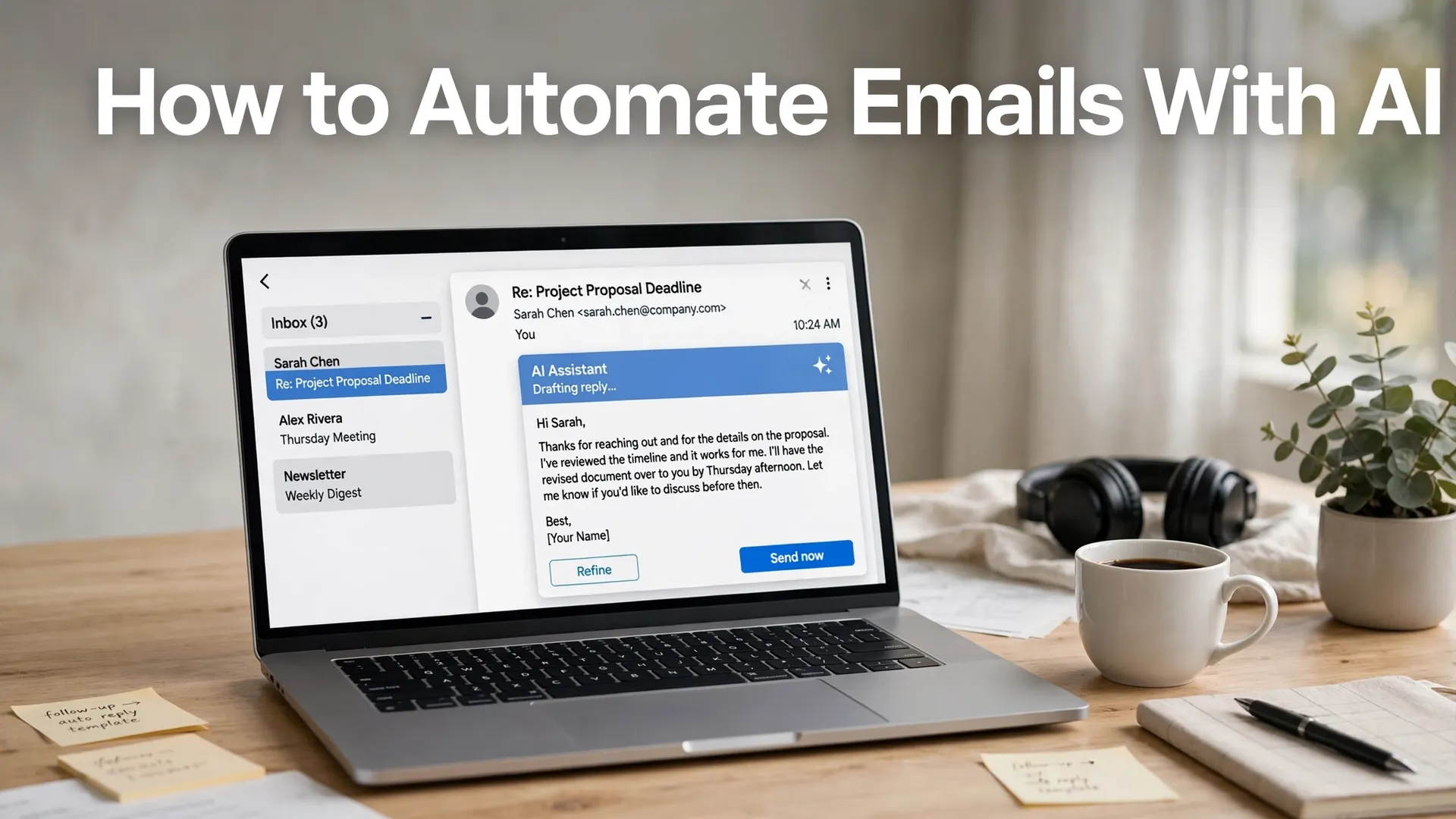
How to Automate Emails With AI

Quick answer: To automate emails with AI, start inside your inbox: use Gmail’s filters plus Gemini (Help Me Write, summaries, Gemini Flows) or Outlook’s rules plus Microsoft 365 Copilot. For cross-app workflows, connect Gmail or Outlook to Zapier or Make and let AI draft replies while you approve them before they send. Never let AI auto-send sensitive email without a human review step.
If your inbox feels like a second job, you are not imagining it. The average knowledge worker spends hours a day reading, sorting, and answering email, and most of that work is repetitive: acknowledging requests, sending follow-ups, filing messages, and answering the same questions in slightly different words. That repetition is exactly what AI email automation is good at.
The trick is picking the right level of automation. AI can sort your mail, draft replies in your voice, nudge you about unanswered threads, and even send routine confirmations on its own. But it should not be deciding what to say to an angry client or negotiating a contract without you. This guide shows you how to automate emails with AI in Gmail and Outlook, how to build no-code workflows with Zapier and Make, what each route costs as of October 2026, and the safety rules that keep automation from embarrassing you.
What AI Email Automation Actually Means
“Automating emails with AI” covers four different jobs, and most people only need two or three of them:
- Triage: AI reads incoming mail and sorts it – labels, folders, priority flags, or archive – based on what the message actually means, not just keywords in the subject line.
- Drafting: AI writes a reply in your voice from the thread context. You review, edit, and send. This is the safest and most useful form of email automation for most people.
- Follow-ups: AI watches for threads that went quiet and drafts a polite nudge, or sends a pre-approved follow-up on a schedule.
- Full auto-send: AI replies or sends without human review. Reserve this for predictable, low-risk messages such as order confirmations, meeting acknowledgments, and “thanks, we got it” replies.
Keep one rule in mind throughout: draft by default, auto-send only by exception. Every workflow in this guide follows that rule unless it says otherwise.
Method 1: Automate Emails Inside Gmail With Gemini
If you live in Gmail, start here. Google has folded Gemini into Gmail across several layers, and the free tier already covers the basics.
Step 1: Set up Gmail filters and labels first
Before any AI touches your inbox, create the structure it will work with. In Gmail, go to Settings (gear icon) > See all settings > Filters and Blocked Addresses > Create a new filter. Build filters for your most common mail: newsletters to a “Read later” label, receipts to “Receipts,” client mail to a client label, and so on. Filters are deterministic – they never misread a message the way an AI classifier occasionally can – so they make a reliable foundation.
Step 2: Use Gemini for drafting and summarizing
Open any email in Gmail and click the “Help me write” pencil icon (or “Ask Gemini” in the side panel). You can ask Gemini to draft a reply, shorten a long thread into a summary, or rewrite your draft in a different tone. Useful prompts include:
- “Summarize this thread in three bullets and list what I owe them.”
- “Draft a polite decline. Keep it under 80 words and offer next Tuesday as an alternative.”
- “Turn these notes into a follow-up email with the three action items.”
Gemini’s drafting, summaries, Smart Reply suggestions, and natural-language search (“find the invoice email from Acme last month”) are available in paid Google plans. Free Gmail includes basic Smart Compose and Smart Reply. Google AI Pro costs around $19.99 per month and unlocks the fuller Gemini feature set in Gmail; Google Workspace business plans (Business Starter from about $7 per user per month, Standard around $14, Plus around $22, annual billing) bundle Gemini into Gmail as part of the plan, with higher tiers adding cross-app context in Docs, Drive, and Calendar. Prices change often, so confirm the current figure on Google’s pricing page before you buy.
Step 3: Try Gemini Flows for rule-based AI actions
Gemini Flows (part of Workspace Studio) is Google’s answer to “if this email arrives, do that.” You describe the rule in plain language – for example, “when an email looks like a press release or promo, label it Press” – and Gemini classifies messages by meaning rather than keywords. You can test a Flow against your existing mail before turning it on. As of October 2026, Google AI Pro subscribers get around 2,000 Flow executions per month and AI Ultra subscribers get around 10,000, so Flows suit personal and small-team inboxes rather than very high-volume shared inboxes.
If you want to compare Google’s assistant against the other major AI tools before committing, see our Gemini vs ChatGPT vs Claude vs Copilot comparison.
Method 2: Automate Emails Inside Outlook With Copilot
Outlook users get a similar stack on the Microsoft side, built around Copilot and Power Automate.
Step 1: Use Outlook rules, categories, and Quick Steps
Like Gmail filters, Outlook rules move and categorize mail deterministically. In Outlook, go to Settings > Mail > Rules > Add new rule. Route newsletters out of the inbox, flag mail from your boss or key clients, and auto-file receipts. Quick Steps let you turn a multi-click routine (reply + file + flag) into a single button.
Step 2: Draft and summarize with Microsoft 365 Copilot
Copilot in Outlook drafts replies from thread context, summarizes long chains, and suggests follow-ups. It works best when you give it specifics: “Draft a reply confirming Thursday at 2pm, attach the proposal link, and ask them to confirm by Wednesday.” As of October 2026, Microsoft 365 Copilot for business runs around $18-21 per user per month for the Copilot Business add-on (up to 300 seats), or $30 per user per month for the enterprise add-on, on top of a qualifying Microsoft 365 plan. Bundled options exist too – Microsoft 365 Business Standard with Copilot is listed around $23.50 per user per month and Business Premium with Copilot around $32. Confirm current pricing on Microsoft’s site, since Microsoft repriced several plans in mid-2026.
Step 3: Build cross-app flows with Power Automate
Power Automate is Microsoft’s workflow tool, and it is the Outlook equivalent of Zapier for Microsoft 365 users. A classic flow: “When an email arrives from a VIP sender, create a task in Planner and post a summary to Teams.” Power Automate is included in many Microsoft 365 plans for standard connectors; premium connectors and AI features may need a separate license. If your team already lives in Microsoft 365, check what your plan includes before buying a third-party automation tool.
Method 3: No-Code Workflows With Zapier and Make
Built-in inbox AI covers drafting and sorting. When you want email to trigger actions in other apps – a CRM, a spreadsheet, Slack, a helpdesk – you need a workflow platform. Zapier and Make are the two most popular, and both have free tiers.
The one workflow to build first: AI draft + human approval
This is the workflow I recommend to everyone starting out. It saves real time without ever letting AI send something you have not seen:
- Trigger: New email in Gmail (or Outlook) matching a filter – for example, from a client domain, or labeled “Needs reply.”
- AI step: Send the email body to an AI model (OpenAI/ChatGPT or Claude in Zapier, or Make’s AI modules) with a prompt like: “Draft a helpful reply in a friendly, professional tone. Keep it under 120 words. Do not promise refunds, discounts, or deadlines. If the email asks about pricing, say we will follow up with a quote.”
- Save as draft: Create a Gmail or Outlook draft with the AI text – do not send it.
- Notify yourself: Optionally post the draft link to Slack or add a task so you review it the same day.
- You review and send. That is the whole workflow.
In Zapier, build this as a multi-step Zap: Gmail “New Email Matching Search” trigger, an AI action step, then Gmail “Create Draft.” In Make, build a scenario: Gmail “Watch Emails” module, an AI module, then Gmail “Create a Draft.” Both platforms offer templates that get you most of the way there. The Zapier Gmail + Outlook integration page lists ready-made templates, including ones that create drafts in one mailbox from mail in the other. Good prompts matter as much as the tooling – our guide on how to write AI prompts covers the structure that gets reliable drafts.
Zapier vs Make for email automation
Both work. The differences that matter for email:
- Ease of use: Zapier is simpler to learn and has the larger app catalog (8,000+ apps). If you want your first automation running today, Zapier is the lower-friction choice.
- Cost at volume: Zapier bills per task – every action step that moves data. Make bills per credit – roughly one per module action – and its credits are cheaper. A five-step workflow that fires often gets expensive on Zapier faster than on Make.
- Complex logic: Make’s visual scenario builder handles branching, routers, and data transformations more naturally. Zapier handles simple linear flows well.
As of October 2026, Zapier’s free plan includes around 100 tasks per month and only two-step Zaps, which is enough to test the trigger-to-draft pattern but not enough for the full approval workflow – that needs a paid plan (Professional from around $19.99 per month billed annually, about $29.99 monthly). Make’s free plan includes around 1,000 credits per month and 2 active scenarios, and its Core plan starts around $9-12 per month for 10,000 credits. See Make’s official Zapier comparison for the current numbers. Always check each vendor’s pricing page before buying – both change prices regularly.
Method 4: AI Email Assistants That Live in Your Inbox
If you would rather not build workflows yourself, dedicated AI email assistants bundle triage, drafting, and follow-ups into one product:
- Superhuman Mail: A fast, keyboard-driven email client for Gmail and Outlook with AI summaries, AI write/reply, auto-labels, and follow-up reminders. Starter is around $30 per user per month ($25 billed annually); Business, around $40 ($33 annually), adds Auto Drafts, Ask AI, and custom Auto Labels.
- Fyxer: Sits on top of Gmail or Outlook, auto-sorts incoming mail, and leaves reply drafts in your voice under the emails that need answers. Pro is around $49 per user per month ($37 billed annually). Note its hard rule: “nothing is sent automatically” – it only drafts.
- Shortwave: An AI-native inbox for Gmail with auto-triage, bundling, and an assistant that searches your mail. Paid AI tiers run around $20-30 per month, with a limited free tier.
- SaneBox: The budget option – filtering and triage only, no drafting, works with any email provider, from around $7 per month.
These tools make sense when your inbox is your job – sales, support, recruiting, or executive assistance. If email is a smaller part of your day, the built-in Gmail or Outlook AI plus one Zapier or Make workflow usually covers it for less money. We compared the wider field in our roundup of the best free AI tools – many assistants have free tiers worth testing before you pay.
Comparison: Which Email Automation Method Should You Pick?
| Method | Best for | What it automates | Typical cost (as of Oct 2026) | Auto-send risk |
|---|---|---|---|---|
| Gmail + Gemini | Gmail users, individuals | Drafting, summaries, AI labels via Flows | Free to ~$19.99/mo (AI Pro) | Low – drafts by default |
| Outlook + Copilot | Microsoft 365 teams | Drafting, summaries, cross-app flows via Power Automate | ~$18-30/user/mo add-on | Low – drafts by default |
| Zapier / Make | Cross-app workflows, any inbox | Triage, drafts, routing, CRM/logging, follow-ups | Free to ~$9-20/mo to start | Medium – you control the send step |
| AI email assistants | Heavy inboxes, sales/support | Triage, drafts, follow-ups, all in one app | ~$7-49/user/mo | Low to medium – check each tool |
5 Email Automations to Set Up First
Start with these five. Each one pays back its setup time within the first week:
- Morning triage digest. A Flow or Zap that summarizes overnight mail into one digest – what needs a reply, what is FYI, what can be archived. Read the digest instead of the inbox.
- AI draft replies for routine mail. The trigger-to-draft workflow from Method 3, scoped to your most repetitive senders: scheduling requests, status questions, and “thanks for reaching out” replies.
- Follow-up nudges. A weekly Zap that finds threads where you sent the last message more than 4 days ago and drafts a short check-in. You approve each one.
- Post-meeting follow-ups. When a meeting ends, AI drafts the recap email from the notes or transcript and saves it as a draft. You review and send.
- Attachment filing. When an email with an attachment arrives from a vendor, save the file to the right Drive or SharePoint folder and log it in a sheet. No AI needed – pure rules – but it removes a daily chore.
Safety Rules for AI Email Automation
Automation failures in email are public and hard to undo. Follow these rules:
- Never auto-send to customers, press, or leadership. Drafts only. Auto-send is for confirmations and acknowledgments where the wording is fixed and the stakes are low.
- Put guardrails in the prompt. Tell the AI what it must never do: promise refunds, discounts, deadlines, legal positions, or pricing. If a message touches those topics, route it to you instead.
- Do not feed sensitive data into AI tools. Keep passwords, financial details, health information, and confidential business terms out of AI prompts unless your plan’s data handling allows it. Google states personal Gmail content is not used to train its foundational Gemini models; check the equivalent policy for any other tool you use.
- Authenticate your domain. If you automate any sending from a business domain, make sure SPF, DKIM, and DMARC are set up – otherwise your automated mail lands in spam. Your email provider or IT admin can confirm this.
- Test with your own mail first. Run every new workflow for a week with only your own test messages, then expand to one real sender category at a time.
- Watch the first 50 runs. Most automation mistakes show up early. Review drafts daily for the first two weeks, then weekly once the workflow proves itself.
What Does It Cost to Automate Emails With AI?
For most individuals, the honest answer is $0 to $20 per month. Gmail filters plus a free Zapier or Make tier covers triage and one approval workflow. Add Google AI Pro (around $19.99 per month) or Microsoft 365 Copilot (around $18-30 per user per month) and you get native drafting and summaries inside the inbox. Small teams typically land in the $10-30 per user per month range, depending on whether they need cross-app workflows or a dedicated assistant like Superhuman or Fyxer. Start free, measure the hours you actually save for a month, and only then pay for the tier that matches your real volume.
FAQs
Yes, but keep a human approval step. The safest setup is AI drafts plus human review: the AI writes the reply and saves it as a draft, and you check it before sending. Reserve fully automatic sending for predictable, low-risk messages like order confirmations and meeting acknowledgments.
Start with Gmail filters and labels to organize incoming mail, then use Gemini to summarize threads and draft replies. For deeper automation, add Gemini Flows for AI-powered labels, or connect Gmail to Zapier or Make to create drafts, route messages, and log follow-ups.
Use Outlook rules, categories, and Quick Steps for triage, then Microsoft 365 Copilot for drafting and summarizing. For cross-app workflows inside Microsoft 365, Power Automate can trigger actions when emails arrive and route information into tasks, tickets, or Teams messages.
It depends on your workflow. Most people do best with a general AI assistant for drafting plus an automation platform (Zapier, Make, or Power Automate) for triggers and routing. If your inbox is your job, a dedicated assistant like Superhuman or Fyxer may be worth the extra cost.
Yes. Zapier’s free plan covers around 100 tasks per month and Make’s free plan covers around 1,000 credits per month, which is enough to run a trigger-to-draft approval workflow. You only need a paid plan when your volume grows or you want multi-step workflows.
Treat AI drafts as a starting point, not a finished product. Give the AI guardrails in the prompt (never promise refunds, discounts, deadlines, or pricing), keep sensitive data out of prompts, and review drafts before sending – especially for customer, legal, or billing messages.
Final Thought
The goal of automating emails with AI is not an empty inbox – it is an inbox that only asks for your attention where your judgment actually matters. Start with one workflow this week: filters plus the AI-draft approval pattern. Once you trust it, add the morning digest, then follow-up nudges. Within a month you will answer the same volume of email in noticeably less time, and the replies that do carry your name will be the ones you actually wrote or approved. That is the right division of labor between you and the machine.


