How to Use Microsoft Paint in Windows 11 (Layers, AI Tools & More)

Microsoft Paint is the built-in image editor that ships with Windows 11, and it is no longer the toy drawing app many people remember. The current version has real layers, transparency, one-click background removal, and — on Copilot+ PCs — AI tools that generate and edit images from text prompts. Paint updates through the Microsoft Store, so new tools arrive as app updates rather than Windows updates. Notepad went through the same rebuild — tabs, a formatting toolbar, and AI writing tools — and our guide to using Notepad in Windows 11 covers it in the same depth. The version on a current Windows 11 PC already includes everything in this guide except the Copilot+ exclusives. In short: if your job is cropping a screenshot, cutting out a subject, or making a quick graphic, Paint now does it without installing anything else.
I worked through every feature in this guide against Microsoft’s own documentation and version notes — the layers and transparency rollout (Paint version 11.2308.18.0, September 2023), background removal (version 11.2306.30.0), and the Copilot+ PC support pages for Cocreator and Generative Fill. One honest limit: the lab PC for this guide is not a Copilot+ PC, so the Cocreator steps follow Microsoft’s published walkthrough rather than a live session, and I say so wherever that matters. Everything else — opening, updating, layers, background removal, saving — follows the exact menus in the current app.
How do I open Paint in Windows 11?
Press the Windows key, type Paint, and select the Paint result. That is the fastest route on any Windows 11 PC. Three other routes open the same app: press Windows + R, type mspaint, and press Enter; right-click any PNG, JPG, BMP, or GIF in File Explorer and choose Open with > Paint; or open the Microsoft Store listing for Paint and click Open. If you use Paint daily, right-click its taskbar icon while it is open and select Pin to taskbar for one-click access.
If Paint does not appear in search results, it was probably uninstalled — Paint is a Store app now, so it can be removed like any other. Reinstall it from the Paint listing in the Microsoft Store; it is included with Windows 11 at no extra cost and needs no account to install.
How do I check my Paint version and update it?
Paint’s features depend on its app version, not just your Windows version, so checking the version is the first troubleshooting step when a button described in this guide is missing. Open Paint, click the three-dot menu (or the gear icon, depending on your version) and select About to see the version number. Layers and transparency need version 11.2308.18.0 or later; background removal needs 11.2306.30.0 or later.
To update, open the Microsoft Store, go to Library, and click Get updates. Install any available update for Paint, then reopen the app. If a feature still does not appear after updating, check the feature’s own requirements — several of the AI tools are gated by hardware, account, or region, as the table below shows.
What can the new Paint do?
Paint has changed more in the last three years than in the previous three decades. The table below is the quick reference: what each tool does, and what it needs. The sections after it walk through each job step by step.
| Tool | What it does | What it needs |
|---|---|---|
| Layers | Stack, hide, duplicate, reorder, and merge image elements on separate sheets | Paint 11.2308.18.0 or later; any Windows 11 PC |
| Transparency | Open and save transparent PNGs; erasing reveals layers below instead of painting white | Paint 11.2308.18.0 or later; any Windows 11 PC |
| Remove background | One-click AI cutout of the subject, whole image or a selection | Paint 11.2306.30.0 or later; any Windows 11 PC |
| Generative Erase | Brush over an unwanted object and Paint fills the gap | Current Paint; Microsoft account and internet connection |
| Image Creator | Generates a new image from a text prompt in the cloud | Microsoft account and internet; Microsoft 365 subscribers draw on monthly AI credits |
| Cocreator | Turns a rough sketch plus a text prompt into finished artwork as you draw | Copilot+ PC with NPU, Microsoft account, internet, English prompts work best |
| Generative Fill | Adds or replaces part of an image from a text prompt inside a selection | Snapdragon-powered Copilot+ PC only, plus Microsoft account and internet |
| Object Select | Selects a single object in a photo with one click for moving or editing | Copilot+ PC |
One more change is worth knowing about: Microsoft is testing a Copilot button in Paint again for Windows Insiders, gathering Cocreator, Image Creator, and Generative Erase into one menu. The button first appeared in early 2025, was removed in April 2026, and returned to Insider builds in November 2026, according to The Verge. It is not in the stable app yet, so do not worry if your toolbar does not show it.
How do I remove the background from a photo in Paint?
Open the photo in Paint, then click Remove background in the toolbar. Paint detects the subject and deletes everything around it in one step, leaving a checkerboard pattern where the background was. That checkerboard means transparency — the area is empty, not white. To cut out only part of the image, draw a rectangle with the Select tool first, then click Remove background; Paint processes only the selected area.
The result is best with a clear subject against a distinct background — a person, a product, a pet. Busy backgrounds, hair, fur, and translucent objects leave rough edges, and that is where Paint’s manual tools come in: zoom in with the Magnifier, use the Eraser on a second layer to clean the edges, and undo with Ctrl + Z whenever a stroke goes wrong. For a deeper background-removal workflow with more control, my guide to removing a background in GIMP covers four methods, including the path tool for precise selections — Paint is the fast option, GIMP is the precise one.
How do I use layers in Paint?
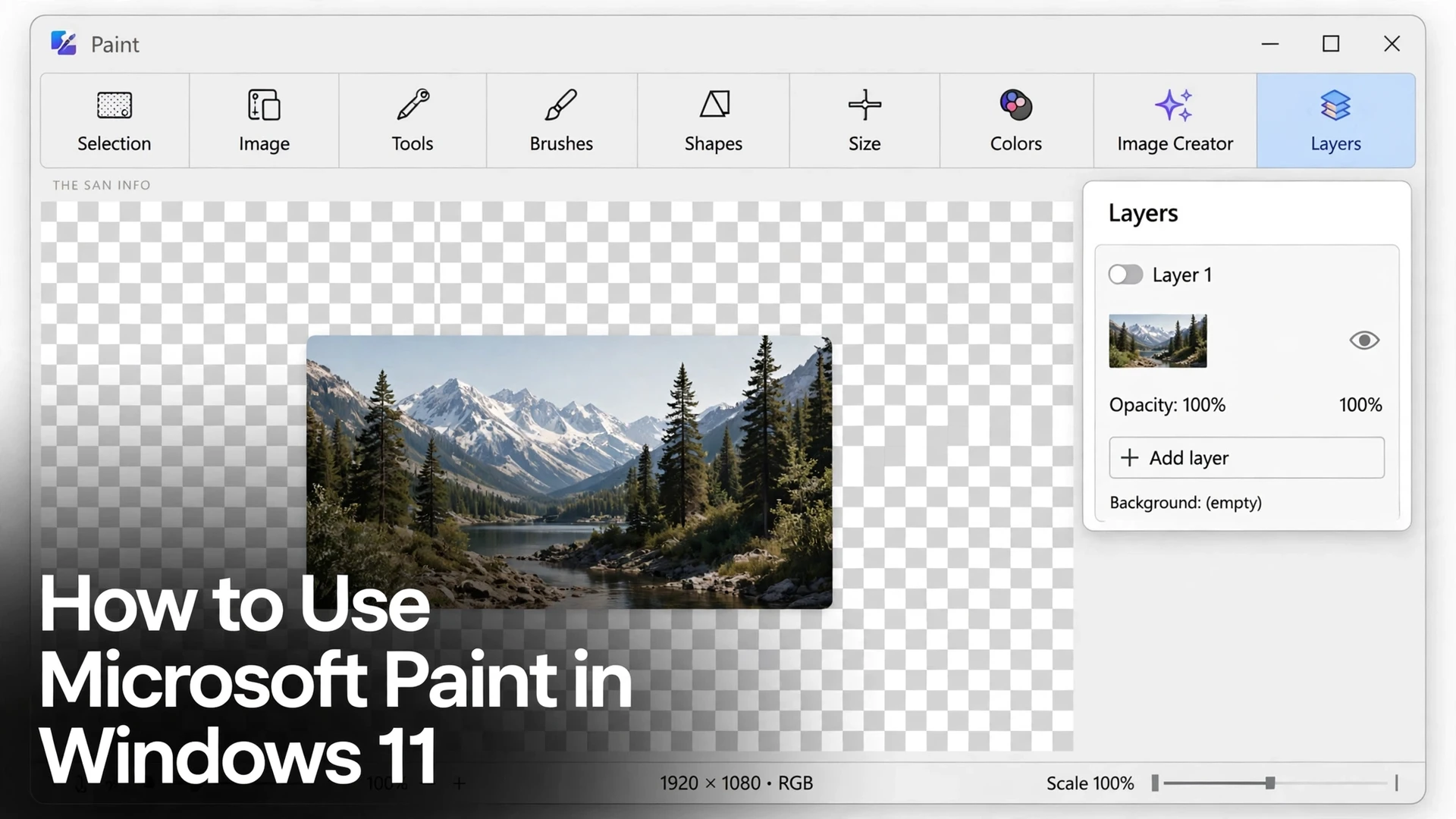
Layers arrived in Paint version 11.2308.18.0, rolled out to Windows Insiders in September 2023, and they are the single biggest change to how Paint works. Click the Layers button in the toolbar to open the panel on the right side of the canvas. From there you can add a layer, duplicate one, hide or show it with the eye icon, drag layers to reorder them, and merge them down when you are done.
A practical example: open a photo as the bottom layer, add a layer above it for text, and add a third layer for shapes or arrows. If the text ends up in the wrong place, select its layer and move or erase it without touching the photo underneath — erasing on an upper layer reveals the layer below instead of painting the area white, which is how the old Paint behaved. That separation is what makes layers worth learning: every element stays editable until you deliberately merge it.
Two limits to know. First, Paint has no per-layer opacity slider — the Pencil and Brush tools have an opacity control for individual strokes, but you cannot fade a whole layer the way Photoshop lets you. Second, layers only survive if you save the work as a Paint project (File > Save as project, a .paint file). Exporting to PNG or JPEG flattens the image into a single layer, so keep the project file if you expect to come back and edit.
How do I erase an object with Generative Erase?
Open the photo, select the Eraser tool, and choose Generative Erase from its options. Brush over the object you want gone — a photobomber, a trash can, a stray cable — then click Apply. Paint fills the brushed area with a plausible reconstruction of what was behind the object, using the surrounding pixels and its cloud model.
Generative Erase works best on small, isolated objects against simple backgrounds: a sign on a plain wall, a person on an empty beach. Large objects, busy patterns, and anything overlapping the main subject produce smudged or repeated textures, and there is no way to guide the fill beyond the brush area — if the first attempt looks wrong, undo and try a smaller brush, or erase the object in two passes. Unlike Cocreator, Generative Erase does not need a Copilot+ PC, but it does need a Microsoft account and an internet connection, because the fill runs through Microsoft’s cloud services.
How do I use Cocreator to turn a sketch into art?
Cocreator is the most demanding Paint feature, and the most misunderstood. It runs only on a Copilot+ PC — a Windows 11 PC with a neural processing unit (NPU) of at least 40 TOPS — with the latest Paint from the Microsoft Store, a Microsoft account signed in, and an internet connection. On any other PC the Cocreator button simply does not appear, and no setting changes that. Microsoft documents the full requirements on its Use Copilot+ PC features in Paint support page.
On a qualifying PC, open Paint, click Cocreator, type a text prompt describing what you want — “a watercolor landscape with mountains,” for example — and start drawing on the canvas. Cocreator generates artwork based on your prompt and your sketch as you draw, showing results in a side pane. A Creativity slider controls how much the AI deviates from your drawing, and a Style picker sets the look. Prompts work best in English, according to Microsoft. There is no cap on how many images you can generate with Cocreator, because the generation runs on the PC’s NPU — the internet connection is only for the cloud safety checks.
Keep expectations honest: Cocreator is a sketch-to-art toy with real uses — concept art, thumbnails, illustrations for a slide — not a replacement for a designer. The same Copilot+ PC also unlocks Generative Fill, but only on Snapdragon-powered machines: select an area, describe what should appear there, and Paint adds it. On Intel or AMD Copilot+ PCs, Generative Fill does not appear, and that is expected behavior, not a bug.
How do I save a transparent PNG in Paint?
After removing a background or erasing to transparency, go to File > Save as > PNG picture. PNG is the format that keeps transparency; JPEG does not support it, so saving the same image as a JPG fills the transparent areas with white. Before saving, check that the transparent areas show the checkerboard pattern — if they show white, the background was not actually removed. If your photo came from an iPhone, note that Paint opens HEIC files only when the HEIF codec is installed; my guide to converting HEIC to JPG on Windows 11 covers the codec and the conversion options.
For everyday saves, remember the three formats that matter. PNG keeps transparency and full quality, and is the right choice for logos, cutouts, and anything you will paste over another image. JPEG is smaller and right for photos you will share or upload, but it has no transparency and loses a little quality each time you save. BMP is uncompressed and large — there is rarely a reason to choose it. Paint also saves projects as .paint files, which preserve layers; a PNG export does not.
What is the fastest way to edit a screenshot in Paint?
Paint is still the fastest screenshot editor on Windows. Press Windows + Shift + S to capture a region with Snipping Tool, then open Paint and press Ctrl + V to paste the capture straight onto the canvas. Crop it with the Select tool, draw arrows and boxes with Shapes, add labels with the Text tool, and save with Ctrl + S. The whole job takes under a minute, and nothing needs to be installed or signed into.
Two related workflows are worth knowing. For a full-page capture that scrolls, Snipping Tool cannot do it natively — my guide to taking a scrolling screenshot on Windows 11 covers the tools that can. And if the screenshot is actually a video you need to record, Snipping Tool’s screen-recording mode (Windows + Shift + R) saves an MP4 to Videos > Screen Recordings; Microsoft’s own Snipping Tool guide walks through both capture modes, and my Clipchamp guide covers trimming and captioning the recording afterward.
What Paint still can’t do
Paint has grown a lot, but it is still a lightweight editor, and knowing its limits saves frustration. It cannot open or save PSD files, so Photoshop work does not transfer. It has no curves, levels, or color-grading tools beyond basic brightness and color picking. It cannot edit RAW camera files, cannot batch-process a folder of images, and has no selection feathering or masking beyond the basic Select tool. Text is basic too — one font, size, and color per text box, with no text-on-a-path or wrapping.
When a job hits one of those walls, step up to a fuller editor rather than fighting Paint. My comparison of GIMP vs Krita covers the two strongest no-cost options: GIMP for photo editing and Krita for digital painting, both with real layers, masks, and plug-ins. Paint stays the right tool for the quick jobs — the crop, the cutout, the annotation — and the wrong tool for anything that needs precise color work or a multi-file workflow.
Paint features are missing or Paint won’t open — what do I do?
Work through these in order. First, update Paint from the Microsoft Store (Library > Get updates) — most missing-button reports are simply an old app version. Second, check the feature’s requirements in the table above: Cocreator, Generative Fill, and Object Select need a Copilot+ PC, and Generative Fill needs a Snapdragon one; on an unsupported PC those buttons are absent by design. Third, sign in with a Microsoft account and check your internet connection, because the AI tools need both. Fourth, if Paint crashes or will not open at all, go to Settings > Apps > Installed apps > Paint > Advanced options and use Repair, then Reset if Repair does not help — Reset clears the app’s data but not your saved files. If none of that works, uninstall Paint and reinstall it from the Store listing.
One last note: Paint 3D is a different app from Paint, and it is gone. Microsoft deprecated Paint 3D in August 2024 and removed it from the Microsoft Store on November 4, 2024. If an old guide tells you to open Paint 3D for 2D editing, ignore it — Paint and Photos are Microsoft’s replacements, and the tools in this guide are the ones that exist now.
Frequently Asked Questions
Yes. Paint is preinstalled with Windows 11 and updated through the Microsoft Store. If it is missing from your PC, it was uninstalled at some point — reinstall it from the Paint listing in the Microsoft Store at no cost.
Cocreator only appears on a Copilot+ PC — a Windows 11 PC with a neural processing unit of at least 40 TOPS — running the latest Paint from the Microsoft Store, with a Microsoft account signed in. On any other PC the button does not appear, and no setting adds it. Update Paint first, then check whether your PC is a Copilot+ model.
Paint’s Remove background tool works on any photo, but the result depends on the image. Clear subjects against distinct backgrounds cut out cleanly in one click; hair, fur, busy backgrounds, and translucent objects leave rough edges that need manual cleanup with the Eraser. Save the result as a PNG to keep the transparency.
Yes, current Paint supports layers: add, remove, duplicate, hide, reorder, and merge them from the Layers panel. It does not have a per-layer opacity slider, and layers only survive in a saved .paint project file — exporting to PNG or JPEG flattens the image into a single layer.
For basic jobs — cropping, resizing, annotating screenshots, removing backgrounds, and simple graphics — yes, Paint is enough and faster to open. For color grading, masks, RAW files, PSD files, or batch work, it cannot replace Photoshop, and a fuller editor like GIMP or Krita is the right step up.
Microsoft deprecated Paint 3D in August 2024 and removed it from the Microsoft Store on November 4, 2024. It is a different app from Paint. For 2D editing, Microsoft points users to Paint or Photos, and the tools in this guide are the ones that exist now.