How to Batch Rename Files in Windows 11 (5 Methods That Actually Work)

Short answer: For a quick rename of a handful of files, select them in File Explorer and press F2. For anything more ambitious — replacing text, adding numbers, cleaning up spaces, or renaming hundreds of photos at once — use PowerRename, the batch renaming tool built into Microsoft PowerToys. It previews every change before it applies it, and you can undo it with Ctrl+Z. This guide walks through all five practical methods, with patterns I tested for exact outputs, so you can pick the right one and rename with confidence.
I tested every PowerRename and PowerShell pattern in this guide against a real set of test filenames before publishing, and the results shown are the exact outputs those patterns produce. Steps and option names follow Microsoft’s own PowerRename documentation, so what you see here matches the tool on a current Windows 11 PC.
Which batch rename method should you use?
Pick by the job, not by habit. The wrong tool for a 500-photo folder is the reason most batch renames go wrong.
| Method | Best for | Preview before applying | Undo | Learning curve |
|---|---|---|---|---|
| File Explorer (F2) | Giving a small set of files one shared name | No | Ctrl+Z, immediately | None |
| PowerRename (PowerToys) | Almost every batch rename job | Yes, live preview pane | Ctrl+Z, immediately | Low |
| PowerShell | Scripted, repeatable renames across folders | Only with -WhatIf | No built-in undo | Medium |
| Command Prompt | Quick extension swaps and simple wildcards | No | No built-in undo | Low to medium |
| Bulk Rename Utility / Advanced Renamer | Metadata-driven renames (EXIF dates, ID3 tags, lists) | Yes | Varies by tool | Medium to high |
Method 1: Rename multiple files in File Explorer with F2
This is the built-in option, and it is genuinely useful for one narrow job: giving several files the same base name.
Steps:
1. Open the folder in File Explorer and select the files (Ctrl+A for all, or Ctrl+click for specific ones).
2. Press F2, or right-click one selected file and choose Rename.
3. Type the new base name and press Enter.
Windows names the first file exactly what you typed, then appends a number in parentheses to the rest — for example, Report (1), Report (2), Report (3). That is the whole feature, and its limits are the reason people graduate to PowerRename: numbering always starts at 1, you cannot choose the number format, there is no find-and-replace, and there is no preview. If you rename by mistake, press Ctrl+Z immediately — File Explorer’s undo works, but only until you do something else.
Method 2: Use PowerRename in Microsoft PowerToys (recommended)
PowerRename is Microsoft’s own bulk renaming tool, included in the PowerToys suite. It is the method I recommend for most readers, because it combines a live preview with search-and-replace, regular expressions, numbering, and date-based naming in one window.
Install and open it:
1. Install Microsoft PowerToys from the Microsoft Store or from the PowerToys GitHub page, then open PowerToys Settings and make sure PowerRename is enabled.
2. In File Explorer, select the files, right-click, and choose “Rename with PowerRename”.
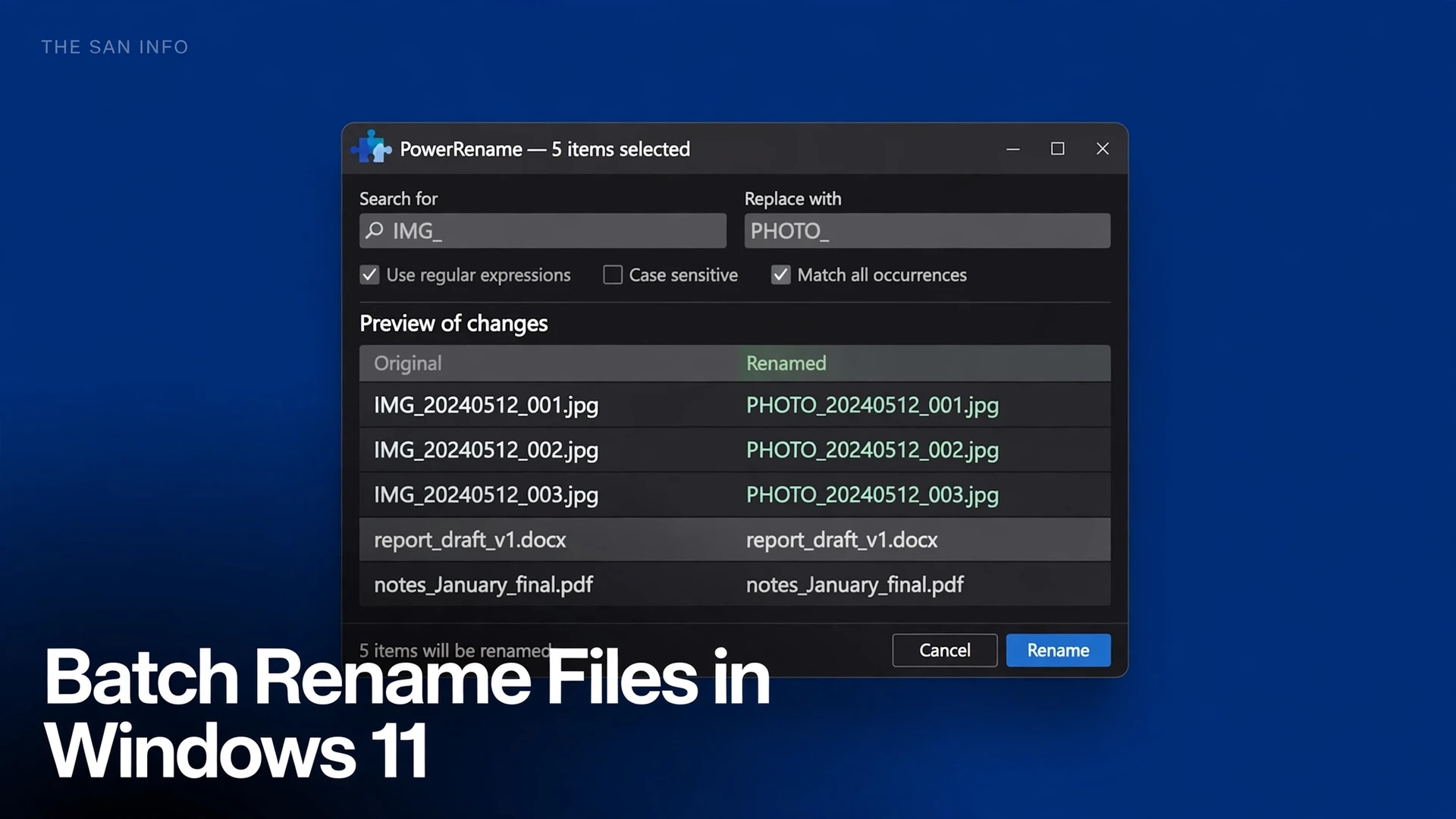
3. Type your search text and replacement text, check the preview pane, then click Rename.
The preview pane is the whole point: every file shows its original name beside its new name before anything changes. If a row looks wrong, fix the pattern — do not click Rename and hope.
Options worth knowing:
Match all occurrences. Off, only the first match in each filename is replaced; on, every match is replaced. Microsoft’s own example makes the difference clear: replacing “power” with “super” in “powertoys-powerrename.txt” gives “supertoys-powerrename.txt” with the option off, and “supertoys-superrename.txt” with it on.
Apply to: Filename only vs Extension only. This is the setting that prevents the classic accident of mangling file extensions. Keep it on Filename only unless you deliberately want to change extensions.
Enumerate items. Add a counter to the replacement text, for example Image_${start=1;padding=2}, which numbers files 01, 02, 03 and so on.
Date and photo variables. You can build names from creation date ($YYYY, $MM, $DD) or, for photos, from EXIF data such as $DATE_TAKEN_YYYY and $DATE_TAKEN_MM — handy for turning camera dumps into date-sorted archives.
Undo. After renaming, Explorer’s Undo Rename (Ctrl+Z) reverses the last change, as Microsoft documents. Use it right away if anything looks off.
Tested PowerRename patterns — copy these:
| Task | Search for | Replace with | Verified result |
|---|---|---|---|
| Add a prefix | (leave blank is not reliable; use regex ^) | Vacation_ (with regex, search ^) | IMG_20241024_001.jpg becomes Vacation_IMG_20241024_001.jpg |
| Replace spaces with underscores | (a single space) | _ | My Report Final v2.docx becomes My_Report_Final_v2.docx |
| Add a suffix before the extension | (.*)(\.[^.]+)$ (regex on) | $1_Final$2 | My Report Final v2.docx becomes My Report Final v2_Final.docx |
| Swap one word everywhere | IMG_ | PHOTO_ | IMG_20241024_001.jpg becomes PHOTO_20241024_001.jpg |
| Number a photo set | .* (regex on, enumerate on) | Trip_${start=1;padding=2} | Trip_01.jpg, Trip_02.jpg, Trip_03.jpg |
Two notes from testing. First, for the prefix pattern, searching for the start anchor (^) with regular expressions on is more predictable than leaving the search box empty. Second, always turn on “Match all occurrences” when you use a regular expression — Microsoft’s documentation recommends the same, because otherwise only the first match in each name is replaced. Full details are in Microsoft’s PowerRename documentation.
PowerRename also pairs naturally with other file chores: after you convert HEIC photos to JPG on Windows 11, for example, a single PowerRename pass can turn a folder of IMG_ files into dated, searchable names.
Method 3: Batch rename with PowerShell
PowerShell is the right choice when you want a rename you can save and re-run, or apply across subfolders. It has no undo, so the safety workflow matters more here: test with -WhatIf first, on a copy of the folder.
Replace text in filenames:
Get-ChildItem *.jpg | Rename-Item -NewName { $_.Name -replace 'IMG_','Photo_' }
Preview before you commit (do this first):
Get-ChildItem *.jpg | Rename-Item -NewName { $_.Name -replace 'IMG_','Photo_' } -WhatIf
-WhatIf prints what would happen without renaming anything. If the preview looks right, run the same command without -WhatIf.
Number files sequentially:
$i = 1; Get-ChildItem *.jpg | ForEach-Object { Rename-Item $_.FullName -NewName ("Trip_{0:D2}.jpg" -f $i); $i++ }
The {0:D2} format is what produces two-digit numbers (01, 02, 03). The -replace operator uses regular expressions, so the suffix pattern from Method 2 works here too: -replace ‘(.*)(\.[^.]+)$’,’$1_Final$2′ turns “My Report Final v2.docx” into “My Report Final v2_Final.docx”, exactly as verified in testing. See Microsoft’s Rename-Item documentation for the full parameter list.
Method 4: Batch rename in Command Prompt
Command Prompt is the oldest tool on this list, and it still handles two jobs well: changing extensions in bulk, and simple wildcard renames. Open Command Prompt in the folder (type cmd in the File Explorer address bar and press Enter), then:
Change extensions:
ren *.txt *.md
This changes every .txt file in the folder to .md, keeping the base names. Warning: it changes the extension only, not the file contents — a renamed file may no longer open in the app you expect, so use this on copies first.
Rename with a loop:
for %f in (*_old.txt) do ren "%f" "%~nf_new.txt"
Here %~nf is the filename without its extension, so each file keeps its own base name with a new suffix. In a batch (.bat) file, double the percent signs (%%f, %%~nf). Command Prompt has no preview and no undo, so for anything beyond these simple cases, use PowerRename instead.
Method 5: Third-party renamers for metadata-driven jobs
When the new name should come from inside the file — a photo’s date taken, a song’s artist and title, or a list of names in a spreadsheet — a dedicated renamer earns its place. Two long-running options:
Bulk Rename Utility — a dense, panel-based tool that can combine a dozen rules (replace, number, case, date, EXIF) in one pass, with a live preview. It is powerful precisely because it shows everything at once, which also means beginners should change one panel at a time. Download it from the official Bulk Rename Utility site.
Advanced Renamer — a method-stack approach: add methods (new name, replace, numbering, EXIF) in order, preview the result, then apply. Its batch mode can rename files from a list, which is the cleanest way to apply names you prepared in a spreadsheet. Get it from the official Advanced Renamer site.
Stick to the official download pages for both. Renamers are exactly the kind of utility that gets repackaged with bundled extras on third-party download sites.
Safety checklist: read this before you click Rename
Batch renaming is safe when you treat it like any bulk file operation: reversible by preparation, not by luck.
1. Work on a copy. Duplicate the folder first. If anything goes wrong, the originals are one copy-paste away.
2. Read the preview, all of it. In PowerRename, scroll the preview pane. One wrong row is a warning about the whole pattern.
3. Keep “Apply to” on Filename only unless you mean to change extensions.
4. Close files that are open in other apps — open files can fail to rename or rename only partly.
5. Undo immediately if needed. Ctrl+Z in File Explorer reverses the last rename, but only while it is still the most recent action.
6. Never batch-rename system folders, program folders, or another app’s data folder. Apps and Windows itself depend on those names; renaming them can break shortcuts, libraries, and updates.
7. Pause cloud sync while renaming large folders. Renaming hundreds of files can look like mass deletions and re-uploads to a sync client; letting it settle after the rename avoids conflicts.
The same copy-first habit applies to other bulk file work — for instance, before you compress a folder of video exports, or after you recover deleted files on Windows 11, verify the recovered files open correctly before renaming them into your library.
Common batch rename mistakes
Forgetting “Match all occurrences”. Your pattern replaces only the first match per filename, and half your files come out inconsistent. Turn it on for regex work.
Renaming the extension by accident. A search pattern that matches across the whole “name.extension” string can change the extension. Use “Apply to: Filename only” in PowerRename, or anchor patterns to the base name in PowerShell.
Duplicate names. If two files would end up with the same new name, Windows refuses or overwrites depending on the tool. Numbering or a unique prefix avoids this entirely.
Renaming files another program is using. Close the files first, or the rename fails partway through and leaves a half-renamed folder.
Skipping the preview. Every tool on this list that offers a preview offers it for a reason. The five seconds it takes to scan it is the cheapest insurance in this guide.
Bottom line
For most people, the answer is simple: use File Explorer’s F2 for a quick shared name, and PowerRename for everything else. PowerShell is there when a rename needs to be scripted and repeated, Command Prompt for fast extension swaps, and a dedicated renamer when names must come from file metadata. Whichever you choose, copy the folder first, read the preview, and keep Ctrl+Z in mind — then renaming 500 files takes about as long as renaming five.
Frequently Asked Questions
Yes, if you act right away. After a File Explorer or PowerRename batch rename, press Ctrl+Z in File Explorer to undo the last rename. PowerShell and Command Prompt have no undo at all, which is why you should always work on a copy of the folder when you use them.
Yes, two of them. File Explorer itself can batch rename with F2, giving every selected file the same base name plus a number. For anything more advanced, PowerRename in Microsoft PowerToys adds search and replace, numbering, and regular expressions, all with a live preview.
Turn on Enumerate items, then use a counter in the Replace with field, for example Trip_ with a start value of 1 and padding of 2. That produces Trip_01, Trip_02, Trip_03, and so on, in the order the files appear in the preview pane.
Yes, with PowerRename. Its date variables include the photo EXIF fields, such as the year, month, and day the photo was taken, so you can build names like a year-month-day prefix followed by the original filename. Check the preview pane before applying, since some photos lack EXIF dates.
No. Renaming changes only the filename, never the contents. The one exception is the extension: changing it can change which app opens the file, or stop it opening at all, so keep the Apply to setting on Filename only unless you mean to change extensions.
Yes. It is Microsoft’s own utility, it shows a live preview of every new name before anything changes, and File Explorer’s Ctrl+Z undo reverses a rename done through it. For large jobs, still work on a copy of the folder first, and read the whole preview pane before clicking Rename.