What’s New in Windows 11 26H2 (November Update): 6 Changes Worth Your Time

Windows 11 26H2’s November update is rolling out now, and it is the most useful 26H2 update since the version launched in late September. The headline changes: a customizable File Explorer right-click menu, a Cloud Rebuild option that reinstalls Windows without a USB drive, faster Microsoft Edge launches, and real performance gains on 8GB PCs. The build to look for is 26300.9818 (KB5127936) on 26H2, or 26200.9818 on 25H2. One honest caveat up front: Microsoft rolls the new features out gradually, so installing the update does not guarantee every feature appears on your PC on day one — I explain how to check what you actually got below.
I verified every claim in this guide against Microsoft’s official KB5127936 release notes and Microsoft’s November 3 blog on 8GB PC performance, both checked on the day of writing. One transparency note: this run had no live 26H2 PC to install the update on, so the steps below come from Microsoft’s own documentation rather than my own screen, and I say so where it matters. The version numbers, build numbers, and performance figures are Microsoft’s own words — not a rewrite of another site’s summary.
How do I get the Windows 11 26H2 November update?
First, check what you are running. Press Win + R, type winver, and press Enter. If the window says Version 26H2 and OS Build 26300.9818 (or higher), you already have the November update’s contents. On 25H2, the matching build is 26200.9818. If your build is lower, go to Settings > Windows Update and click Check for updates — the November security update installs like any monthly update, and it carries the KB5127936 feature set with it.
The timing is worth understanding, because Microsoft’s naming makes it confusing. KB5127936 first appeared on October 28 as an optional, non-security preview. Microsoft’s pattern is to preview a month’s changes at the end of the previous month, then fold the same changes into the following month’s Patch Tuesday security update. That is what happened here: the October preview’s features are now part of the November security update rolling out today. If you installed the October preview, you already have the features — the November update adds the security fixes on top. If you skipped the preview, you get everything in one install now. And if the update is not offered to your PC yet, wait: Microsoft staggers availability by device and market, and forcing it with a manual installer is not worth the risk for a feature update.
What’s new in Windows 11 26H2? The 6 changes that matter
Here is the short version. The table covers the six changes most people will actually notice; the sections below it explain each one, including the fine print Microsoft buries in the release notes.
| Change | What it does | Who notices it |
|---|---|---|
| Customizable File Explorer context menu | Faster right-click menu you can configure — pick which commands and app extensions appear | Everyone who right-clicks files daily |
| Cloud Rebuild | Reinstalls Windows from Windows Update, even when Windows cannot start — no USB drive needed | Anyone recovering a broken PC |
| 8GB PC performance gains | Up to 20% more responsive in everyday tasks; up to 40% faster multitasking in one Microsoft lab test | Budget laptops and older PCs with 8GB of RAM |
| Accelerated App Launch for Edge | Edge opens faster by reusing its running process instead of starting a temporary one | Edge users who click lots of links |
| Magnifier and Narrator upgrades | Per-monitor zoom, viewport locking, contrast themes; Narrator reads math equations | Accessibility users and multi-monitor setups |
| Restore Summary and Settings refresh | A summary of what was restored after moving to a new PC; reorganized Privacy & security page | Anyone setting up a new PC |
What changed in the File Explorer right-click menu?
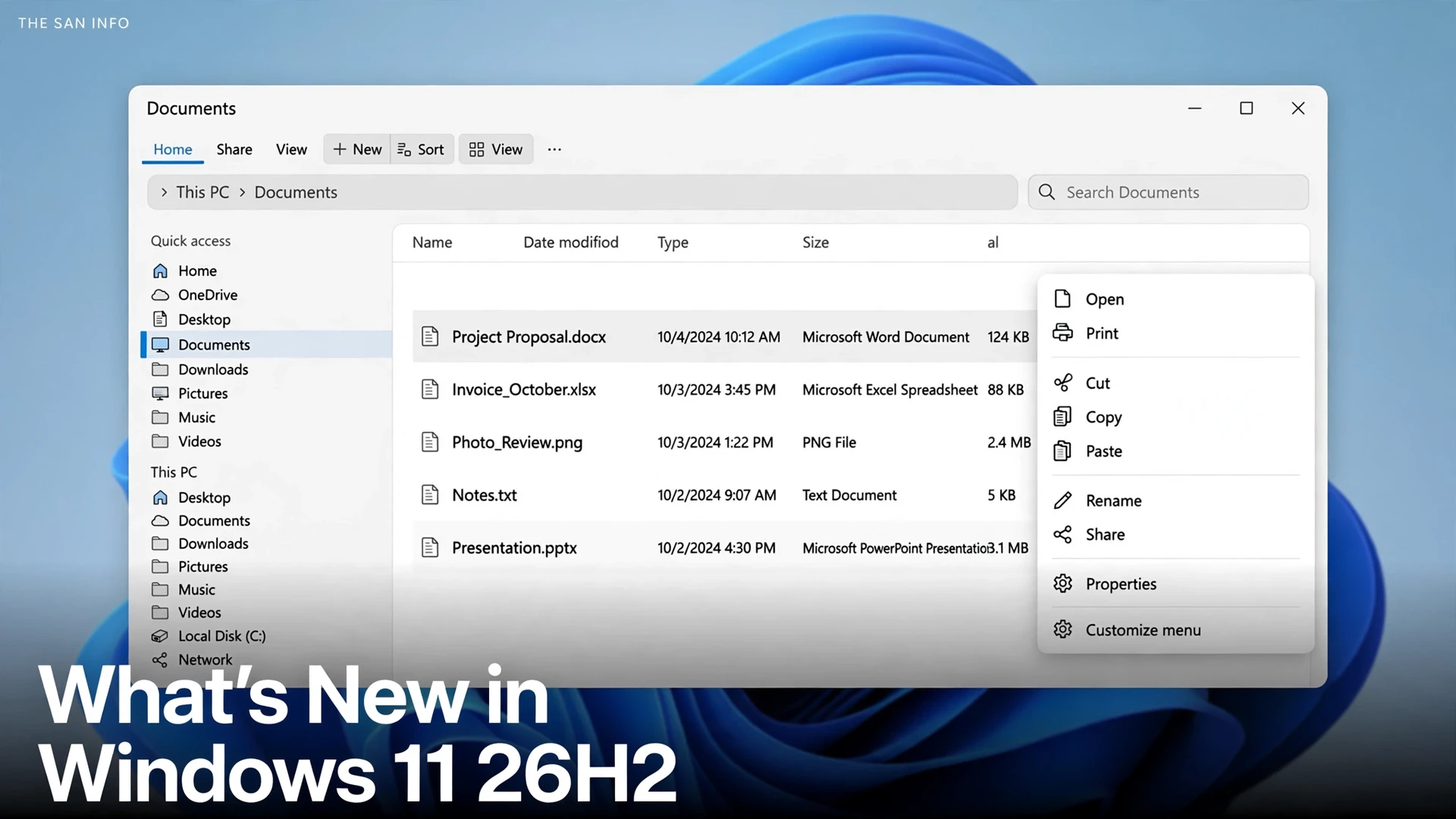
The right-click menu is the single best change in this update, and it is the one Microsoft spent the most effort on. The menu opens faster, shows less clutter, and — for the first time — you can decide what appears in it. Right-click any file or folder, choose Customize menu at the bottom, and you get a settings page where you can turn built-in commands such as Send to and Create shortcut on or off, add commands like Print, choose which app extensions show in the main menu or a submenu, or hide the app extensions submenu entirely.
Two smaller touches are worth knowing. You can now display Cut, Copy, Paste, Rename, Delete, and Share as text menu items instead of the row of icons at the top of the menu, and you can move Properties to the bottom. Hold Shift while right-clicking the desktop to see the extended menu with more options. If you change nothing, the default menu works as before — no action is required, and the menu is simply faster. File Explorer search results are also easier to scan now, with file name, location, and date in a consistent layout, and the Folder Options dialog finally supports dark mode.
Context: the context menu has been a sore spot since Windows 11 launched, when Microsoft replaced the full Windows 10 menu with a trimmed one and buried the rest behind “Show more options.” This update does not bring the old menu back, but it is the first time Microsoft has let users shape the new one instead of just accepting it. If you use Windows 11’s newer Copilot+ features, the menu is one of several 26H2 refinements landing alongside tools like Recall and Click to Do — different features, same idea of making everyday actions faster.
What is Cloud Rebuild, and when would I use it?
Cloud Rebuild is a new recovery option that reinstalls Windows 11 using a Windows image and device drivers downloaded from Windows Update. The important part: it works even when Windows cannot start, and it needs no USB drive and no custom installation image. Microsoft positions it as the recovery option for a PC that will not boot — previously, that situation usually meant finding another PC, downloading the Media Creation Tool, and making a bootable USB.
To start it from a working PC, go to Settings > System > Recovery and select Rebuild PC. The PC restarts into the Windows Recovery Environment and starts the rebuild. If Windows cannot start at all, the recovery environment opens automatically after repeated boot failures — choose Troubleshoot > Recovery and uninstall > Cloud rebuild, connect to wired Ethernet or Wi-Fi, review the target build, edition, and language, and confirm the data-loss warning. You choose whether to remove your files or remove and sanitize them; sanitization securely erases data using the storage hardware’s own erase capability, and it is irreversible.
Two things to know before you ever need it. First, Cloud Rebuild is a reinstall, not a repair — it wipes the system, so anything not backed up is gone. If the PC still boots and the problem is lost files rather than a broken system, try file recovery first; my guide to recovering permanently deleted files on Windows 11 covers the no-cost options before you reach for a reinstall. Second, the recovery environment can now reuse Wi-Fi profiles already saved on the PC, including supported certificate-based networks, so it can get online during recovery without an admin preconfiguring credentials.
Is Windows 11 really faster on 8GB PCs now?
This is the most interesting claim in the November update — and the one that needs the most careful reading. On November 3, Microsoft’s Windows chief Pavan Davuluri wrote that Windows 11 on 8GB PCs is now up to 20% more responsive and up to 40% faster at multitasking. The quote that made the rounds: “For many people, 8 GB is a great fit for the things they do every day.” After two years of Microsoft steering buyers toward 16GB — the Copilot+ PC minimum since 2024 — that is a sharp turn, and it coincides with RAM prices climbing hard enough to push 16GB laptops out of many budgets.
Here is what the numbers actually mean, from Microsoft’s own blog. The 20% figure comes from telemetry measuring response times in Start, Search, right-click menus, Settings, Snipping Tool, and File Explorer, comparing a 26H2 build against a build from January 2026. The 40% figure is narrower: it comes from one Microsoft lab test on a single 8GB HP OmniBook 3 with a Snapdragon X Plus processor, running 20 Edge tabs, a 4K video, and large Word, PowerPoint, and Excel files — and Microsoft itself calls the result scenario-specific, not a benchmark. Treat the 20% as a real, measured improvement in everyday responsiveness and the 40% as a best-case lab result you should not expect to reproduce on your own machine.
The mechanism is concrete, and it is the part I find most credible. Microsoft tuned memory compression on 8GB PCs so Windows keeps up to 2GB more active data in physical memory instead of moving it to slower storage — the reason apps used to reload when you switched back to them. Across Windows, Edge, and Microsoft 365 apps, the changes cut committed-memory growth by up to 900MB in Microsoft’s multitasking test, with Word, Excel, PowerPoint, and Outlook accounting for up to 360MB of that. Edge can open up to 33% faster from a link or the Start menu, and Teams can enable Efficiency Mode by default on 8GB PCs, launching up to 20% faster. Independent reporting has measured a real drop too: one outlet found an 8GB laptop idling at around 3.3GB of RAM use after moving to 26H2, down from about 5GB. The improvements require 26H2 build 26300.9818 or later, plus current Edge, Microsoft 365, and Teams — some of the gains arrive through app updates, not Windows Update alone.
The honest bottom line: 8GB is now genuinely fine for everyday work — browsing, documents, email, video calls — and Microsoft’s own blog admits the limit. Davuluri writes that demanding workloads such as 3D modeling, advanced video editing, and large-scale data processing still benefit from 16GB or more, and Copilot+ PC experiences still require 16GB. Do not buy an 8GB laptop expecting it to behave like a 16GB one; do expect your existing 8GB PC to feel noticeably snappier after this update.
Why does Microsoft Edge open faster now?
Every time you clicked a link in Windows 11, the system quietly launched a second, temporary copy of your browser just to hand the link along — then closed it. Microsoft’s new Accelerated App Launch (called “accelerated warm launches” in its developer documentation) skips that step: when Edge is already running in the background, Windows sends the link directly to the existing instance. The result is a faster, more consistent Edge launch, especially on busy PCs running many apps. It requires Microsoft Edge version 150 or later and works on Windows 11 25H2, 26H2, and 26H1 with the October 2026 update or later. Microsoft says this is the first step toward a broader operating-system capability other apps can adopt, and Firefox is already testing its own version of the same fix.
What accessibility improvements are in this update?
Magnifier gets the biggest upgrade. It now supports per-monitor zoom, so each display in a multi-monitor setup can use its own magnification level while the magnified view stays within that screen — it is on by default and requires displays set to Extend. A new viewport locking feature keeps the magnified view fixed on one display while you move the pointer to another, without making the locked display unresponsive; press Ctrl + Windows key + K to lock or unlock, or Windows key + Esc to release all locked displays. There is also a contrast theme toggle that reduces screen glare while preserving the original colors in photos, videos, and charts, available from the Magnifier toolbar or under Settings > Accessibility > Magnifier.
Narrator can now read and navigate math equations, formulas, and scientific notation in supported Microsoft 365 apps (Word and PowerPoint) and in web content in Edge 153 or later and Chrome 153 or later. Press Narrator key + Alt + N to start math navigation, use the arrow keys to explore parts of an equation, and press Esc to exit; it supports English (US and UK), Traditional Chinese, Finnish, German, and Spanish. Live Captions gains an Include screen reader audio setting, off by default, so captions stop transcribing audio from Narrator, JAWS, and NVDA unless you ask for it.
What else changed in the November update?
The smaller changes are genuinely useful. AutoPlay gets a modernized dialog with dark mode and better text scaling when you connect a phone, camera, or removable drive. Phone Link now lets you hover over a recent message or notification in the Start menu’s Recent section to preview it without opening it. After restoring a backup profile to a new device, Windows now shows a Restore Summary listing which settings and Microsoft Store apps were restored successfully. The Settings app’s Privacy & security page groups Camera, Microphone, and Location controls together, and the Device Info card on the Settings home page is expanding to more markets. Gamers get a refreshed Gaming Task View in Xbox mode with quicker access to Exit to Desktop and Power Options.
The fix list matters too, especially if you hit one of these bugs. The update fixes Remote Desktop connection failures for non-admin users on devices with Administrator Protection enabled, audio playback over HDMI or DisplayPort on certain AMD graphics cards, Always On VPN connections stuck on “Connecting” after the September security update, Windows Sandbox closing unexpectedly with error code 0x80370106, nested virtualization in WSL2 on AMD devices, and a Smart App Control issue that could leave the option to turn it back on grayed out. The Sandbox fix is worth noting if you use the feature — my guide to using Windows Sandbox covers setup, and the crash it fixes was one of the feature’s most reported annoyances. One issue remains open: some USB Audio Class 1.0 devices may fail to start or produce no sound after the September security update, with Device Manager error Code 10. Microsoft says a fix is still in progress.
What about Windows 11 23H2 — is it still supported?
Today is the end of the line for Windows 11 23H2 in business and education: the November security update is the last one Enterprise and Education editions of 23H2 will receive, and Microsoft recommends updating eligible devices to 25H2 to keep getting monthly security updates. Home and Pro editions of 23H2 already reached end of updates on November 11, 2025. The same applies to 24H2 Home and Pro, which stopped receiving updates on October 13 — the October security update was their last. If you are still on 23H2 or 24H2 Home/Pro, this is the moment to move: check Microsoft’s Windows 11 release health page for your version’s status, then upgrade through Windows Update rather than waiting for the next Patch Tuesday.
What if the new features don’t show up after updating?
First, confirm the build: press Win + R, type winver, and check for 26300.9818 (26H2) or 26200.9818 (25H2). If the build is right but a feature is missing, you are almost certainly waiting on Microsoft’s gradual rollout — the company switches features on for different PCs at different times using Controlled Feature Rollout, and some features take longer to reach Europe for regulatory reasons. There is no supported switch to force a gradual-rollout feature on. Make sure the “Get the latest updates as soon as they’re available” toggle is on under Settings > Windows Update, keep Edge and Microsoft 365 updated (some improvements arrive through app updates), and check again after the next restart. The features are tied to the build you already have, so they should appear within days or weeks without another download.
The verdict: a quiet update with one standout
The November 26H2 update will not transform Windows 11 — Microsoft’s own framing is a wave of fixes and refinements, not a new version. But it is the rare monthly update with a change you will touch every day: the customizable File Explorer context menu fixes a complaint that has followed Windows 11 since launch. Cloud Rebuild is the feature you will be glad exists the one time a PC will not boot. And if you run an 8GB PC, the performance work is the real story — not because of the 40% headline, but because Windows now keeps more of your work in memory instead of shuffling it to disk. Install it, check your build, customize the menu, and move on. That is the whole job.
Frequently asked questions
Not exactly. KB5127936 was released on October 28 as an optional, non-security preview of the November update’s feature changes. Those same changes are now included in the November security update rolling out on Patch Tuesday. If you installed the October preview, you already have the features; the November update adds the security fixes. The November update itself carries a new KB number that Microsoft publishes when the rollout starts.
Press Win + R, type winver, and press Enter. The window shows your version and OS build: look for Version 26H2 and OS Build 26300.9818 or higher. On 25H2, the matching build is 26200.9818. If your build is lower, go to Settings, then Windows Update, and click Check for updates.
Microsoft rolls the new features out gradually using Controlled Feature Rollout, so even PCs on the correct build get features at different times. Confirm your build with winver first — if it is 26300.9818 or higher, the feature is coming and should appear within days or weeks without another download. There is no supported way to force it on early.
Yes, measurably — with caveats. Microsoft’s telemetry shows up to 20% better responsiveness in everyday tasks like Start, Search, and File Explorer on 8GB PCs. The up to 40% faster multitasking figure comes from one Microsoft lab test on a single 8GB HP OmniBook 3, and Microsoft calls it scenario-specific, not a benchmark. The underlying change is real: Windows now keeps up to 2GB more active data in memory instead of moving it to slower storage. You need 26H2 build 26300.9818 or later, plus current Edge, Microsoft 365, and Teams.
Not anymore. The November security update is the last one for Windows 11 23H2 Enterprise and Education editions, and 23H2 Home and Pro already reached end of updates on November 11, 2025. Windows 11 24H2 Home and Pro also ended on October 13. If you are on either version, update to 25H2 or 26H2 through Windows Update to keep receiving monthly security updates.
Wait for Patch Tuesday. The optional preview and the November security update contain the same feature changes, but the security update adds the month’s security fixes, so installing the preview first gains you nothing except an extra install. If you already installed the October preview, just install the November security update when it is offered and you are done.