How to Use Click to Do in Windows 11 (Copilot+ PC Guide)

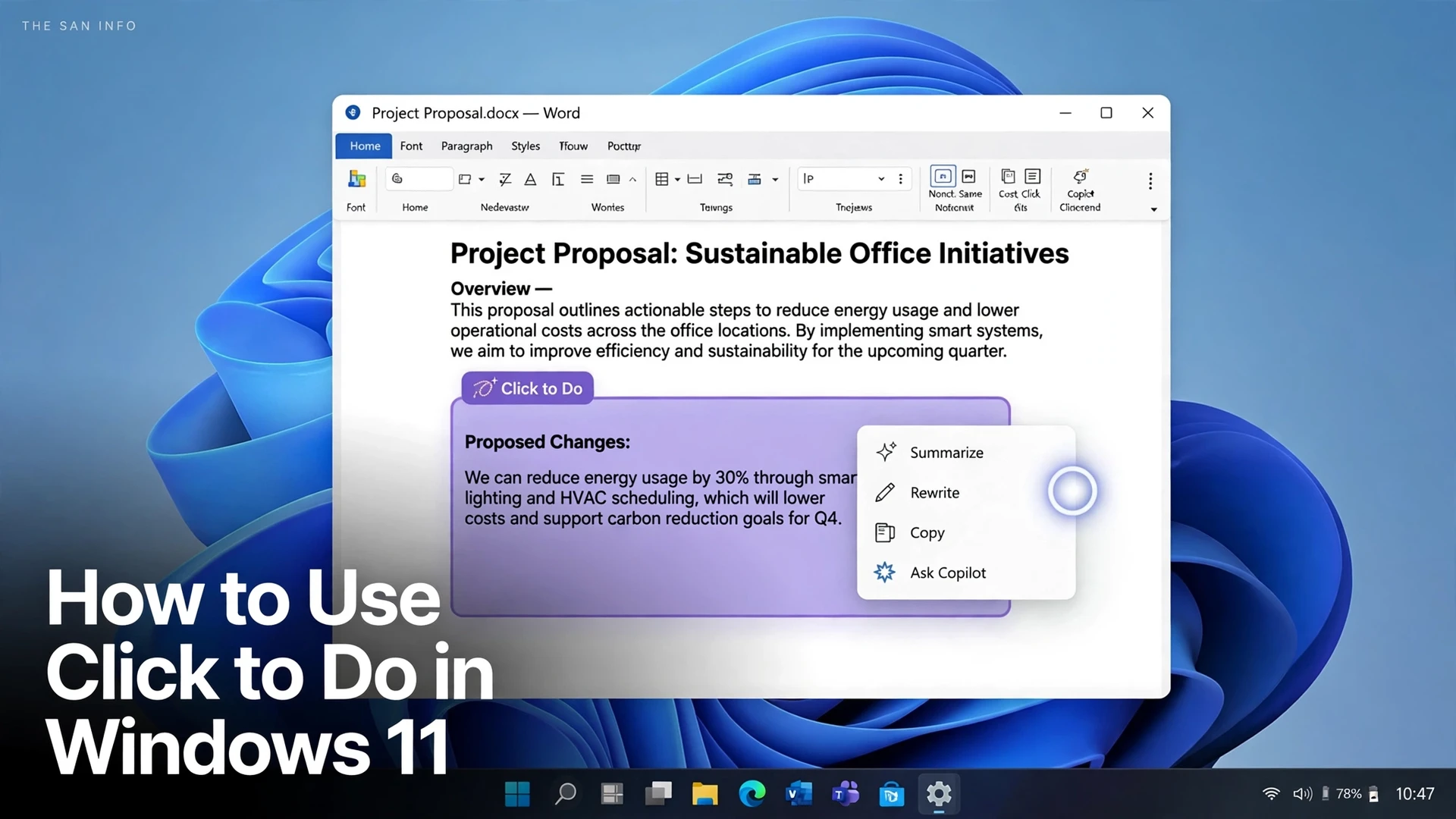
Click to Do is the fastest way to act on whatever is already on your Windows 11 screen. Press Windows key + Q or hold the Windows key and click, select the text or image in front of you, and Windows offers the next step right there: summarize it, rewrite it, copy it into another app, search the web for it, or clean up a photo. No copy-paste round trip, no opening a new app first.
There is one big catch, and it decides whether this guide applies to you at all: Click to Do is exclusive to Copilot+ PCs. If your PC does not have a neural processing unit (NPU) rated at 40 TOPS or more, the feature simply will not appear, no matter how updated Windows is. The rest of this guide walks through the requirements, every text and image action, five workflows worth using daily, and the privacy boundary that separates Click to Do from Recall.
What Is Click to Do?
Click to Do is an AI-supported feature built into Windows 11 for Copilot+ PCs. Microsoft describes it as a way to “do more with what’s on your screen”: it analyzes the visible screen, identifies text and images, and suggests actions for the piece you select. Under the hood, the local Phi Silica small language model running on the NPU powers the intelligent text actions, which is exactly why the feature cannot be backported to older PCs by a software update.
Think of it as a context menu for your entire screen. Ordinary right-click menus only work inside apps that support them. Click to Do works on rendered content instead, so text trapped inside a screenshot, a photo, or a video frame becomes selectable and actionable. I verified every step in this guide against Microsoft’s own documentation, because action availability varies by hardware, region, language, and account sign-in, and most third-party guides skip those conditions.
Does Your PC Support Click to Do?
Before anything else, check the eligibility list. If any row fails, Click to Do will not show up, and no settings toggle can force it.
| Requirement | What you need | How to check |
|---|---|---|
| PC class | A Copilot+ PC | Check the manufacturer’s specs page or the Copilot+ badge on the device listing |
| NPU | 40 TOPS or more | Qualcomm Snapdragon X series, AMD Ryzen AI 300 series, or Intel Core Ultra 200V series |
| Memory and storage | 16 GB RAM and 256 GB storage minimum | Settings, then System, then About |
| Windows version | Windows 11, version 24H2 or later | Settings, then Windows Update, then check for updates |
| Language and sign-in | Default language set to English and signed in with a Microsoft or Entra account, for intelligent text actions | Settings, then Time and language, then Language; Settings, then Accounts |
| Selection size | At least 10 words selected, for intelligent text actions | Drag a longer selection if Summarize or Rewrite is missing |
One more regional caveat: several Click to Do actions are not supported in the European Economic Area (EEA) or China. If you are on a qualifying Copilot+ PC and an action is still missing, region gating is a likely cause, not a broken install.
How Do You Turn On Click to Do?
On Copilot+ PCs, Click to Do is enabled by default. If it was switched off, turn it back on here:
- Open Settings (Windows key + I).
- Select Privacy and security in the left sidebar.
- Open the Click to Do page.
- Turn the Click to Do toggle on.
Note the side effect Microsoft documents: turning off the standalone Click to Do app does not remove the AI actions inside the Recall app. If you want the feature fully gone from your workflow, you need to address Recall separately.
How Do You Open Click to Do?
Use whichever entry point fits the moment. All of them land in the same overlay:
- Windows key + Q opens the full-screen Click to Do experience, which scans everything visible at once.
- Hold the Windows key and click anywhere on screen to invoke it at that spot.
- Search for “Click to Do” in Start and open the app from the results.
- Snipping Tool: open Snipping Tool, click New, then the Click to Do button (requires Snipping Tool version 11.2411.20.0 or later).
- Touchscreen: swipe in from the right edge.
- Inside Recall: open a saved snapshot and use the Click to Do button at the bottom.
If you have not set Recall up yet, our guide to using Windows Recall on a Copilot+ PC covers enabling it, searching snapshots, and controlling what gets captured.
When the overlay is active, your cursor turns blue and white and changes shape depending on what sits underneath it. Click a block of text or an image to select it, or drag to highlight exactly the words you want. A small menu of actions appears beside your selection. Press Escape to exit without doing anything.
What Can Click to Do Do With Text?
Text actions split into two groups: basic actions available broadly, and intelligent text actions powered by the local Phi Silica model. The intelligent ones need English as the default language, at least 10 words selected, and a Microsoft or Entra sign-in.
| Action | What it does | Best for |
|---|---|---|
| Copy | Copies the selected text to the clipboard | Text trapped in images or screenshots; pairs with clipboard history for multi-item pasting |
| Open with | Sends the text to a text editor such as Notepad or Word | Starting a document from on-screen content |
| Search the web | Searches the selected text in Microsoft Edge with Bing | Looking up an unfamiliar term without retyping it |
| Send email / Open website | Appears when the selection is an email address or a URL | Acting on contact details shown in a document or image |
| Summarize | Condenses the selection into a shorter version (intelligent action) | Long reports, meeting notes, and dense web pages |
| Create a bulleted list | Turns prose into bullet points (intelligent action) | Extracting action items from a wall of text |
| Rewrite | Revises the text in a casual, formal, or polished tone (intelligent action) | Fixing the tone of a draft email before sending it |
| Ask Copilot | Sends the selection to the Copilot app’s prompt box | Follow-up questions about the selected content |
| Ask Microsoft 365 Copilot | Sends text or images to Microsoft 365 Copilot (requires a qualifying plan) | Work documents and enterprise content |
Two newer additions roll out with recent Windows 11 updates: translation of selected on-screen text and unit conversion for selected numbers with units, plus a Copilot prompt box embedded directly in the Click to Do menu. As with every Copilot+ feature, rollout is gradual, so a missing action on a fully updated PC usually means it has not reached your device yet.
What Can Click to Do Do With Images?
Click an image on screen and a different menu appears. The image actions hand off to the apps you already have, so nothing new needs installing:
- Copy and Save as grab the image for reuse elsewhere.
- Share opens the Windows share sheet.
- Open with sends the image to Photos, Paint, or Snipping Tool.
- Visual search with Bing looks up the image online, useful for identifying a product, landmark, or plant.
- Blur background with Photos isolates the subject for a cleaner profile picture or slide image.
- Erase objects with Photos removes an unwanted passerby or object from the frame.
- Remove background with Paint cuts the subject out for a presentation or listing photo.
- Ask Copilot sends the image to Copilot for questions about what it shows.
5 Click to Do Workflows Worth Using Every Day
1. Summarize a long report without leaving the page. Open the report, press Windows key + Q, drag across the section you need, and choose Summarize. Read the condensed version, then copy only the lines you actually need into your notes.
2. Fix an email’s tone before sending it. Draft the message, select the whole draft, and choose Rewrite. Compare the casual, formal, and polished versions, then pick the one that matches the recipient. This is the single most useful intelligent action for office work, and it runs locally on the NPU rather than in the cloud.
3. Turn screenshot text into editable text. Screenshots, scanned slides, and photos of whiteboards all become copyable: invoke Click to Do over the image, select the text, and choose Copy or Open with Notepad. Pair it with clipboard history (Windows key + V) when you are collecting several snippets.
4. Clean up a photo for a listing or slide. Click the photo, choose Erase objects to remove clutter, then Remove background if you need a clean cutout. Both edits hand off to Photos or Paint, so you keep full control over the final save.
5. Identify anything on screen in two clicks. A product in a video, a landmark in a photo, an error message in a dialog box: select it and choose Visual search with Bing or Search the web. It beats retyping an error code from memory, and it works on content that ordinary text selection cannot reach.
Click to Do vs Recall vs Copilot: What’s the Difference?
These three get confused constantly, and the privacy implications are opposite. This table settles it:
| Feature | When it runs | What it captures | Hardware |
|---|---|---|---|
| Click to Do | Only when you invoke it | The currently visible screen, analyzed locally; analysis ends when you exit | Copilot+ PC only |
| Recall | Continuously in the background (when enabled) | Periodic snapshots building a searchable timeline | Copilot+ PC only |
| Copilot app | When you open it and prompt it | Only what you type, paste, or send to it | Any Windows 11 PC |
Is Click to Do Private?
Microsoft’s privacy boundary is specific and worth quoting precisely: the screenshot analysis is always performed locally on your device, it only begins after you actively engage with Click to Do, and it ends when you exit Click to Do. It only identifies text and images on the visible screen, not content in minimized apps or anything off-screen. Content leaves your device only if you choose an action that needs it, such as Search the web, Visual search with Bing, or Ask Copilot.
That boundary is the honest answer to the Recall comparison. Recall’s controversy comes from continuous capture; Click to Do has no continuous capture at all. The practical privacy rule is simple: Summarize, Rewrite, and Create a bulleted list stay local on the NPU, while web search, visual search, and Copilot handoffs send the selected content to Microsoft’s cloud services. Treat selections containing passwords, private messages, or sensitive documents accordingly, and use Copy or Open with for those instead.
Click to Do Not Working? Fixes for the Common Problems
| Problem | Likely cause and fix |
|---|---|
| Click to Do never appears | Not a Copilot+ PC, or Windows below 24H2. Check the eligibility table above; no toggle can add it to non-qualifying hardware. |
| Summarize or Rewrite is missing | Select at least 10 words, set the default language to English, and sign in with a Microsoft or Entra account. |
| Toggle is off | Settings, then Privacy and security, then Click to Do, and turn it on. |
| Snipping Tool button missing | Update Snipping Tool to version 11.2411.20.0 or later from the Microsoft Store. |
| An action exists on one PC but not another | Gradual rollout, region gating (EEA and China), or a missing app such as Photos or Paint. Update Windows and the apps, then re-check. |
Who Should Bother With Click to Do?
Click to Do earns its place if you already own a Copilot+ PC and you regularly summarize documents, reword messages, or pull text out of images. It saves a small amount of time dozens of times a day, which is the right way to judge it: as a shortcut layer, not a revolution. If you do not own a Copilot+ PC, it is not a reason to buy one on its own; the same results are reachable with voice typing, clipboard history, and virtual desktops for organizing the work that follows. And if you like the idea of staying in flow, pair it with Focus Sessions in the Clock app for distraction-free work blocks.
Start with one workflow: the next long email you receive, summarize it with Windows key + Q instead of reading every line. If that single habit sticks, the rest of the menu will follow naturally.
FAQs
No. Click to Do is exclusive to Copilot+ PCs, which need an NPU rated at 40 TOPS or more, at least 16 GB of RAM, 256 GB of storage, and Windows 11 version 24H2 or later. Qualifying processors include the Snapdragon X series, AMD Ryzen AI 300 series, and Intel Core Ultra 200V series. A high-end PC without a qualifying NPU cannot get Click to Do through a Windows update.
No. Click to Do only analyzes your screen after you actively invoke it, and the analysis ends when you exit. It does not run continuously and does not build a timeline of snapshots the way Recall does. It only looks at what is currently visible, not minimized apps or off-screen content.
Intelligent text actions need three conditions at once: your default language set to English, at least 10 words selected, and sign-in with a Microsoft account or Entra account. Select a longer passage first, since a short selection is the most common cause. Some actions are also unavailable in the EEA and China, and others roll out gradually.
Basic actions such as Copy, Open with, and Save as work without the intelligent-action sign-in, but Summarize, Rewrite, and Create a bulleted list require sign-in with a Microsoft account or Entra account, along with English as the default language and a selection of at least 10 words.
That selected content leaves your device, because those actions are cloud-based by nature. The local analysis itself stays on-device, but web search, visual search, and Copilot handoffs send the selection to Microsoft’s services. Avoid those actions for passwords, private messages, or sensitive documents, and use Copy or Open with instead.
Open Settings, then Privacy and security, then Click to Do, and turn the toggle off. Note that this disables the standalone app but does not remove the AI actions inside the Recall app, which must be addressed separately if you want them gone too.
Sources: Microsoft’s Click to Do overview for the local Phi Silica model and on-device analysis, and Microsoft Support’s Click to Do guide for shortcuts, text actions, and image actions.