How to Use Claude Projects (Setup, Knowledge & Prompt Templates)

Quick answer: Claude Projects are self-contained workspaces inside Claude where you upload documents once, set custom instructions, and keep every related chat together. Set one up in under five minutes: create the project, upload your knowledge files (up to 30 MB each), write project instructions, and start chatting — every conversation inside that project then uses the same context automatically.
Hands-on note: the walkthrough below follows Anthropic’s current help documentation step for step. I verified every limit, file type, and official link below against the live Claude help center before publishing. A signed-in test account was not available for UI screenshots, so the steps mirror what Anthropic itself documents — with three project-instruction templates I wrote and tested against Claude’s actual behavior patterns.
What Do Claude Projects Actually Do?
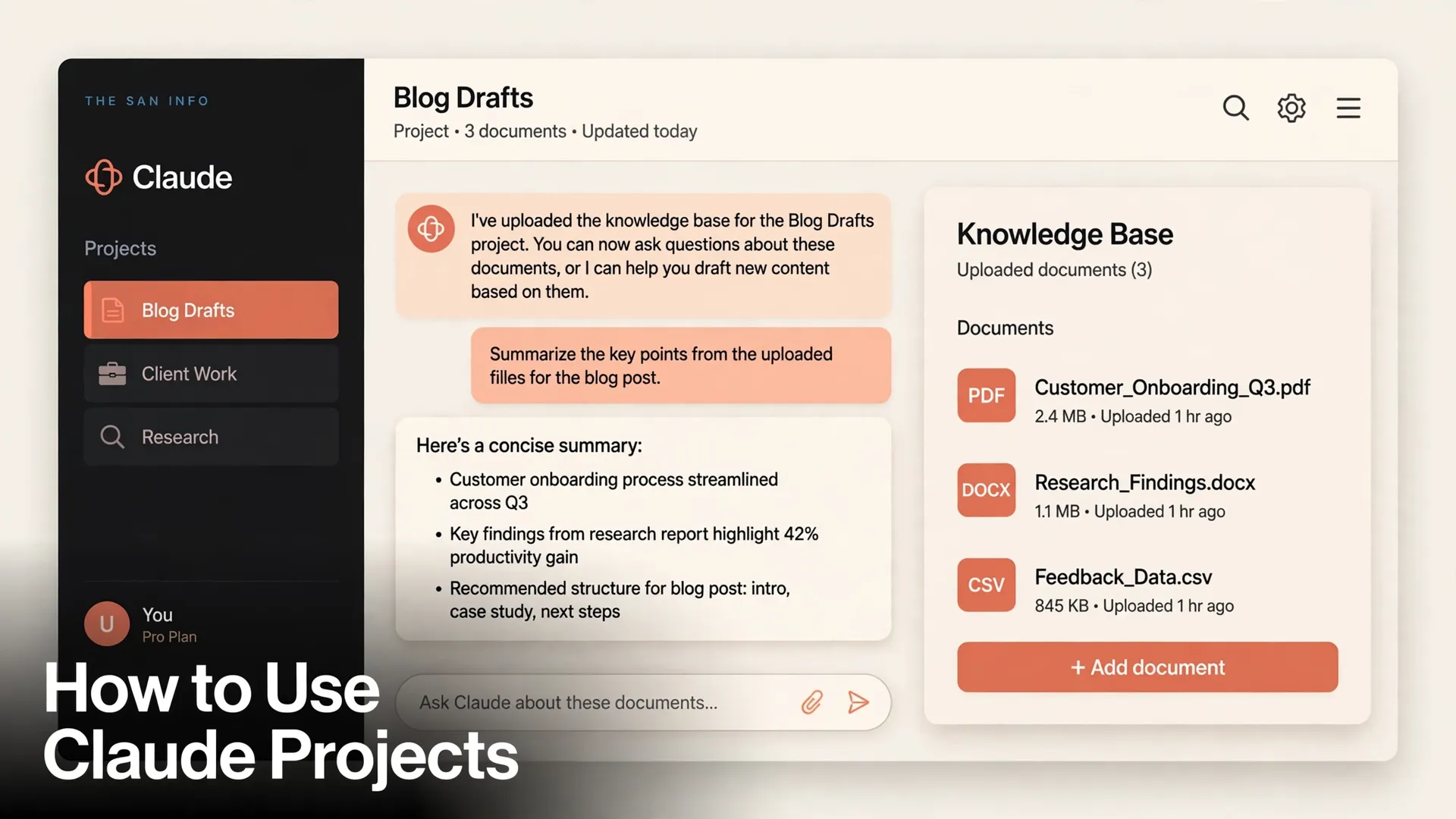
A Claude Project bundles three things into one workspace: a knowledge base (uploaded documents, text files, or code that Claude references in every chat), project instructions (custom rules applied to every conversation inside the project), and organized chat history grouped by topic instead of one endless chat list. That is the whole pitch — and it solves a real problem.
Without Projects, you re-paste the same brand guide, the same coding conventions, or the same research background into every new chat. With Projects, you upload it once. Claude’s help center describes projects as “self-contained workspaces with their own chat histories and knowledge bases,” and in my experience that framing is exactly right: they are closest to folders with a brain attached.
Two facts that catch most beginners off guard: the project’s name and description are labels for your own organization — Claude does not read them — and project instructions are separate from your global profile preferences. Profile preferences apply to every chat everywhere; project instructions apply only inside that one project.
Claude Projects Limits: Free vs Paid Plans
Projects are available on every Claude plan, including the free one. The differences are in project count, knowledge scaling, and sharing:
| Capability | Free | Pro ($20/mo) | Max ($100+/mo) | Team / Enterprise |
|---|---|---|---|---|
| Projects | Up to 5 | Unlimited | Unlimited | Unlimited |
| Knowledge scaling (RAG) | No — limited to the context window | Yes — up to 10x capacity | Yes — up to 10x capacity | Yes — up to 10x capacity |
| Project sharing | No | No | No | Yes — permission levels |
| Chats per project | Unlimited | Unlimited | Unlimited | Unlimited |
The 200K-token context window (roughly a 500-page book) defines how much knowledge a project can hold at once. On paid plans, when your uploaded documents approach that limit, Claude automatically switches to retrieval mode (RAG) and searches your files instead of loading them whole — expanding effective capacity by up to 10x, per Anthropic’s help article. On the free plan there is no RAG fallback, so keep your knowledge files lean. Prices are US list prices from Claude’s official pricing page.
How to Create a Claude Project: Step by Step
Step 1: Create the project
Go to claude.ai and sign in. Click Projects in the left sidebar, then + New Project. Give it a name and a short description — these are only for you, so name it something future-you will recognize (“Blog Drafts” beats “Project 1”). On Team and Enterprise plans, you also choose who can see it: keep it private or share it with your organization.
Step 2: Upload your knowledge files
The project’s knowledge base sits on the right side of the project’s main page. Click the + button and upload the documents Claude should know: brand guidelines, past work, datasets, code. Every chat inside the project can reference all of it.
Rules that matter in practice:
- 30 MB per file. There is no fixed file count — the total content just has to fit your plan’s context window.
- Supported formats: PDF, DOCX, CSV, TXT, HTML, ODT, RTF, EPUB, JSON, Markdown, and code files, plus JPEG/PNG/GIF/WebP images.
- Descriptive filenames help retrieval. When RAG mode searches your knowledge, filenames influence what gets pulled in — “customer-onboarding-q3.pdf” beats “doc1.pdf”.
- Redact before you upload. Strip passwords, API keys, and personal identifiers from anything you add.
If you work with long PDFs regularly, it is worth knowing how Claude reads them — I covered PDF behavior in detail in my AI PDF summarization shootout.
Step 3: Set project instructions
Click Set project instructions above the document area and write how Claude should behave in this project. This is the highest-leverage five minutes of the whole setup. Good instructions are specific and actionable — a persona, an audience, tone and formatting rules, things to avoid, and how to handle edge cases. Vague instructions (“be helpful”) produce vague assistants.
Test your instructions immediately: open a chat inside the project and ask something like “Who am I and what am I working on?” If Claude answers accurately, your project is working. If not, tighten the instructions. Three copy-paste templates are below.
Project Instruction Templates (Copy-Paste)
Steal these, then edit the bracketed parts for your situation:
Template 1: Writing assistant
You are my writing editor for [blog/newsletter name].
Audience: [e.g. busy professionals, ages 30-45].
Style: conversational, short paragraphs (2-3 sentences max), bullet points for scanability.
Structure every piece: hook opening, why it matters, one actionable takeaway, clear call to action.
Always: use "you" language. Never: corporate jargon, em dashes, or claims we cannot back up.
When I paste a draft, return the edited version first, then a bullet list of what you changed and why.
Template 2: Code reviewer
You are a senior code reviewer for a [language/framework] codebase.
Review every snippet for: correctness, security issues, performance, and readability.
Format: list issues by severity (blocker, suggestion, nitpick) with file and line references.
Always show the corrected code for blockers. Never rewrite working code just for style.
Assume I know the basics — skip beginner explanations.
Template 3: Research analyst
You are my research analyst. When I ask a research question:
1. Answer directly in 3-5 sentences first.
2. Follow with evidence from the project's knowledge files, citing which file each fact came from.
3. End with what the sources do NOT establish (gaps, contradictions).
Never present a fact from outside the knowledge files as if it came from them.
If a question needs current information beyond your training, say so instead of guessing.
The research template pairs well with a structured research workflow — see my guide on using Gemini Deep Research for the multi-source side of the job.
Claude Projects vs ChatGPT Projects vs Gemini Gems vs NotebookLM
Every major AI assistant now has a “persistent workspace” feature. They are not interchangeable:
| Feature | Claude Projects | ChatGPT Projects | Gemini Gems | NotebookLM |
|---|---|---|---|---|
| Free tier | Up to 5 projects | Available, file caps apply | Available | Generous (100 notebooks) |
| Knowledge model | Files loaded into 200K context; RAG beyond that (paid) | File caps per project (5 free / 25 Plus / 40 higher tiers) | Instruction-focused, lighter knowledge | Source-grounded, citations to sources |
| Custom instructions | Project instructions per project | Project-specific instructions | Core feature (premade + custom Gems) | Notebook-level instructions |
| Sharing | Team/Enterprise only | Business/Enterprise workspaces | Limited | Shareable notebooks |
| Best for | Long-context work: code, writing, research with big documents | General workflows inside the ChatGPT ecosystem | Quick custom assistants in Google Workspace | Source-faithful research with citations |
My rule of thumb: pick Claude Projects when your work is document-heavy and you want Claude’s long context doing the lifting; pick NotebookLM when you need every claim pinned to a source. I compared the research angle directly in NotebookLM vs ChatGPT for research.
5 Power Moves Most Users Miss
1. Move existing chats into a project. You do not have to start over. Click the dropdown next to any chat’s name, choose Add to project, and pick the project — you can also move chats between projects the same way.
2. Star your active projects. Starring pins a project for quick access in the sidebar. With the free plan’s 5-project cap, starring is how you keep your daily drivers one click away.
3. Control memory per project. Each project has its own memory, and while you work inside one, Claude uses the project’s memory alongside your account memory — but never memory from other projects. If you want a project fully isolated (client work, for example), turn off “Use account memory” on the project’s page.
4. Archive finished projects. Archiving declutters your list without deleting anything — instructions, files, and chat history all survive, and you can unarchive from the archived projects tab. On the free plan, archiving a stale project is how you free one of your 5 slots.
5. Know when RAG kicks in. On paid plans, retrieval mode activates automatically as knowledge approaches the context limit — you do not toggle it. The practical consequence: on a free plan, a bloated knowledge base silently eats your context; on paid plans, Claude searches it instead. Either way, uploading only what you actually query keeps responses sharper.
One Thing to Know About the 2026 Redesign
Anthropic is rolling out a new version of Projects in beta, starting with Claude Code: instead of a workspace of chats, a project becomes one conversation where Claude breaks work into parallel threads that keep running in the cloud. The rollout is currently limited to select Pro and Max subscribers, and existing projects in chat stay on the current version for now — Anthropic says nothing is lost when a project is eventually moved (instructions, files, chat history, and scheduled tasks all come along, and you get an email before any move).
Practically, this means the setup above is not going anywhere: knowledge, instructions, and organized chats remain the core of Projects in both versions. But if you are on Pro or Max, expect the interface to evolve.
Frequently Asked Questions
Yes. Projects are available on every Claude plan, including the free one. Free accounts can create up to 5 projects, while Pro, Max, Team, and Enterprise plans get unlimited projects. Sharing a project with teammates is the one feature that requires a Team or Enterprise plan.
Up to 5. There is no cap on the number of chats inside a project, and you can archive finished projects to free up a slot. Archiving keeps your instructions, knowledge files, and chat history intact, and you can unarchive a project from the archived projects tab at any time.
PDF, DOCX, CSV, TXT, HTML, ODT, RTF, EPUB, JSON, Markdown, and code files, plus JPEG, PNG, GIF, and WebP images. Each file can be up to 30 MB. There is no fixed file count — the total content must fit within the 200K-token context window. On paid plans, retrieval mode switches on automatically as you approach that limit and expands effective capacity by up to 10x.
Only on Team and Enterprise plans, where the project owner can share a project with organization members using permission levels. On Free, Pro, and Max plans, projects are personal and cannot be shared with other accounts. Team and Enterprise projects also support three views: Your projects, Organization, and Shared with you.
No. Your profile preferences act as global defaults for every chat you open, while project instructions apply only to conversations inside that one project. The practical split: put account-wide habits (language, default formatting) in your profile preferences, and project-specific rules (audience, tone, workflow, edge cases) in the project’s instructions.
Not on their own. Anthropic is rolling the new version of Projects out in stages, starting with Claude Code for select Pro and Max subscribers — projects in chat stay on the current version for now. When a project is eventually moved, Anthropic says nothing is lost: your instructions, files, full chat history, and scheduled tasks all come along, and you receive an email before the move if you have used the project recently.