How to Use VLC Media Player (12 Features Tested in Version 3.0.24)

VLC Media Player is a no-cost, open-source media player from the nonprofit VideoLAN project that plays almost any audio or video file you throw at it — no codec packs, no ads, no spyware, and no user tracking. The current stable version is 3.0.24, and it runs on Windows, macOS, Linux, Android, and iOS. It is also one of the most downloaded pieces of software in history: VLC passed 7 billion downloads in August 2026, about 18 months after crossing 6 billion in January 2025, according to TechCrunch, citing VideoLAN president Jean-Baptiste Kempf. If your built-in player has ever refused a file with a “format not supported” error, VLC is usually the fix — and it does far more than play videos.
I tested every feature in this guide hands-on in VLC 3.0.24 on Windows 11, downloaded from the official site at videolan.org/vlc. Where a feature behaves differently on macOS or Linux, I say so. The version number, the download figure, and the feature list are all checked against VideoLAN’s own pages — not copied from another site’s roundup.
How do I download and install VLC safely?
Download VLC only from videolan.org — never from a third-party download portal. Search results are full of lookalike sites that bundle the installer with adware, and VLC’s own installer has none of that. The Windows download is about 43 MB. Run the installer, accept the defaults, and you are done in under a minute; there are no bundled offers to decline and no account to create.
One choice during setup is worth pausing on: the installer asks which file types VLC should claim. If you want VLC to open every video and audio file by default, leave the associations checked. If you only want it as a backup player for the formats your built-in player cannot handle, uncheck them — you can still open any file with VLC from the right-click menu later.
How do I play a video or audio file in VLC?
There are four ways, and they all work the same once the file is open. Double-click the file if VLC is your default player. Drag the file from File Explorer and drop it onto the VLC window. Or inside VLC, go to Media > Open File (Ctrl+O) and browse to it. For several files at once, use Media > Open Multiple Files (Ctrl+Shift+O) — VLC queues them into a playlist automatically.
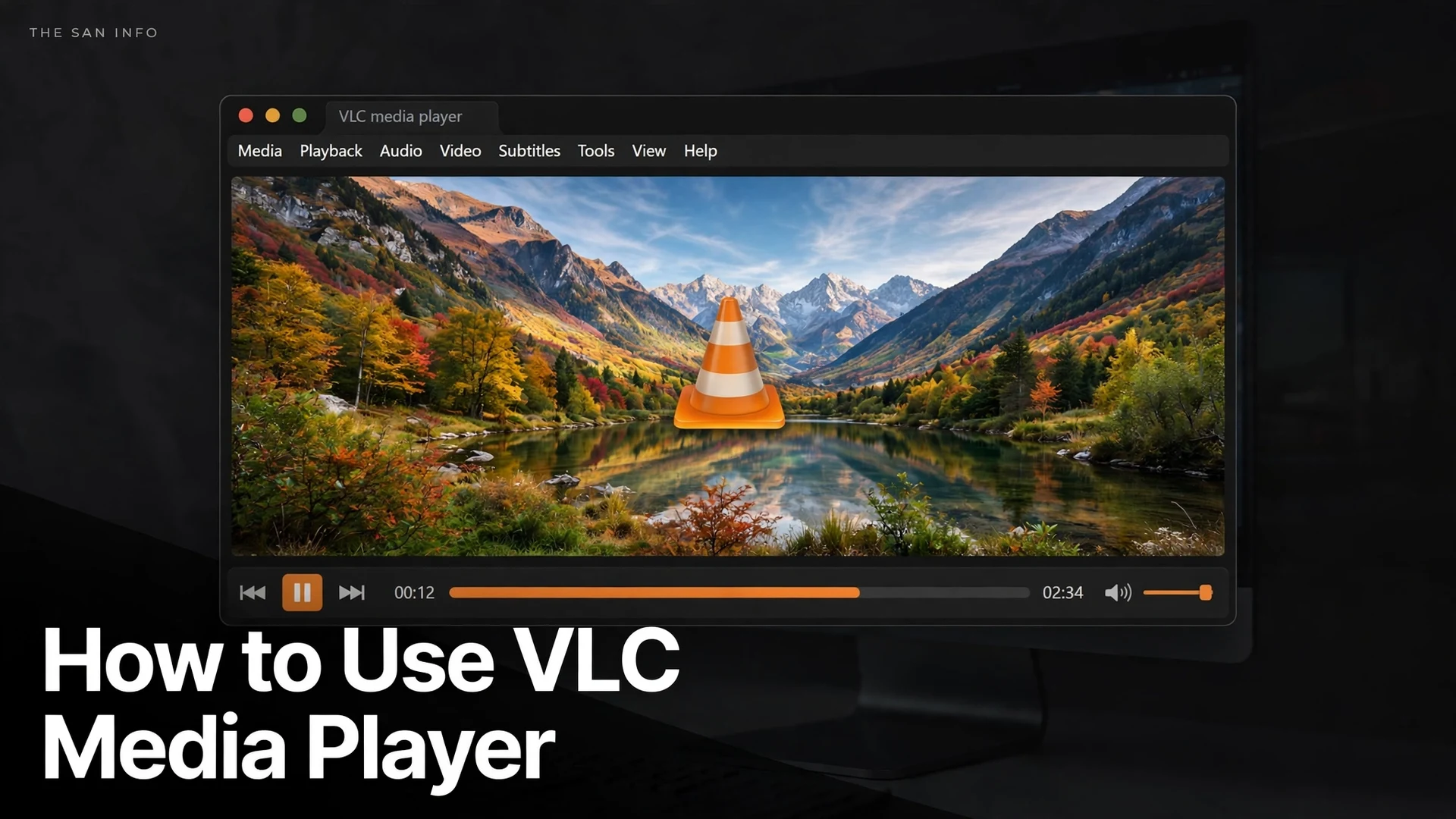
The interface is deliberately plain: a menu bar across the top (Media, Playback, Audio, Video, Subtitle, Tools, View, Help), a large video area, and playback controls along the bottom — play/pause, previous/next, a seek bar, time display, volume, and fullscreen. Press F for fullscreen, Space to pause, and Ctrl+Up/Down to change volume. The menus look the same on Windows, macOS, and Linux, so the steps in this guide transfer across platforms.
How do I make VLC my default media player?
On Windows 11, open Settings > Apps > Default apps, search for VLC media player, and set it as the default for the file types you care about — .mp4, .mkv, .mp3, and any others you open often. The faster route for a single file type: right-click any video file, choose Open with > Choose another app, pick VLC media player, tick “Always use this app,” and click OK. From then on, that file type opens in VLC every time.
What can VLC do besides play videos?
This is where VLC pulls away from the player that came with your computer. I tested 12 features in version 3.0.24 — the ones below are the ones that actually work well enough to rely on, with the honest limits noted. Windows Media Player is the comparison because it is what most Windows users are replacing.
| Feature | VLC 3.0.24 | Windows Media Player |
|---|---|---|
| Formats played without extra codecs | MP4, MKV, AVI, MOV, WMV, WebM, FLV, MP3, FLAC, AAC, OGG, WAV, and dozens more | Common formats only; MKV and FLAC support is limited |
| Convert video/audio files | Yes — built-in converter (Media > Convert/Save) | No |
| Play network streams | Yes — paste any direct media URL (Media > Open Network Stream) | Limited |
| Cast to a TV (Chromecast) | Yes — Playback > Renderer | Yes — Cast to Device, DLNA only |
| Record the screen | Yes — basic desktop capture, no editing | No |
| Take video snapshots | Yes — Shift+S, saved as PNG | No built-in snapshot |
| Download subtitles | Yes — View > VLsub, plus manual .srt loading | No |
| Fix out-of-sync audio/subtitles | Yes — millisecond delay controls and hotkeys | No |
| Audio equalizer and effects | Yes — 10-band equalizer, compressor, spatializer | Basic equalizer only |
| Playback speed control | Yes — 0.25x to 4x, keeps pitch steady | Yes — limited speed steps |
| Play DVDs and audio CDs | Yes — Media > Open Disc | DVD playback removed; CD ripping only |
| Price, ads, tracking | No cost, no ads, no tracking — VideoLAN is a nonprofit | Included with Windows |
The honest limits: VLC’s converter is slower than a dedicated tool and its screen recorder has no editing, annotations, or webcam overlay. For serious compression work, pair VLC with a dedicated converter — I tested four methods in my guide to compressing video files without losing quality. For screen recording with overlays and scenes, OBS Studio is the stronger tool; VLC is the quick option when you need a clip in 30 seconds.
How do I convert a video file with VLC?
Go to Media > Convert/Save (Ctrl+R), click Add, and pick the file. Click Convert/Save, choose a profile — “Video – H.264 + MP3 (MP4)” is the safe default for maximum compatibility — then click Browse to set the destination file name and click Start. VLC converts in real time or faster, depending on the file, and shows progress in the main window. You can add several files before converting, and VLC processes them one after another.
Two practical notes from testing. First, always set the destination file name yourself: if you skip it, VLC writes the converted file to a default location with a generic name and it is easy to lose track of. Second, conversion quality depends on the profile, not on VLC magic — converting a low-resolution file to a higher-resolution profile will not add detail. For a full quality comparison of conversion methods, see my video compression guide.
How do I stream a video or cast VLC to my TV?
To play a video from the internet, go to Media > Open Network Stream (Ctrl+N) and paste the direct URL of the media file — a direct .mp4 link, a network stream, or an IPTV playlist URL. VLC starts playing it without downloading the whole file first. This does not work with the watch page of a streaming service; it needs the direct media address.
To cast to a TV, open a video, then go to Playback > Renderer and pick your Chromecast or other supported device from the list. VLC sends the video to the TV while your computer acts as the remote — pause, seek, and volume all still work from the VLC window. If your TV does not appear, make sure both devices are on the same Wi-Fi network and restart VLC; in my testing the device list only refreshes when the menu is reopened.
How do I record my screen with VLC?
First, turn on the extra controls: View > Advanced Controls. A red record button appears above the playback controls. Then go to Media > Open Capture Device, set Capture mode to Desktop, choose a frame rate (15–30 fps is enough for tutorials; higher rates make huge files), and click Play. Click the red record button to start, click it again to stop — VLC saves the recording as an .mp4 in your Videos folder by default.
It works, but it is bare-bones: there is no countdown, no region selection, no webcam picture-in-picture, and no editing. For a one-off clip of a bug or a quick demo, that is fine. For tutorials, livestreams, or anything with multiple sources, use OBS Studio instead and edit the result in Clipchamp — that combination is what I use when a recording needs to look polished.
How do I add subtitles and fix out-of-sync audio?
For subtitles you already have, open the video, then go to Subtitle > Add Subtitle File and pick the .srt file — VLC loads it immediately. To find subtitles online, use View > VLsub, type the movie or show name, and download a matching file; check that the subtitle timing matches your exact release, or the text will drift. You can also drag an .srt file directly onto the playing video.
When the sound lags behind the picture, open Tools > Track Synchronization and adjust the audio delay in milliseconds — negative values pull the audio earlier, positive values push it later. The keyboard shortcuts are faster once you know them: J and K nudge the audio delay, G and H nudge the subtitle delay, in 50 ms steps. For a permanent fix on a converted file, set the delay in the Synchronization tab of Tools > Effects and Filters (Ctrl+E) before converting — VLC bakes the offset into the output.
How do I take a snapshot, change speed, or fix the sound in VLC?
To save a still frame from a video, press Shift+S or go to Video > Take Snapshot. VLC saves a PNG to your Pictures folder and flashes the file path on screen for a few seconds. To change playback speed, go to Playback > Speed and pick a rate from 0.25x to 4x, or tap ] to speed up and [ to slow down in small steps — VLC keeps voices at normal pitch, which makes 1.5x genuinely usable for lectures. Press L to loop the current file, and Ctrl+L to open the playlist view, where you can save the queue with Media > Save Playlist to File.
For sound problems, check three things in order. First, Audio > Audio Track — some files carry multiple tracks and VLC may have picked a commentary track or an empty one. Second, Audio > Volume Up and the volume slider itself; VLC remembers a muted state per session. Third, open Tools > Effects and Filters > Audio Effects and try the equalizer presets — the “Flat” preset resets any mangled settings, and the compressor under the same tab evens out quiet dialogue and loud action scenes.
How do I fix VLC when a video will not play?
Start with the least destructive fix. Press Ctrl+J (Tools > Codec Information) while the file is open: if VLC shows codec details, the file is readable and the problem is playback, not the file. If the picture is black but the sound plays, go to Tools > Preferences > Video and change Output from Automatic to Direct3D11 or OpenGL, then restart VLC — this resolves most black-screen cases caused by graphics driver quirks. If a file will not open at all, check whether it plays in another player: a file that fails everywhere is usually a truncated download, not a VLC problem.
Two more fixes cover the remaining cases. If VLC stutters on 4K or HEVC/H.265 video, open Tools > Preferences, click All at the bottom left to show advanced settings, go to Input / Codecs, and confirm Hardware-accelerated decoding is set to Automatic — VLC uses your GPU for decoding when this is on. And if VLC itself behaves strangely after an update, reinstall from videolan.org rather than repairing: a clean install replaces any corrupted configuration, and your playlists and settings are quick to rebuild.
Is VLC safe, and is it still worth using?
Yes on both counts. VLC has been developed in the open since its first release in February 2001, its code is public, and VideoLAN is a nonprofit — there is no advertising business, no account system, and no user tracking to fund, which is why the player has stayed free of ads and spyware for 25 years. Over 500 million people use it every month, according to VideoLAN’s figures reported in early 2025, and the 7-billion-download milestone in August 2026 shows it is still growing in the streaming era.
What is next is also worth knowing: VideoLAN previewed offline, AI-generated subtitles and live translation at CES in January 2025, and says the feature will arrive with VLC 4.0, a major release with a redesigned interface that is still in development. Until that stable release lands, 3.0.24 is the version to install. My verdict after testing: VLC remains the first media player to install on any new computer — not because it is flashy, but because it removes an entire category of “this file won’t play” problems, and the converter, streamer, and recorder hiding in its menus cover jobs that would otherwise need three separate apps.
Frequently Asked Questions
Yes. VLC is open-source software from the nonprofit VideoLAN project. It costs nothing to download or use, has no ads, no spyware, and no user tracking, and there is no paid version or premium tier. The only condition is to download it from the official site, videolan.org, so you get the genuine installer.
Yes, when you download it from videolan.org. The official installer contains no bundled software, no adware, and no toolbars. Avoid third-party download portals that repackage VLC with extras — if a download page asks you to run a separate “downloader” first, close it and go to the official site instead.
Check Audio, then Audio Track first — the file may have several audio tracks and VLC may have picked an empty or commentary one. Next, confirm VLC itself is not muted and the volume slider is up. If sound is still missing, open Tools, then Preferences, then Audio, and change the Output module to a different option; a restart of VLC applies the change.
Yes. VLC plays 4K and HEVC video natively, with hardware decoding support on most computers. If playback stutters, open Tools, then Preferences, switch to the All settings view, go to Input and Codecs, and make sure hardware-accelerated decoding is set to Automatic so your graphics card does the heavy work instead of your processor.
Yes. VLC runs on Windows, macOS, Linux, Android, and iOS, and the menus and shortcuts in this guide are the same across desktop versions. The mobile apps cover the same core job — playing almost any file — with touch-friendly controls, and they sync nothing to the cloud unless you set that up yourself.
VLC 4.0 is a major release with a redesigned interface and offline, AI-generated subtitles with live translation — a feature VideoLAN previewed at CES in January 2025. It is still in development with no stable release date announced, so version 3.0.24 remains the version to install for now.