How to Use Basecamp: A Beginner’s Guide to Basecamp 5

Basecamp is the project management tool from 37signals that puts everything a project needs on one page: a message board, to-do lists, group chat, a schedule, files, and a kanban-style card table — and charges one flat monthly price per plan instead of charging per seat. This guide walks through Basecamp 5, the current version every new account signs up for, step by step: how to create your first project, how each of the six tools works, how to invite clients without blowing your budget, and what the 2026 pricing actually costs. Every price and rating below was checked on 25 November 2026. Reviewers put Basecamp in the middle of its category: G2 lists 4.1 out of 5 from about 5,400 reviews and Capterra lists 4.3 out of 5 from about 14,400 reviews, both read 25 November 2026.
What is Basecamp?
Basecamp is a web, desktop, and mobile app made by 37signals, the company behind the project management tool since 2004. It organizes work into Projects, and every project gets the same small set of tools: a Message Board for announcements and discussions, To-dos for task lists, Campfire for real-time group chat, a Schedule for deadlines and events, Docs & Files for storage, and Card Tables for kanban boards. There are also automatic check-ins that ask your team recurring questions on a schedule, Hill Charts that show where a project really stands, and a global calendar that pulls every project together. The idea has stayed the same for two decades: fewer tools, used consistently, beat a long feature list nobody learns. Basecamp’s pricing page cites 99.99% historical uptime and 27 profitable years in business.
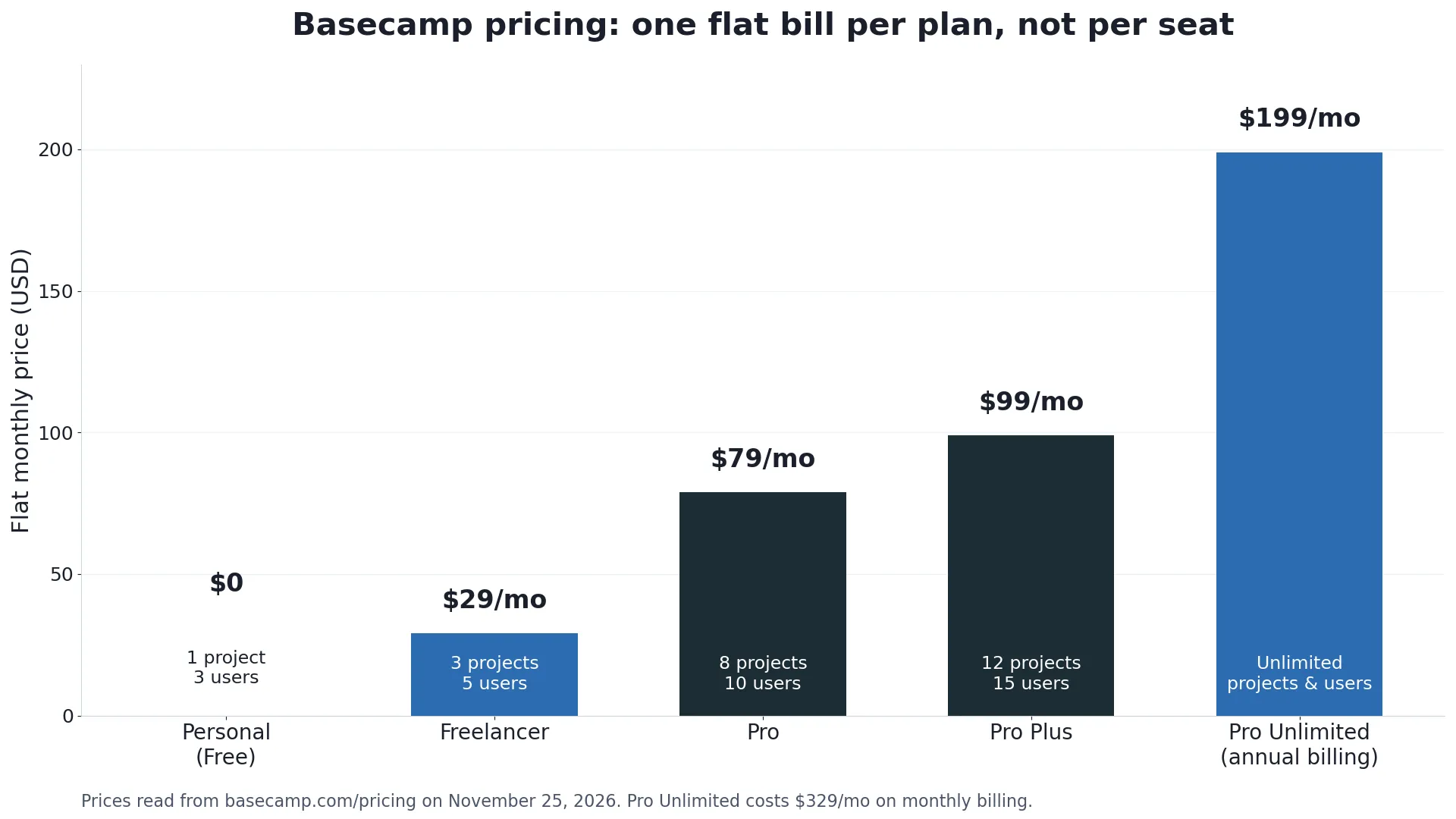
What makes Basecamp different from Asana, monday.com, and Trello is the bill. Those tools charge per user, so every new hire and every client you invite raises the monthly cost. Basecamp charges a flat price for the whole account and caps projects and people instead: the Personal plan is $0 for 1 project and up to 3 users, Freelancer is $29 a month for 3 active projects and up to 5 users, Pro is $79 a month for 8 projects and 10 users, Pro Plus is $99 a month for 12 projects and 15 users, and Pro Unlimited is $199 a month billed annually for unlimited projects and users. Clients, contractors, and guests all count toward the user cap on the capped plans, which is the detail that decides which plan you actually need — our Asana vs monday.com comparison shows how the per-seat math works on the other side of the market.
What is new in Basecamp 5?
Basecamp 5 is the current major version, and it is a refinement rather than a reinvention: 37signals describes it as well over 100 significant improvements on the same product, and existing accounts were moved onto it automatically on 25 May 2026. The shape did not change — projects still open to the same six tools — but the surface did. If you have used Basecamp before and the guides you find online describe an older version, that is why they feel wrong: the most-read independent how-to guides are between 16 months and nearly 4 years old, and they still quote the old $99 flat plan and a free plan with 3 projects and 20 users, both of which no longer exist.
The changes that matter in daily use are a cleaner, faster interface; a rebuilt search with live filtering; keyboard shortcuts throughout, with a universal jump menu (press Shift + J to go anywhere); a permanent sidebar that collects everything new in one column; personal spaces called My Notes and My Bar for scratch notes and pinned items; subtasks and loose to-dos that no longer have to belong to a list; and the Lexxy editor, which brings tables, Markdown, live code highlighting, and voice notes to messages, docs, comments, and chats. Two newer additions arrived after launch: official AI connectors for ChatGPT, Claude, and Grok, so an AI assistant can search your projects, summarize conversations, and create to-dos — it can only see what the signed-in person can see — and real-time collaborative writing, so several people can write the same document or message at once. Project wallpapers, replies that quote a specific comment, and a round of accessibility fixes landed on 30 September 2026. What Basecamp 5 still does not add is tags on to-dos, custom fields, dependencies, or a kanban view layered over to-do lists.
How to use Basecamp in 7 steps
The fastest way to learn Basecamp is to run a real project through it instead of reading about it. The example below is a small client project — a website redesign for a fictional bakery — because it uses every tool that decides whether Basecamp fits you: a project page, to-do lists, a message board, a Campfire chat, a schedule, and a client invitation. The whole setup takes about 20 minutes.
Step 1: Create your account
Go to basecamp.com and click Sign up for free. You will enter your name, email, and organization name, then set a password. New accounts land on the Personal plan: $0, 1 project, up to 3 users, 1 GB of storage — enough to run the walkthrough below end to end. Every paid plan carries a 30-day trial with no credit card, so you can test a capped plan’s features (templates, time tracking) before paying. There is nothing to install to start: Basecamp runs in the browser, and the desktop and mobile apps are optional downloads for later.
Step 2: Create your first project
From the Home page, click + New project, give the project a name and an optional description, then click Create this project. Use a name everyone involved will recognize at a glance — a client name plus the deliverable, such as “Maple Bakery — Website Redesign” — because the project name is what shows up in every notification, search result, and report. Your new project starts completely empty: no tools are added by default, and you choose exactly what the project needs. That is deliberate — a project with six tools you never open is worse than a project with three you use daily. If you run the same kind of project repeatedly, save it as a template (Pro plans and above) so the next one starts with the same structure; Basecamp’s own help docs walk through creating and setting up a project in detail at 5.basecamp-help.com.
Step 3: Add the six tools
Click the + button inside the project to add a tool. Every tool Basecamp offers is listed there, and you can add more than one instance of a tool — two message boards, for example, or a second card table — and rearrange them any time. Here is what each one is for:
- Message Board — announcements, proposals, and discussions that need a permanent home. Use it instead of email for anything the whole project should be able to find later.
- To-dos — the work itself: lists with items you assign, date, attach files to, and comment on. This is where most of your day happens.
- Campfire — real-time group chat for the quick back-and-forth that does not deserve a message-board post. Every project, team, and HQ has its own Campfire room.
- Schedule — deadlines, milestones, events, and meetings for this project. The global calendar brings every project’s schedule together, and you can subscribe to it from Outlook, Google Calendar, and other calendars.
- Docs & Files — one place for images, documents, PDFs, and cloud files from Figma, Google Docs, and Dropbox. Drop files straight onto it.
- Card Table — Basecamp’s take on a kanban board. Add cards, set up columns, and move work through phases.
For the bakery redesign, add a Message Board, To-dos, Campfire, and Schedule. Skip Docs & Files until you have files to store, and skip the Card Table unless the work genuinely moves through phases — a to-do list with due dates covers most small projects without a second system to maintain.
Step 4: Build your first to-do list
Open To-dos and add a list — “Design”, for example — then add items under it: “Homepage mockup”, “Menu page copy”, “Photo shoot shot list”. Click an item to assign it to a person, set a due date, attach a file, or add a comment. Basecamp 5 adds subtasks, so “Homepage mockup” can carry its own checklist, and loose to-dos that do not belong to any list, so a stray task does not force you to invent a list for it. What it still does not have is tags on to-dos or custom fields, so if your workflow needs a priority flag or a status field on every task, you will end up encoding that in the item title (for example, “[HIGH] Homepage mockup”) — clumsy, but workable at small scale. If to-do lists are your whole workflow, our TickTick vs Todoist comparison covers dedicated to-do apps that go deeper on that one job.
Step 5: Invite your team and your clients
Click the People icon at the top left of the project to invite people. New projects are invite-only by default — only people you explicitly invite can see the project — and you can switch a project to all-access if everyone in the company should see it. This is where the pricing caps bite: every person added, including clients and guests, counts toward the user cap on the smaller plans. A Freelancer plan with 5 users fits a 3-person team plus 2 clients; add a third client and you are on Pro. Count your clients before you pick a plan, not after. Clients cannot add, remove, or rename project tools, so they can participate without rearranging your project.
Step 6: Replace meetings with message boards and check-ins
Basecamp’s pitch is that most meetings are status updates in disguise, and the tool is built to replace them. Post the weekly plan as a message-board post instead of holding a meeting about it: the post, every reply, and every file stays attached to the project, so someone who joins later can get up to speed without asking anyone. Then set up an Automatic Check-in — Basecamp asks your team a question on a schedule, such as “What are you working on this week?” every Monday at 9am, and saves everyone’s answers in one place. Campfire handles the rest: quick questions, links, and reactions that would otherwise become a meeting or a long email thread. If you want to go further on protecting focus time, our best time blocking apps roundup covers tools that guard the calendar itself.
Step 7: Stay on top with the sidebar, search, and reports
Once the project is running, three features keep you oriented. The permanent sidebar collects everything new — notifications, mentions, and direct messages — in one column you can move through with the keyboard instead of opening and closing a menu for each item. Press Shift + J anywhere to open the jump menu and go straight to any project, tool, or person, or use the rebuilt search with live filtering and a custom date range to find anything. And the Reports page at the top of the menu now carries an Overdue tasks report that shows overdue to-dos, cards, and subtasks together, instead of only to-dos. Everything pages pull one type of thing onto a single page no matter which project it lives in — “All Files” finds the upload you cannot remember the project for. Hold Shift to reveal every keyboard shortcut in the interface.
Basecamp pricing, verified 25 November 2026
Basecamp lists five plans, and the price list changed twice in 2026, which is why most pricing pages on the web still print an older lineup — the $99 flat plan from the old guides is gone, and so is the old free plan with 3 projects and 20 users. The current plans are flat monthly prices for the whole account, not per user, and only Pro Unlimited offers an annual-billing discount. Every paid plan includes a 30-day trial with no credit card.
| Plan | Price | Active projects | Users | Storage | What it adds |
|---|---|---|---|---|---|
| Personal | $0 | 1 | Up to 3 | 1 GB | The six core tools, AI connectors (ChatGPT, Claude, Grok), 24/7/365 support |
| Freelancer | $29 a month | 3 | Up to 5 | 10 GB | Everything in Personal; no templates, no multiple tools per project, no time tracking |
| Pro | $79 a month | 8 | Up to 10 | 25 GB | Multiple tools per project, project and to-do list templates |
| Pro Plus | $99 a month | 12 | Up to 15 | 100 GB | Everything in Pro, plus time tracking (Timesheet) |
| Pro Unlimited | $199 a month billed annually ($2,388 a year) or $329 a month billed monthly | Unlimited | Unlimited | 1 TB (extra 1 TB $50 a month) | Everything in Pro Plus, plus enhanced admin controls, priority 24/7/365 support, personal onboarding, annual billing by check, ACH, or wire |
Worked cost example. Take a 10-person team running 6 client projects. On Basecamp Pro, the bill is $79 a month — $948 a year — flat, no matter how many of the 10 people are clients. On Asana Advanced at $24.99 per user a month on annual billing, the same 10 people cost $249.90 a month, or $2,998.80 a year. On Trello Premium at $10 per user a month on annual billing, they cost $100 a month, or $1,200 a year. Basecamp saves $2,050.80 a year against Asana Advanced and $252 a year against Trello Premium at this headcount — and the gap widens as you add people, because Basecamp Pro Unlimited stays at $199 a month billed annually ($2,388 a year) however many people join, while every per-seat tool climbs with each seat. The flip side is the cap: a 10-person team on Pro can only run 8 active projects, so a 9th project forces an upgrade to Pro Plus at $99 a month or a project archive. Prices read from basecamp.com/pricing on 25 November 2026; Asana and Trello prices from their vendors’ pricing pages as reported by independent guides in October and November 2026.
Basecamp vs Asana vs Trello
Basecamp, Asana, and Trello answer the same question — how does a team keep track of its work — with opposite philosophies. Asana is the most powerful of the three, Trello is the simplest board, and Basecamp is the one that bundles communication with the work. Pick by the constraint that actually binds you: headcount, project count, or feature depth.
| Feature | Basecamp | Asana | Trello |
|---|---|---|---|
| Pricing model | Flat per plan, not per seat | Per user, from $10.99 a month annual (Starter) | Per user, from $5 a month annual (Standard) |
| Cheapest paid plan, 10 people | Pro $79 a month ($948 a year) | Advanced $24.99 a user a month ($2,998.80 a year) | Premium $10 a user a month ($1,200 a year) |
| Free plan | 1 project, 3 users, 1 GB | Personal, 10 collaborators, limited features | 10 boards per workspace, 10 collaborators, unlimited cards |
| Built-in chat | Yes, Campfire in every project | No, comments only | No, comments only |
| Message boards | Yes | No, status updates instead | No |
| Gantt / timeline | No (The Lineup shows projects on a timeline) | Yes, Timeline on paid plans | Yes, Timeline on Premium |
| Dependencies | No | Yes | No native dependencies |
| Time tracking | Yes, Timesheet on Pro Plus and above | Yes, native on Advanced | No native time tracking (Power-Ups) |
| AI features | Connectors for ChatGPT, Claude, and Grok; no built-in assistant | Asana AI built in on paid plans | Trello AI on paid plans |
| G2 rating | 4.1 out of 5 (about 5,400 reviews) | 4.4 out of 5 (about 13,900 reviews) | 4.4 out of 5 (about 14,000 reviews) |
| Capterra rating | 4.3 out of 5 (about 14,400 reviews) | 4.5 out of 5 (about 13,600 reviews) | 4.5 out of 5 (about 23,600 reviews) |
The verdict is simple. Use Trello when the work fits on a board and the team is small — it is the cheapest per-seat start and the fastest to learn. Use Asana when the work needs dependencies, timelines, and reporting, and the budget covers per-seat pricing. Use Basecamp when the team is larger than the work is complicated: agencies and small companies that run many client projects, invite clients freely, and want one flat bill. Our Asana vs monday.com comparison covers the per-seat side of this decision in depth, including the plan where Asana starts to cost more than Basecamp’s flat rate.
What we like
- The flat bill is genuinely cheaper at scale. A 10-person team pays $948 a year on Pro against $2,998.80 on Asana Advanced, and Pro Unlimited stays at $2,388 a year however many people join. Clients cost nothing extra within a plan’s user cap.
- Communication lives with the work. Message boards, Campfire chat, and automatic check-ins sit in the same project as the to-dos and files, so the discussion about a task is never in a separate app you have to search.
- Basecamp 5 is noticeably faster and easier to drive. The rebuilt search, the Shift + J jump menu, the permanent sidebar, and keyboard shortcuts throughout make the app feel like a tool you live in rather than a database you visit.
- Every plan gets the AI connectors. The official ChatGPT, Claude, and Grok connectors and the CLI for AI agents are listed on every plan card, including the $0 Personal plan — not gated behind the top tier.
- 27 profitable years and 99.99% historical uptime. Basecamp is not a startup that might pivot or shut down next year; 37signals has run it profitably since 2004.
Watch out for
- The caps force the top tier sooner than you expect. Both caps apply at once: a 16th person forces Pro Unlimited even if you only run 4 projects, and a 9th active project forces Pro Plus even with 5 people. Count clients and projects together before choosing.
- Monthly billing on Pro Unlimited costs 65% more. The $199 rate is the annual-billing price; month-to-month is $329, or $3,948 a year against $2,388 — a $1,560 difference for identical access. Pay annually or stay on a capped plan.
- No Gantt charts, dependencies, or custom fields. Basecamp deliberately does not do them. Teams that manage complex, dependency-heavy projects will outgrow it, and reviewers on G2 and Capterra name the missing features as the top complaint.
- No built-in AI assistant. The AI arrives through connectors to ChatGPT, Claude, and Grok, not inside the app itself, and voice notes have no transcript — search cannot see what was said in one.
- The free plan is one project only. Older guides still say 3 projects and 20 users; the current Personal plan is 1 project, 3 users, and 1 GB. It is enough to learn the tool, not to run a business on.
- Security posture is thinner than enterprise rivals. 37signals publishes a PCI DSS self-assessment and security questionnaires but holds no SOC 2 report for itself, and its policy says application databases are generally not encrypted at rest. Teams with strict compliance requirements should read the security page before piloting.
How we checked this
How we checked: I read Basecamp’s pricing page, features page, and what’s-new page, plus the official help article on creating and setting up a project, on 25 November 2026, and I read the G2 and Capterra review profiles through independent guides that checked them in October and November 2026, because both review sites block automated reads. I did not sign in to a paid Basecamp workspace and I did not run a test project inside a live account — where a claim rests on a vendor page, a help article, or a review site rather than my own hands-on session, I say so. The steps in this guide follow Basecamp’s own help documentation for Basecamp 5, and the prices are the ones shown on the vendor’s own pricing page on 25 November 2026. Prices verified 25 November 2026.
5 Basecamp problems and their fixes
You hit the project cap. Archive a finished project instead of deleting it — archived projects do not count against the active-project cap, and you can restore one any time. If you regularly run more than 8 active projects, Pro Plus is cheaper than juggling archives.
A client cannot see the project. New projects are invite-only by default. Open the People icon at the top left of the project and check the person is actually invited — and check the user cap, because an invitation that pushes the plan past its user limit will not go through.
You cannot find an old message. Use the rebuilt search with a custom date range: search first, then click All time on the left and choose Custom range. The old guides describe the old search, which only offered preset ranges like the last 30 days.
Notifications pile up. The permanent sidebar collects everything new in one column — open it and move through items with the Return key instead of opening and closing the old Hey! menu for each one. Mute a Campfire room you only need to check once a day.
You need time tracking but you are on Pro. Timesheet is a Pro Plus feature, not a Pro one. Either upgrade to Pro Plus at $99 a month, or track time in a dedicated tool — our How to Use Clockify guide covers a timer that pairs with Basecamp, and our best time tracking software for freelancers roundup covers the options if you bill by the hour.
Frequently asked questions
Yes, with a limit. The Personal plan costs $0 and includes 1 project, up to 3 users, and 1 GB of storage, plus the six core tools and the AI connectors for ChatGPT, Claude, and Grok. Every paid plan also carries a 30-day trial with no credit card. The free plan is enough to learn Basecamp and run one small project; a business running several projects needs a paid plan.
Basecamp charges a flat monthly price per plan, not per user. Personal is $0 for 1 project and 3 users. Freelancer is $29 a month for 3 active projects and 5 users. Pro is $79 a month for 8 projects and 10 users. Pro Plus is $99 a month for 12 projects and 15 users and adds time tracking. Pro Unlimited is $199 a month billed annually ($2,388 a year) or $329 a month billed monthly, with unlimited projects and users and 1 TB of storage. Prices read from basecamp.com/pricing on 25 November 2026.
Yes, for teams whose work is coordination-heavy rather than dependency-heavy. Agencies, consultancies, and small companies that run several client projects get the most value, because clients join without a per-seat charge and the flat bill stays predictable. It is a poor fit for teams that need Gantt charts, task dependencies, custom fields, or deep reporting — Basecamp deliberately does not offer those, and reviewers on G2 and Capterra name the missing features as the top complaint.
Basecamp has no built-in AI assistant inside the app. Instead it offers official connectors for ChatGPT, Claude, and Grok, plus a command-line interface for AI agents you run yourself. An AI assistant connected this way can search your projects, summarize conversations, create to-dos, and populate a card table, but it can only see what the signed-in person can see. Voice notes in Basecamp 5 have no transcript, so search cannot see what was said in one.
Yes. Click the People icon at the top left of a project to invite clients, contractors, and guests. Every person added counts toward the user cap on the capped plans — Freelancer allows 5 users, Pro allows 10, Pro Plus allows 15 — so count your clients before you pick a plan. Only Pro Unlimited has no user cap. Clients cannot add, remove, or rename project tools.
Basecamp 5 is a refinement, not a reinvention: the same six tools in every project, with a cleaner and faster interface, rebuilt search with live filtering, keyboard shortcuts and a universal jump menu, a permanent sidebar, personal spaces called My Notes and My Bar, subtasks, the Lexxy editor with tables and Markdown, and official AI connectors. Existing accounts were moved onto it automatically on 25 May 2026. The old independent guides are outdated because they describe the pre-2026 interface and the old pricing — the $99 flat plan and the free plan with 3 projects and 20 users no longer exist.