How to Use Clipboard History in Windows 11 (Win+V Guide)

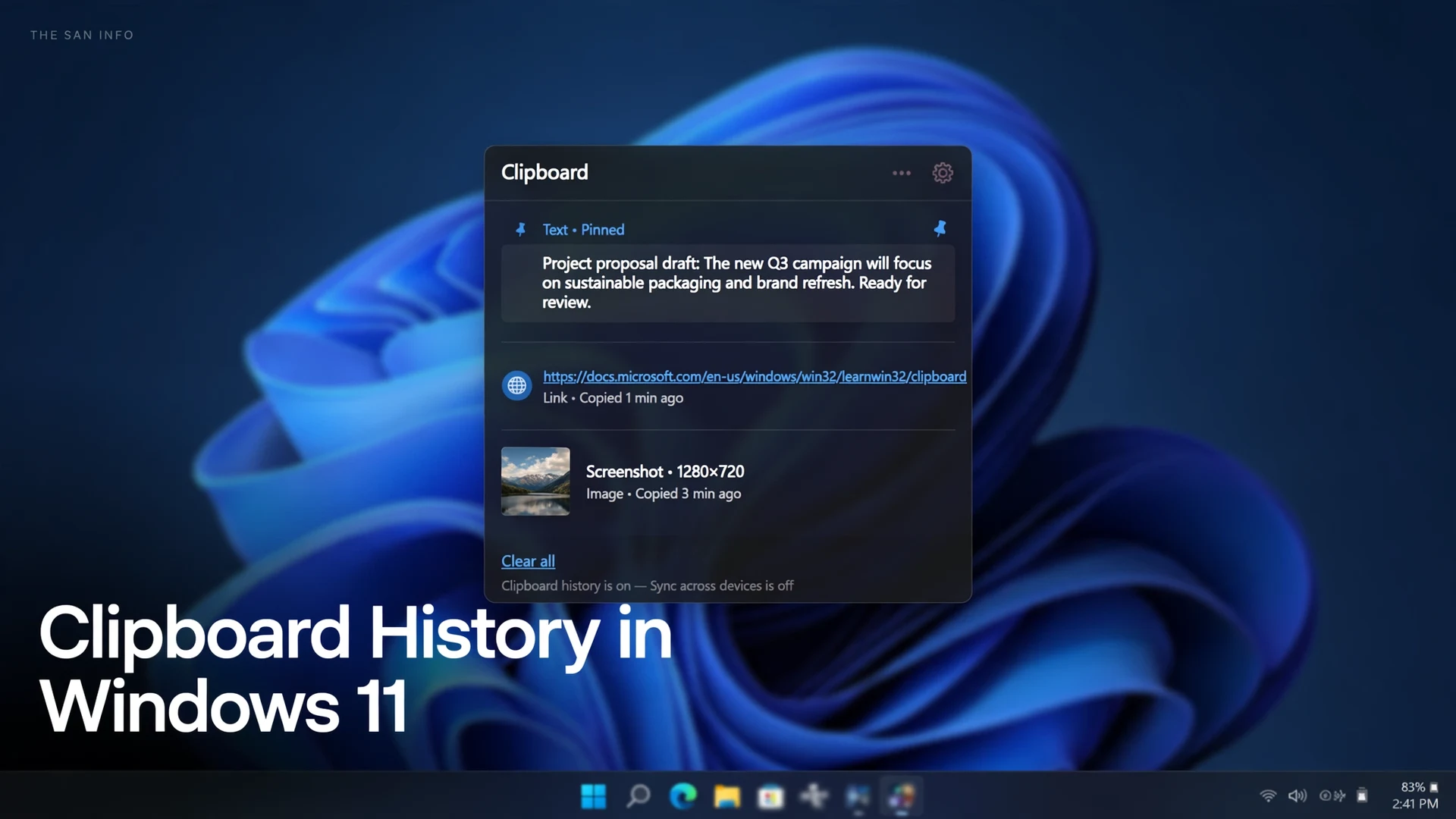
Clipboard history in Windows 11 is the fix for the most annoying copy-paste moment: you copied something useful ten minutes ago, copied something else since, and the first item is gone. Press Windows key + V and Windows shows a panel of your recent copies — text, links, and images — so you can paste any of them, not just the last one. It is off by default, it takes ten seconds to turn on, and once it is on, it quietly changes how you work with text all day.
The short version: press Windows key + V, select Turn on, and from then on every item you copy is saved to a list of up to 25 entries. Press Windows key + V again any time, click an older item, and it pastes at your cursor. Pin the snippets you reuse every day and they survive restarts and full clears; everything else is cleared when you restart your PC. That is the whole feature — and the rest of this guide is about using it well, including the limits and privacy details Microsoft documents but most guides skip.
What Is Clipboard History, and How Is It Different From the Clipboard?
The clipboard itself is the short-term holding spot Windows has always had. Every time you copy with Ctrl + C or cut with Ctrl + X, the new item replaces the old one, and Ctrl + V always pastes only the most recent item. There is no separate Clipboard app to open for this basic behavior.
Clipboard history is an optional layer on top of that. Once it is on, Windows keeps a rolling list of your recent copies and lets you reach back to any of them. Microsoft describes it plainly: you can paste multiple items from your clipboard history, pin the items you use all the time, and sync your clipboard history to the cloud (Microsoft Support). If you have ever re-copied a link, an address, or a code snippet because you overwrote it, clipboard history is the feature that ends that trip.
How Do I Turn On Clipboard History in Windows 11?
There are two routes to the same switch, and the faster one is the shortcut itself:
- Press Windows key + V.
- If clipboard history has never been turned on, the panel shows a Turn on button instead of a list. Select it.
- Copy something with Ctrl + C, then press Windows key + V again. Your copied item now appears in the list, newest first.
Prefer the Settings route? Open Start, then Settings, then System, then Clipboard, and set Clipboard history to On. Either route flips the same switch. One detail matters: only items copied after you turn history on are saved. Anything you copied before is not recoverable from the panel, so turn it on now even if you do not need it until later — the list is only useful once it has had time to fill up.
How Do I Paste Something I Copied Earlier?
The everyday workflow is simple, and it is worth building into muscle memory:
- Click where you want the text or image to go — a document, an email, a chat box, an address bar.
- Press Windows key + V to open the history panel.
- Click the item you want. It pastes at your cursor, exactly as if you had just copied it.
- To paste with the keyboard only, use the arrow keys to highlight an item and press Enter. Press Esc to close the panel without pasting.
The practical win shows up in jobs with several copy steps. Say you are filling in a form that needs your address, a tracking link, and a reference number from three different places. Copy all three first, then open the form and pull each item from the panel in turn — no switching back and forth between windows to re-copy each field. The same trick works for drafting an email that quotes lines from two documents and a web page: gather first, paste second. If you run this kind of multi-window work often, it pairs well with a separate desktop for your reference apps, as explained in our guide to using virtual desktops in Windows 11.
How Do I Pin Items I Use Every Day?
Pinning turns clipboard history from a rolling list into a small snippet library. Open the panel with Windows key + V, hover over an item, select See more (…), and choose Pin. Pinned items stay at the top of the list and survive two things that wipe everything else: restarting your PC and clearing the history.
Win + V has a sibling shortcut worth learning: Win + H starts voice typing in Windows 11, so you can dictate text and then copy it into your snippet library without touching the keyboard.
Pin the three or four snippets you paste constantly and little else: your email signature block, your full mailing address, a canned reply you send every week, the meeting link you join every morning. A pinned list of twenty items is no faster than retyping, because you spend the saved time scrolling. Keep it short, unpin anything you stop using (same menu, Unpin), and let the rolling 25-item list handle everything temporary. One more use: pin an item before you clear the history, and it is the only thing left standing afterward — a handy way to keep one snippet while wiping the rest.
How Do I Paste Without Formatting?
Pasting from a web page often drags fonts, colors, and link styling into your document. The panel has a built-in fix: open it with Windows key + V, select See more (…) next to the item, and choose Paste as text. The fonts, colors, and links are dropped and only the plain text lands at your cursor.
Use it whenever you paste into a document, email, or note that should keep its own formatting — research notes, reports, and messages are the classic cases. It is also the fastest way to strip a copied table or web snippet down to clean text before you reformat it yourself. Note that paste-as-text applies to the item you choose from the panel; the regular Ctrl + V shortcut still pastes the latest item with its original formatting.
What Are the Limits of Clipboard History?
Microsoft documents the limits clearly, and knowing them prevents surprises. Here is the full picture in one table:
| Limit | What it means in practice | Workaround |
|---|---|---|
| 25 items maximum | When the list is full, the oldest unpinned item is dropped to make room for the new one. | Pin anything you cannot afford to lose. |
| 4 MB per item | A very large image or chunk of text may not appear in the list at all. | Paste large images directly with Ctrl + V instead of relying on history. |
| Text, HTML, and bitmap images only | Copied text, links, and pictures show up; files copied in File Explorer do not. | For files, use File Explorer copy-paste as usual — history is for content, not files. |
| Cleared on restart | Restarting your PC empties the list, except for pinned items. | Pin anything you need after a reboot. |
| Sync is text-only | Only text syncs across devices, and only between PCs signed in with the same account. | Re-copy images on the device where you need them. |
The 25-item cap is the one people hit most, and it is generous in practice: a normal work session rarely has 25 live copies you still need. The file limitation is the one that confuses people — if you copy a file in File Explorer and open the panel expecting to see it, you will not. History stores what you copy inside apps (text and images), not file references. Screenshots are the happy exception: a screenshot copied to the clipboard, for example from the Snipping Tool, does appear in the history as an image item, which makes it easy to paste the same capture into several places. For longer capture workflows, see our guide to taking a scrolling screenshot on Windows 11.
How Do I Sync Clipboard History Across Devices?
Sync lets a snippet copied on one PC be pasted on another, and it is genuinely useful if you work on two machines. Set it up in Settings, then System, then Clipboard, and turn on Sync across your devices (labeled Clipboard history across your devices on some builds). You must be signed in with the same Microsoft account — or the same work account — on both PCs, and Microsoft notes that the sync feature is tied to that account (Microsoft Support).
Then choose how it syncs: Automatically sync text that I copy sends everything as you copy it, while Manually sync only sends items you choose. Two honest limits: only text syncs, never images, and the synced list follows the same 25-item cap. If you need a screenshot on the second PC, copy it there directly. For a phone, the Microsoft SwiftKey keyboard on Android can sync clipboard text with your PC when signed in with the same account, which covers the common case of moving a link or address from PC to phone.
Think before turning automatic sync on. Everything you copy — including passwords, codes, and private text — is sent to the cloud when automatic sync is on. On a personal PC that is a convenience; on a shared or work PC, manual sync or no sync is the safer choice. The next section covers how to clean up after sensitive copies either way.
How Do I Clear Clipboard History?
Clearing is a privacy habit worth building, because the clipboard holds whatever you last copied — including passwords, two-factor codes, and private messages. There are three levels:
- Delete one item. Press Windows key + V, select See more (…) next to the item, and choose Delete.
- Clear everything on this device. Press Windows key + V and select Clear all at the top of the panel, or go to Settings, then System, then Clipboard, and select Clear in the Clear clipboard data area. Microsoft notes this clears everything except pinned items, on your device and in the cloud (Microsoft Support).
- Clear everything including pinned items. Unpin the pinned items first, then clear. Pinned items survive a general clear by design, so a clear that leaves pins behind is not a full wipe.
A practical rule: after pasting a password or a one-time code, delete that item from the panel right away instead of waiting for it to age out of the 25-item list. The clipboard is also why sensitive text should not sit in the history of a shared PC at all — if you share a machine, clear the history before you hand it over, and for files that need real protection, see our guide to password protecting a folder in Windows 11. And if you want fewer interruptions while you work through a long copy-paste job, pair this with a quiet window: our guide to Focus Sessions in Windows 11 shows how to silence notifications for a set stretch.
Why Is My Clipboard History Empty or Not Working?
Windows key + V shows a Turn on prompt, not a list. History was never enabled. Select Turn on, copy something, and press Windows key + V again. Remember that nothing copied before you enabled it will appear.
The panel opens but older items are missing. You have either restarted (which clears everything except pinned items), passed the 25-item cap (oldest unpinned items drop off), or copied an item larger than 4 MB, which is never saved. Pin the items that matter.
An image does not appear in the history. Some images only appear when copied from apps that support it, such as a browser or the Snipping Tool. If you copied a file in File Explorer, it will not show up — history stores content, not files.
Sync is not working between two PCs. Confirm both PCs are signed in with the same Microsoft account and that sync is on in Settings, then System, then Clipboard on both machines. Remember that only text syncs; images stay local.
The Clipboard settings toggle is greyed out or missing. On a work or school PC, an administrator policy may disable clipboard history. This is a common managed-device restriction, not a bug in your Windows install — check with your IT administrator if the toggle cannot be changed.
The bottom line: clipboard history is a small feature with an outsized payoff. Turn it on once with Windows key + V, pin the handful of snippets you paste every day, use paste-as-text when formatting gets in the way, and delete sensitive items right after you paste them. Ten seconds of setup, and the next time you lose a copied item to a newer copy, it is one shortcut away instead of gone.
Frequently Asked Questions
No. Clipboard history is off on a new PC until you turn it on. Press Windows key + V and select Turn on, or go to Settings, then System, then Clipboard, and switch Clipboard history to On. Only items copied after you turn it on are saved — earlier copies cannot be recovered from the panel.
Up to 25 items, and each item can be up to 4 MB. When the list is full, the oldest unpinned item is dropped to make room for the newest copy. Pinned items do not count against the churn — they stay until you unpin or delete them.
Yes — anything you copy, including passwords and one-time codes, is saved to the history like any other text. Delete sensitive items right after pasting them: press Windows key + V, select See more (…) next to the item, and choose Delete. If you use sync, avoid automatic sync on shared PCs, since copied text is sent to the cloud.
For text, yes. Clipboard sync works between PCs signed in with the same Microsoft account, and the Microsoft SwiftKey keyboard on Android can sync clipboard text with your PC under the same account. Only text syncs — images stay on the device where you copied them.
That is by design. Restarting your PC clears clipboard history, except for pinned items. If you need a snippet to survive restarts, pin it: press Windows key + V, select See more (…) next to the item, and choose Pin.
On managed work or school PCs, an administrator policy can disable clipboard history, which greys out the Settings toggle. Check Settings, then System, then Clipboard — if the toggle cannot be changed, your IT administrator controls it and you will need their approval to enable it.