How to Use Windows Recall on a Copilot+ PC (Privacy-First Guide)

Windows Recall is a searchable visual timeline for your Copilot+ PC: once you opt in, it saves snapshots of your screen every few seconds, indexes them on the device, and lets you find anything you have seen — a document, a web page, a chart — by describing it in your own words. It is off by default, it only runs on Copilot+ PCs, and every snapshot stays encrypted on your device. This guide shows you how to turn it on, search it, and control exactly what it captures.
What Is Windows Recall, Exactly?
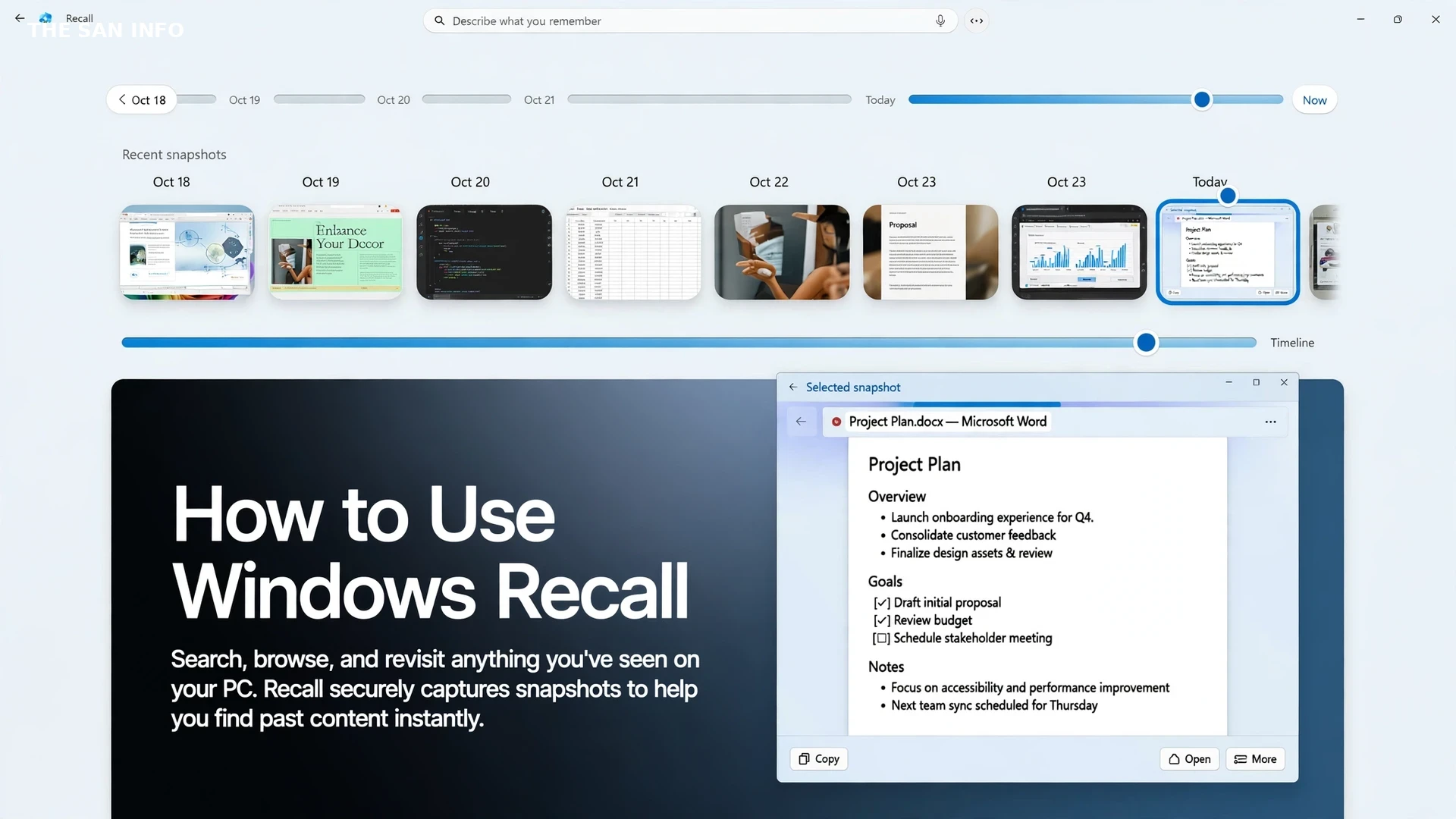
Recall is Microsoft’s “photographic memory” for Windows 11, and it works differently from browser history or File Explorer’s Recent list. Instead of tracking only files you opened, it takes periodic snapshots of your active screen — including the text and images visible in apps, websites, and documents — and makes all of it searchable with natural language. Looking for “the blue chart about Q3 onboarding from last Tuesday”? Describe it, and Recall surfaces the snapshot, then lets you jump straight back into the app, website, or document it came from.
Three things define the feature, and they matter more than the marketing: it is opt-in (nothing is captured until you explicitly turn on snapshot saving), it is local (snapshots are processed and stored on your PC, not uploaded to Microsoft’s servers), and it is gated (you must authenticate with Windows Hello before Recall opens or shows a snapshot). I tested the workflow against Microsoft’s own documentation rather than a live Copilot+ PC session, so every step below follows the official settings paths — if a screen looks different on your machine, you are almost certainly on a managed PC or an older build, and the troubleshooting section at the end covers both.
Can Your PC Run Recall? The Eligibility Check
Before you go hunting for the setting, check the hardware bar — it is high, and it is the reason most Windows 11 PCs simply do not show Recall at all. Microsoft’s minimum requirements are a Copilot+ PC that meets the Secured-core standard, with a neural processing unit (NPU) rated at 40 TOPS, 16 GB of RAM, 8 logical processors, and 256 GB of storage. Which chip delivers that NPU depends on the PC you buy — see Ryzen vs Intel for which processor family fits your budget and workload. You also need at least 50 GB of free space before snapshot saving will start, and saving pauses automatically if free space drops below 25 GB. On top of that, Device Encryption or BitLocker must be on, and you must be enrolled in Windows Hello Enhanced Sign-in Security with at least one biometric option — face or fingerprint.
The practical check takes thirty seconds: open Settings, go to Privacy & security, and look for a “Recall & snapshots” page. If it is there, your PC qualifies. If it is not, you are either on a non-Copilot+ PC, on a managed work or school device (where Recall is disabled and removed by default — more on that below), or behind on updates. Recall arrived in preview with Windows 11 version 24H2 — the April 2025 preview update, build 26100.3915 — and carries forward into version 26H2, so a Copilot+ PC on a current build should show the page.
How Do I Turn On Windows Recall?
Turning Recall on is a deliberate two-step: you opt in, then you prove it is you. Open Settings, go to Privacy & security, open the Recall & snapshots page, and turn on “Save snapshots.” Windows will ask you to confirm with Windows Hello, and from that moment snapshots start being saved in the background. You can also launch the Recall app from Start and opt in from its first-run screen — on a brand-new Copilot+ PC, the out-of-box setup asks the same question, so you may have already answered it during setup.
One habit is worth building on day one: the Recall icon in the system tray is your pause button. Select it and pause snapshot saving whenever you are about to do something you do not want recorded — a bank login, a performance review, a surprise gift purchase. Pausing is instant and temporary; turning off “Save snapshots” stops capture until you turn it back on. Both are better than deleting snapshots after the fact, because a snapshot that was never taken needs no cleanup.
How Do I Search My Recall Timeline?
Open Recall from Start and authenticate with Windows Hello — face, fingerprint, or PIN — and you land on a timeline you can scrub like a video, plus a search box that understands descriptions, not just filenames. Type what you remember: “the spreadsheet with the onboarding checklist,” “the hotel booking page with the sea view,” or “the slide with the blue bar chart.” Recall returns text and visual matches ranked by relevance, and selecting a result reopens the original app, website, or document at that moment.
The genuinely useful trick is what happens inside a snapshot. Recall works hand-in-hand with Click to Do, the Copilot+ feature that acts on text and images on screen — so from a snapshot you can copy a paragraph, open a link, or copy an image without reopening the original file and hunting for it again. If you use both features together, Recall finds the moment and Click to Do acts on it; either one alone is only half the workflow.
How Do I Control What Recall Captures?
This is where Recall earns or loses your trust, and it is the section most guides rush past. The controls live on the same Recall & snapshots settings page, and they are worth setting before you accumulate weeks of history:
| Control | Where to set it | What it actually does |
|---|---|---|
| Save snapshots | Settings > Privacy & security > Recall & snapshots | The master switch. Off means nothing new is captured; existing snapshots stay until you delete them. |
| Pause snapshots | Recall icon in the system tray | Stops capture temporarily — ideal for banking, HR documents, or anything sensitive. |
| Filter apps | Recall & snapshots settings | Exclude specific apps entirely. Your password manager and banking app belong here on day one. |
| Filter websites | Recall & snapshots settings | Exclude specific websites from snapshots, and private browsing sessions are not captured. |
| Sensitive information filtering | Recall & snapshots settings (on by default) | Attempts to skip snapshots containing passwords, card numbers, and ID numbers. Microsoft’s own wording is that it “helps reduce” such captures — a safety net, not a guarantee. |
| Maximum storage | Recall & snapshots settings | Caps how much disk snapshots may use (policy values run 10, 25, 50, 75, 100, or 150 GB). When the cap is hit, the oldest snapshots are deleted first. |
| Maximum storage duration | Recall & snapshots settings | Limits how long snapshots are kept — 30, 60, 90, or 180 days, or unlimited. Older snapshots past the limit are deleted automatically. |
| Delete snapshots | Recall & snapshots settings | Delete by time range, by app or website, or everything at once. Resetting Recall wipes all snapshots and settings. |
The honest version of the privacy story is this: snapshots are encrypted, stored only on your device, and Microsoft states it cannot access or view them — but anyone who can sign in as you and pass Windows Hello can open Recall. That makes your sign-in security the real perimeter. Use a biometric, not just a PIN, if your PC offers one; lock the PC (Win + L) when you walk away; and treat the sensitive-information filter as risk reduction, not a promise. If a password or card number ever appears on screen in plain text, pause snapshots first and filter the app second.
What About Work PCs and Snapshot Export?
On managed devices the story flips: Recall is disabled and removed by default, and individual users cannot enable it themselves when the “Allow Recall to be enabled” policy is switched off. If your work Copilot+ PC has no Recall & snapshots page even after updating, this is almost certainly why — it is an IT decision, not a bug, and no settings toggle on your side overrides it. Microsoft documents this explicitly for IT admins, which is also why enterprise privacy objections to Recall largely miss the mark: on a managed fleet, the feature is not silently running in the background.
Export is the other edge case worth knowing. In the European Economic Area, you can export your Recall snapshots to share with third-party apps or websites you trust, using an export code that Recall shows you during setup. Exporting is optional — you can review snapshots in Recall without ever exporting — and on managed devices it is disabled by default unless IT allows it. Treat exported snapshots as sensitive data: they are encrypted, but they contain the same screen history you protected on the device, so share them only with services you actually trust.
Why Can’t I Find Recall on My PC?
Run through this checklist in order, because the cause is almost always one of four things. First, confirm you have a Copilot+ PC — a 40 TOPS NPU is the gate, and no setting enables Recall on older hardware. Second, check Windows Update: Recall needs version 24H2 or later, so install pending updates and look again. Third, check whether the device is managed by work or school, in which case IT policy may have removed the feature. Fourth, confirm BitLocker or Device Encryption and Windows Hello biometrics are set up, since both are prerequisites for snapshot saving. If all four check out and the page is still missing, a Windows Update repair install is the last resort — but in my experience, one of the first three explains it.
One more reality check before you commit: Recall does not record audio and does not save continuous video, and it skips game video while Game Mode is active. What it does save is a still snapshot every few seconds and whenever the active window’s content changes. Over weeks that becomes a remarkably complete diary of your screen — which is exactly why the filters, the pause button, and the storage duration deserve five minutes of your attention before you let it run for months.
Is Windows Recall Worth Turning On?
For one kind of user, yes, clearly: if you juggle dozens of documents, tabs, and apps a day and constantly lose track of where you saw something, Recall removes an entire category of friction — no more re-finding the file, the page, or the chart. Pair it with Click to Do and with an organized desktop — virtual desktops keep work, comms, and personal spaces apart, which also keeps your snapshot timeline cleaner — and the combination is the strongest productivity case Copilot+ PCs currently have.
For everyone else, the honest answer is “only with the controls set.” Turn it on, immediately filter your password manager, banking, and messaging apps, set a storage duration you are comfortable with (90 days is a sensible middle ground), and make the tray pause button a habit. Used that way, Recall is a genuinely useful memory aid with a contained footprint. Used with default settings and no filters, it is a complete archive of your screen that you never asked to curate — and that is a trade most people would not make if they thought about it for five minutes. Spend the five minutes.
Frequently Asked Questions
No. Recall is exclusive to Copilot+ PCs that meet the Secured-core standard, with a 40 TOPS NPU, 16 GB of RAM, 8 logical processors, and 256 GB of storage, plus BitLocker or Device Encryption and Windows Hello with a biometric sign-in. If your PC does not meet that bar, the Recall and snapshots settings page simply will not appear.
No. Recall is opt-in: snapshot saving is off until you explicitly turn it on in Settings, in the Recall app, or during first-run setup on a new Copilot+ PC. Nothing is captured before that choice, and you can pause or switch it off at any time from the system tray icon or settings.
No. Snapshots are processed and stored locally on your Copilot+ PC, encrypted with BitLocker or Device Encryption, and Microsoft states it cannot access or view them. Access to Recall itself requires Windows Hello authentication, so only someone signed in as you who can pass that check can open your timeline.
Yes. The Recall and snapshots settings page lets you filter out specific apps and specific websites, and private browsing sessions are not captured. Sensitive information filtering is on by default and attempts to skip snapshots containing passwords, card numbers, and ID numbers, but Microsoft describes it as helping to reduce such captures — treat it as a safety net, not a guarantee, and pause snapshots for anything truly sensitive.
On the Recall and snapshots settings page you can delete snapshots for a time range, for a specific app or website, or all snapshots at once. Resetting Recall wipes all snapshots and returns its settings to their defaults. Storage caps and duration limits also delete the oldest snapshots automatically once a limit is reached.
The usual causes, in order: your PC is not a Copilot+ PC; Windows is behind version 24H2; the device is managed by work or school, where Recall is disabled and removed by default and IT policy controls it; or BitLocker/Device Encryption and Windows Hello biometrics are not set up. Check those four before assuming anything is broken.