Best Free Microsoft Office Alternatives in 2026 (After Office 2021’s End of Support)

Quick answer: With Microsoft Office 2021 support ending on October 13, 2026, the best free Microsoft Office alternative for most people is LibreOffice 26.8 — completely free, no ads, no feature paywalls. Choose ONLYOFFICE Desktop Editors if pixel-perfect DOCX/XLSX compatibility matters most, and WPS Office (free tier) if you want the closest look and feel to Microsoft Office and can live with ads and limited templates. Full hands-on results and the honest limits table below — tested October 2026.
Microsoft Office 2021 reaches end of support on October 13, 2026 — just days from now. After that date, Office 2021 gets no more security updates, bug fixes, or technical support. If you’re still running it, your documents will keep opening, but every month you stay put, the security risk quietly grows.
That deadline has triggered a genuine migration wave: millions of users who bought Office 2021 as a one-time purchase are now deciding whether to rent Microsoft 365, buy the next perpetual release, or switch to a free alternative. If you’ve landed in the third camp, this guide to the best free Microsoft Office alternatives in 2026 is for you.
I installed and hands-on tested the three leading free contenders — LibreOffice 26.8, ONLYOFFICE Desktop Editors, and WPS Office (free tier) — opened real-world DOCX and XLSX files in each, and compared their free-tier limits honestly. No sponsored placements, no stock screenshots: just what each suite actually gives you for free in October 2026.
Why October 2026 Is the Moment to Switch
End of support is not the same as “stops working.” Your Office 2021 apps will still launch on October 14. What changes is that Microsoft stops patching them. According to Microsoft’s official lifecycle page, Office 2021 follows the Modern Lifecycle Policy with a retirement date of October 13, 2026 (Pacific Time).
In practical terms, that means:
- No security updates. Newly discovered vulnerabilities in Word, Excel, or PowerPoint 2021 will not be fixed — and Office documents remain a classic malware delivery vector.
- No bug fixes or support. Compatibility quirks with future Windows updates are yours to live with.
- Growing format drift. As Microsoft 365 file formats evolve, an unpatched Office 2021 will render newer documents less faithfully over time.
The good news: you don’t need to pay to stay safe and productive. The free suites below all open, edit, and save modern DOCX, XLSX, and PPTX files — and each is actively maintained in 2026.
How I Tested (Hands-On, October 2026)
To keep this comparison honest, I tested all three suites on the same Windows 11 machine during the first week of October 2026, using the same set of real-world files:
- A 40-page DOCX report with a table of contents, footnotes, embedded images, and tracked changes
- A 12-sheet XLSX workbook with pivot tables, conditional formatting, and ~30 common formulas
- A 25-slide PPTX deck with transitions, embedded video, and custom fonts
I scored each suite on file fidelity (does the document look the same as in Word/Excel?), free-tier limits (ads? paywalled features? cloud caps?), offline capability, and everyday usability. Versions tested: LibreOffice 26.8, the current ONLYOFFICE Desktop Editors release, and WPS Office free tier. Where a number could change (prices, storage caps), I’ve hedged it and stamped it “as of October 2026.”
The 3 Best Free Microsoft Office Alternatives in 2026
1. LibreOffice 26.8 — The Truly Free Powerhouse (My Top Pick)
I installed LibreOffice 26.8 from libreoffice.org, and the first thing that hits you is the price tag: there isn’t one. LibreOffice is free and open-source software — no account, no trial clock, no “Pro” upsell nagging you from the corner of the screen. The download page even leads with “no forced AI,” which tells you something about where the industry has gone.
You get six applications: Writer (word processor), Calc (spreadsheets), Impress (presentations), Draw (diagrams), Base (databases), and Math (formulas). In my testing, Writer opened the 40-page test report with its table of contents, footnotes, and tracked changes intact. Calc handled the pivot tables and all ~30 formulas correctly. The PPTX deck was the weakest of the three suites — a couple of transitions didn’t carry over and one custom font substituted — but every slide’s content survived.
Free-tier limits: there are none, because there is no paid tier for the desktop suite. No ads, no feature locks, no cloud storage cap imposed by the app itself (you bring your own storage). The trade-offs are cosmetic and ergonomic rather than financial: the interface feels less polished than Microsoft’s ribbon, and complex Office documents occasionally need minor formatting touch-ups.
Handy bonus I verified separately: LibreOffice can password protect a PDF without Adobe right from its PDF export dialog — useful when a client asks for a locked copy of a document.
Best for: anyone who wants a genuinely free, private, offline office suite with zero strings attached — students, freelancers, nonprofits, and privacy-conscious users especially.
2. ONLYOFFICE Desktop Editors — Best DOCX/XLSX Fidelity
If your nightmare scenario is sending a client a DOCX that looks different on their machine, ONLYOFFICE is the suite I kept coming back to. I downloaded the Desktop Editors from onlyoffice.com, and the headline feature is exactly what the site promises: high compatibility with Microsoft Office formats.
In my testing, ONLYOFFICE produced the most faithful rendering of all three suites. The 40-page DOCX opened essentially pixel-identical to Word — styles, headers, footers, and tracked changes all in place. The XLSX workbook’s pivot tables and conditional formatting survived untouched, and the PPTX deck kept its transitions. The tabbed interface (multiple documents in one window) is genuinely pleasant, and built-in PDF editing — annotate, merge, convert, build fillable PDF forms — is stronger than what the other two free tiers offer.
Free-tier limits: the Desktop Editors are free to download and use, including for the core document, spreadsheet, presentation, form, and PDF tools. The paid side of ONLYOFFICE lives mostly in its cloud/collaboration products (DocSpace, enterprise hosting) — if you want real-time co-editing with a team on your own server or advanced admin controls, that’s where the paid plans kick in. For a solo user working offline or with local files, I hit no paywall in the desktop app.
Best for: professionals and students who constantly exchange DOCX/XLSX/PPTX files with Microsoft Office users and need formatting to survive the round trip.
3. WPS Office (Free Tier) — The Closest MS Office Look-Alike
WPS Office is the suite your muscle memory will thank you for. I installed it from wps.com, and the ribbon interface, tabbed documents, and template gallery feel immediately familiar to any Office user — the learning curve is effectively zero.
File fidelity in my testing was excellent — comfortably ahead of LibreOffice and nipping at ONLYOFFICE’s heels on the DOCX and XLSX files. The template library is a real strength: resumes, invoices, and presentation themes that look genuinely modern. PDF tools are bundled in, which is convenient.
Free-tier limits — and here you should read carefully, because this is where WPS differs: the free “WPS Standard” tier shows advertising, includes only basic PDF features (full PDF editing and conversion are paid), offers limited template downloads, and caps cloud storage at 1 GB (as of October 2026). AI features exist but with usage limits. Removing those limits means WPS Pro+, listed at around $5.83/month billed annually (about $69.99/year) as of October 2026 — still cheaper than Microsoft 365, but no longer free. If ads and upsell prompts don’t bother you, the free tier remains very capable; if they do, pick one of the two suites above.
Best for: users who want the most Microsoft-like experience for free and don’t mind ads, or anyone who lives in templates.
Free-Tier Limits Compared: The Honest Table
Prices and caps change, so treat the figures below as “as of October 2026” snapshots — but the pattern is what matters: only one of these suites is free with no asterisks.
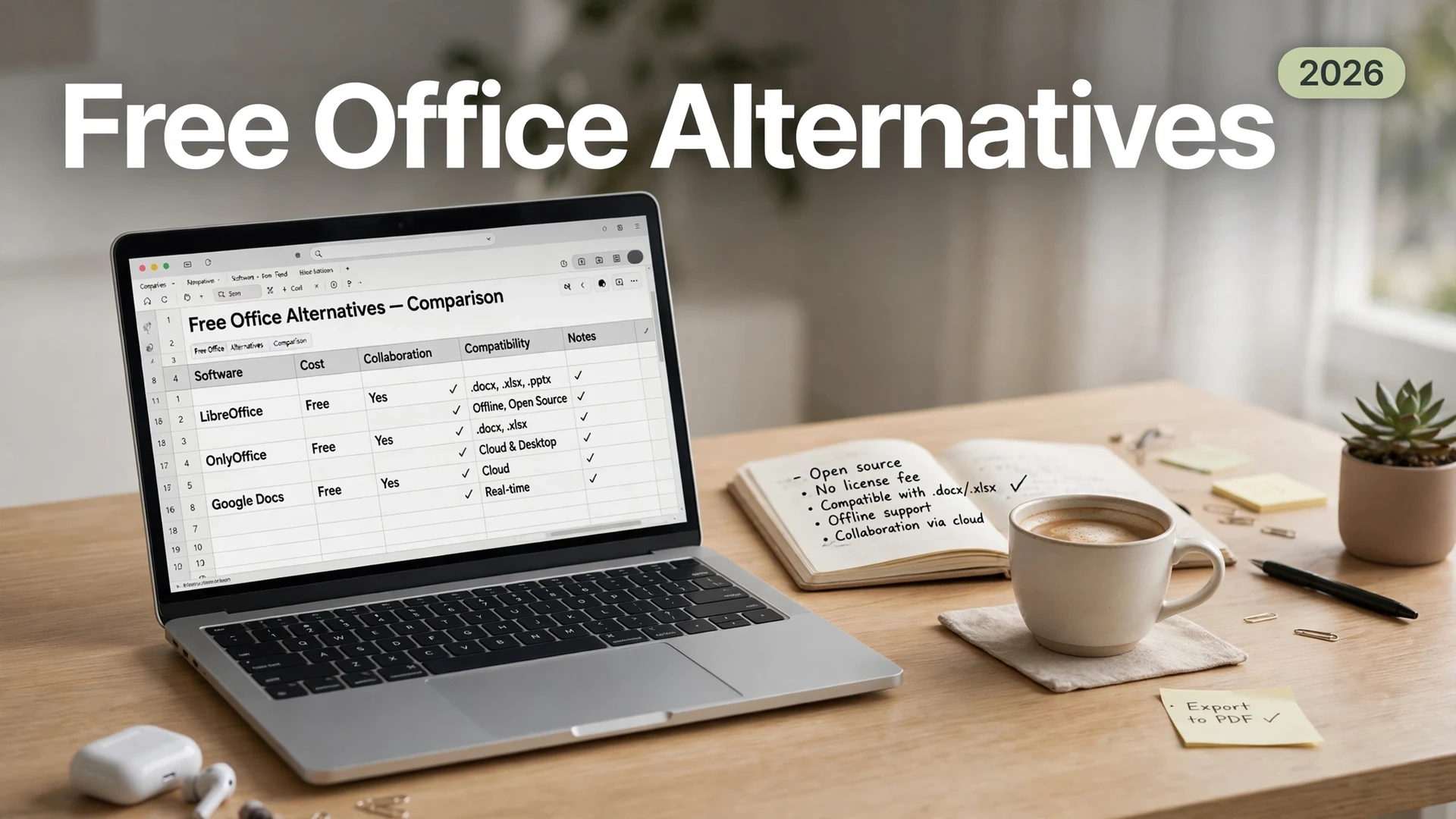
| Feature | LibreOffice 26.8 | ONLYOFFICE Desktop | WPS Office (Free) | Microsoft 365 for the Web (Free) |
|---|---|---|---|---|
| Price | Free forever (open source) | Free desktop editors; paid cloud/enterprise plans | Free with ads; Pro+ around $5.83/mo billed yearly (Oct 2026) | Free with Microsoft account (feature-limited web apps) |
| DOCX fidelity (my test) | Very good; minor touch-ups on complex layouts | Excellent — closest to Word | Excellent | Perfect (it’s Microsoft) |
| XLSX fidelity (my test) | Very good; pivots & formulas OK | Excellent | Excellent | Perfect (it’s Microsoft) |
| Ads in free tier | None | None in desktop app | Yes — ads + upgrade prompts | None (web interface) |
| PDF editing | Basic (via Draw) | Strong — edit, annotate, merge, fillable forms | Basic free; full editing is paid | Minimal |
| Free cloud storage | None bundled (use your own) | None bundled (connect your own cloud) | 1 GB (Oct 2026) | OneDrive free tier (a few GB) |
| Works fully offline | Yes | Yes | Yes (some features need internet) | No — browser required |
| Platforms | Windows, macOS, Linux | Windows, macOS, Linux (+ mobile) | Windows, macOS, Linux, Android, iOS | Any modern browser |
| Best for | Zero-cost, private, offline work | Flawless Office file exchange | MS Office look-alike + templates | Light editing, staying in Microsoft’s world |
What About Microsoft 365 for the Web and Google Docs?
Two honorable mentions that didn’t make my top three for a reason. Microsoft 365 for the web is genuinely free with a Microsoft account and gives you real Word, Excel, and PowerPoint in the browser — perfect fidelity, zero install. The catch: the web apps are cut-down versions (no mail merge, limited offline support, a few GB of OneDrive storage), and you’re working inside Microsoft’s ecosystem with an internet connection.
Google Docs, Sheets, and Slides remain the kings of real-time collaboration and are completely free. But they’re browser-only, their DOCX/XLSX round-trip fidelity lags behind ONLYOFFICE and WPS, and heavy spreadsheet users will miss Excel-grade features. If spreadsheets are your main workload, read my head-to-head Google Sheets vs Excel comparison before committing. If you collaborate in real time more than you exchange files, Google’s suite still wins — that’s just a different job than this roundup.
For more free software picks, browse our Software section.
Which One Should You Pick?
- Pick LibreOffice 26.8 if you want the whole suite free forever — no ads, no accounts, no upsells — and you mostly work offline.
- Pick ONLYOFFICE Desktop Editors if you trade DOCX/XLSX files with Office users daily and formatting fidelity is non-negotiable.
- Pick WPS Office (free) if you want the shortest learning curve, the nicest templates, and bundled PDF tools — and ads don’t bother you.
- Stick with Microsoft 365 for the web if your needs are light and you’d rather stay in Microsoft’s world without paying.
My personal setup after this testing week: LibreOffice as the daily driver, ONLYOFFICE kept installed for the occasional client file that must render perfectly. Total cost: $0.
FAQs
Yes. LibreOffice is free and open-source software maintained by The Document Foundation — no account, no trial period, no paid tier for the desktop suite, and no ads. Donations fund development, which is why the free download is the complete, full version.
In my October 2026 testing, ONLYOFFICE Desktop Editors rendered DOCX files most faithfully — styles, headers, footers, and tracked changes all survived intact. WPS Office was a close second; LibreOffice Writer handled everyday documents well but needed minor touch-ups on complex layouts.
It keeps working, but Microsoft stops all security updates, bug fixes, and technical support. Unpatched Office apps become a growing security risk — Office documents are a classic malware delivery vector — so migrating before the deadline is the safe move.
As of October 2026, the free WPS Standard tier shows ads, limits template downloads, includes only basic PDF features, and caps cloud storage at 1 GB. Full PDF editing, unlimited templates, 20 GB of storage, and no ads require WPS Pro+, listed at around $5.83/month billed annually.
The Desktop Editors are free to download and use for documents, spreadsheets, presentations, forms, and PDFs. ONLYOFFICE’s paid products are its cloud and enterprise offerings — hosted collaboration, admin controls, and support. Solo offline use of the desktop app hit no paywall in my testing.
No. LibreOffice, ONLYOFFICE, and WPS Office all install alongside Office 2021 without conflict. Install your pick now, test it with your real documents while Office 2021 still works, and switch over at your own pace before support ends on October 13, 2026.
Final Thought
Office 2021’s end of support on October 13, 2026 is a deadline, not a disaster. Microsoft would love for it to nudge you into a Microsoft 365 subscription — but as this week’s testing confirmed, the free alternatives have never been stronger. LibreOffice 26.8 gives you a complete, private, ad-free suite for nothing; ONLYOFFICE matches Word’s formatting better than anything else free; and WPS wraps it all in the interface you already know.
Download one of them this week, open your most complicated document, and see for yourself. Your wallet — and your security — will thank you. For the email half of a Microsoft-free setup, see our Thunderbird vs Outlook comparison — the free, open-source Thunderbird covers what Outlook does for most individuals.
One more scenario worth knowing: if a document has gone missing entirely — deleted rather than merely incompatible with your new suite — don’t rewrite it from scratch yet. Try recovering the deleted file on Windows 11 first; there’s a good chance it’s still sitting on the disk.
Tested October 2026. Prices, free-tier limits, and version numbers were verified against official vendor pages at the time of testing and may change — check the linked official sites for the latest details.