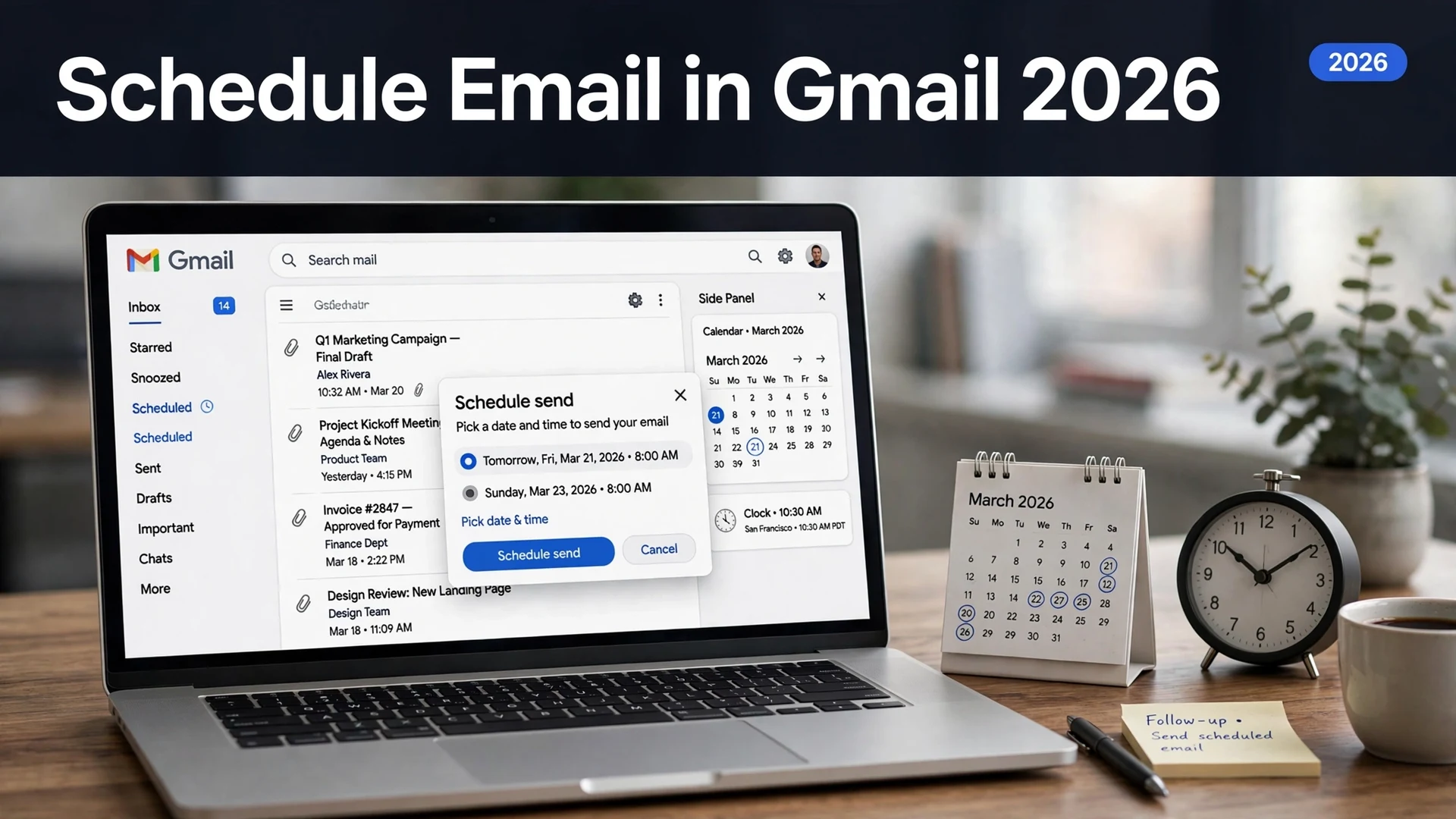
How to Schedule an Email in Gmail (2026): Desktop, Android & iPhone

Quick answer: In Gmail on desktop, click Compose, write your email, click the down arrow next to Send, choose Schedule send, and pick a time — or click Pick date & time for a custom one. In the Gmail app (Android or iPhone), compose your email, tap the three-dot menu in the top right, and tap Schedule send. You can queue up to 100 scheduled emails at once; they wait in the Scheduled folder until they send automatically.
Sending an email at 2 AM tells the recipient you were awake at 2 AM — or at least, that’s how it reads in their inbox. Gmail’s Schedule send fixes that: write now, deliver later. It’s free, built into every Gmail account since 2019, and takes about ten seconds once you know where the button hides. It hides in a slightly different spot on desktop and mobile, so here’s both, plus how to find, edit, reschedule, or cancel a scheduled email — and the limits Google doesn’t advertise very loudly.
How to Schedule an Email in Gmail on Desktop
On a computer, the schedule option lives on the Send button itself:
1. Click Compose and write your email as usual — recipient, subject, body, attachments.
2. Don’t click Send. Instead, click the small down arrow right next to the blue Send button in the bottom-left corner of the compose window.
3. Click Schedule send.
4. Gmail suggests three times — typically tomorrow morning, tomorrow afternoon, and Monday morning. Click one, or click Pick date & time to open a calendar and time picker.
5. Choose your date and time, then click Schedule send again to confirm.
That’s it. The email moves to the Scheduled label in the left sidebar. Google’s official help page (Schedule emails to send later) documents the same flow, and it hasn’t changed in years — which is exactly why older guides still work.
How to Schedule an Email in the Gmail App (Android & iPhone)
The steps are identical on Android and iPhone — only the button placement differs from desktop:
1. Open the Gmail app and tap the Compose button (bottom right).
2. Write your email — recipient, subject, body.
3. Tap the three-dot menu in the top-right corner of the compose screen (next to the send arrow).
4. Tap Schedule send.
5. Pick one of the suggested times, or tap Pick date & time to set your own.
6. Confirm with Schedule send.
One gotcha on mobile: the Schedule send option only appears after you’ve added at least one recipient. If the three-dot menu doesn’t show it, check the To field first.
Where to Find Your Scheduled Emails
Every scheduled email waits in the Scheduled folder in the left sidebar (desktop) or in the navigation drawer — tap the hamburger menu in the top-left of the app — on mobile. If you don’t see it, click More at the bottom of the label list; the Scheduled label only appears after you’ve scheduled your first email.
Shortcut: type in:scheduled in the Gmail search bar to jump straight to the list. Emails appear in reverse chronological order with the recipient, subject, and the scheduled send time shown on each one.
How to Edit, Reschedule, or Cancel a Scheduled Email
Gmail doesn’t let you edit a scheduled email in place. The workflow is: cancel, edit, re-schedule. It takes about 20 seconds:
1. Open the Scheduled folder and click the email you want to change.
2. Click Cancel send (top right on desktop; on mobile, tap the email and choose Cancel send). The email is pulled from the queue and saved back to Drafts.
3. Open the draft, make your changes.
4. Either click Send to deliver it now, or use Schedule send again to pick a new time.
To cancel outright without sending, open the scheduled email and click Cancel send, then delete the draft — or delete it straight from the Scheduled folder. Deleting a scheduled email removes it from the queue permanently; it will not send.
Gmail Scheduling Limits and Rules
The feature is simple, but it has edges worth knowing before you rely on it:
| Rule | What it means |
|---|---|
| 100 pending emails max | The Scheduled folder holds up to 100 unsent emails at once. Try to schedule a 101st and Gmail blocks it. Slots free up automatically as earlier emails send. |
| Sends from Google’s servers | Your computer can be off and your phone can be in airplane mode — the email still sends. Nothing depends on your device after you hit Schedule send. |
| No recurring schedules | Schedule send is one-time only. For “every Monday at 9 AM” you need a Google Apps Script, an add-on like Boomerang or Mailmeteor, or a mail-merge tool. |
| Recipient sees nothing special | A scheduled email arrives with normal headers and metadata — the recipient only sees the delivery time, not when you wrote it. |
| Scheduled time follows your timezone | Gmail schedules in the timezone it detects from your device or account. If you’re traveling or emailing across time zones, double-check which timezone the time picker is showing before confirming. |
| Daily sending limits still apply | Scheduled emails count toward Gmail’s daily send limits (500/day for free accounts, higher for Workspace). A full queue of scheduled mail plus heavy sending can trip a temporary block. |
| Can send a few minutes late | Google notes that scheduled emails may go out a few minutes after the chosen time. Don’t schedule one 30 seconds before a hard deadline. |
| Attachments work normally | Files, images, and Drive links attach and send exactly as they would in an instant email. Nothing special to do. |
The 100-email cap is the one that surprises people: there’s no monthly limit on how many emails you can schedule in total — only on how many can be sitting unsent in the queue at the same time. For personal use it’s effectively unlimited; for bulk outreach, it’s a real constraint, and that’s when a dedicated mail tool makes more sense.
FAQs
Yes. Schedule send is free for every Gmail account and has been since 2019. On desktop, click the down arrow next to the Send button and choose Schedule send. In the Gmail app, tap the three-dot menu in the top-right corner of the compose screen and tap Schedule send.
You can have up to 100 scheduled emails waiting in the Scheduled folder at the same time. There is no monthly limit on how many you schedule overall — slots free up automatically as earlier scheduled emails send, and Gmail blocks a 101st pending email with an error message.
Open the Scheduled folder, open the email, and click Cancel send. The email moves back to Drafts, where you can edit it freely. Then either send it immediately or use Schedule send again to pick a new time. Deleting a scheduled email cancels it permanently.
No. Scheduling happens on Google’s servers, not your device. Once you hit Schedule send, the email goes out at the chosen time even if your computer is off and your phone is in airplane mode.
No. A scheduled email arrives with normal headers and metadata — the recipient only sees the delivery time, not the time you wrote or scheduled it. Scheduling is invisible to them by design.
Not natively. Gmail’s Schedule send is one-time only. For recurring sends like a weekly report every Monday at 9 AM, use a Google Apps Script with a time-based trigger or a third-party add-on such as Boomerang or Mailmeteor.
Final Thought
Schedule send is one of those features that quietly changes how you work once it’s a habit: draft the difficult email when you’re thinking clearly, deliver it when the recipient is ready to read it. The mechanics take a minute to learn — arrow next to Send on desktop, three-dot menu on mobile, Scheduled folder to manage the queue — and after that it’s muscle memory. Just remember the two real constraints: 100 pending at a time, and no recurring sends without help from a script or add-on.
For more software how-tos, see our guides to the best free Microsoft Office alternatives and how to blur your background in Zoom — both verified free.