How to Use GPT-6’s Intelligent UI in ChatGPT: A Practical Guide

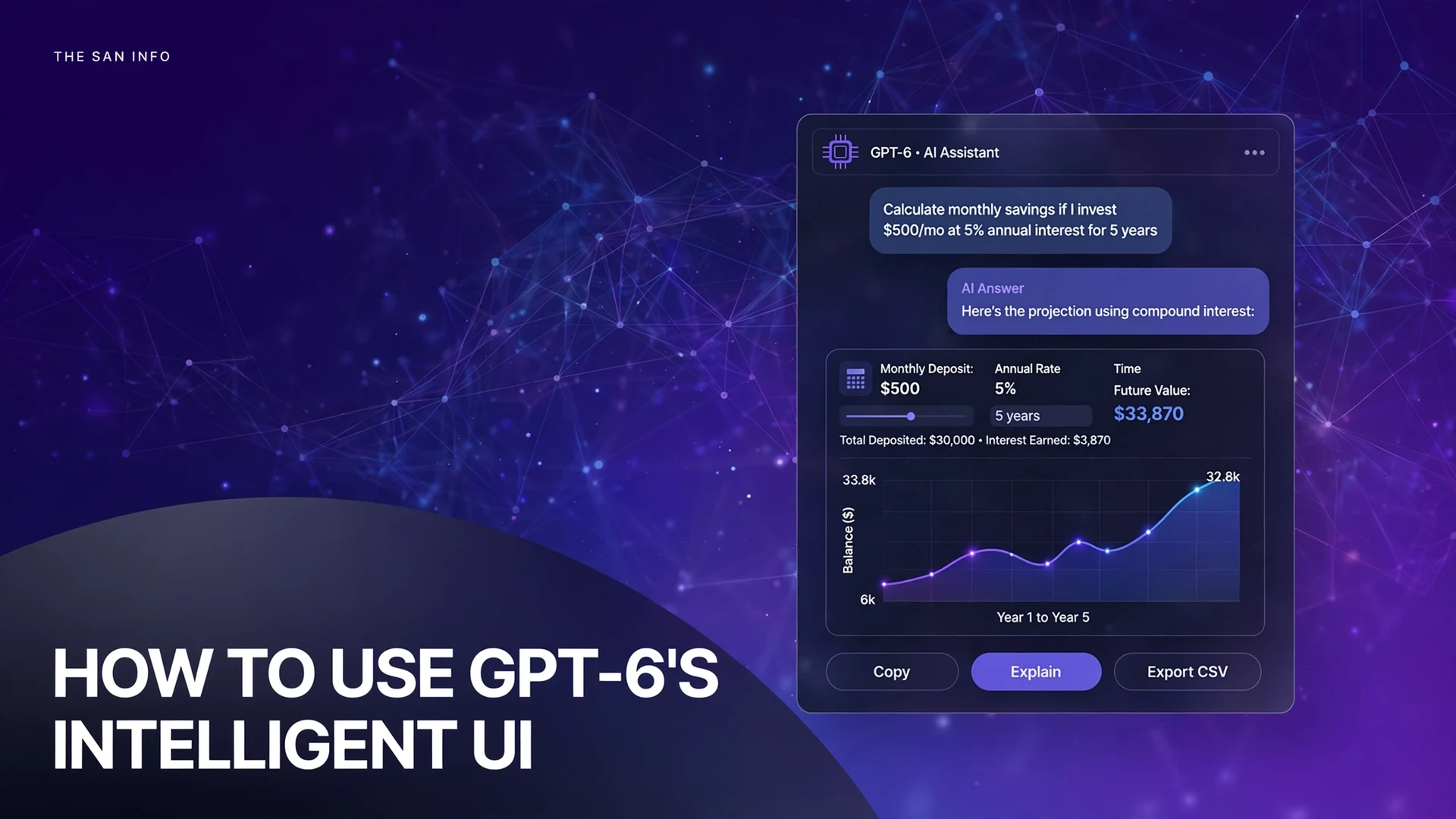
On October 7, 2026, OpenAI changed what a ChatGPT answer can look like. The company rolled out GPT-6 in ChatGPT with a feature called Intelligent UI, per its launch announcement: answers that arrive as interactive interfaces you can tap, drag, and play with — not just text you read. Ask about saving money and you might get a calculator with sliders. Ask how an airplane wing generates lift and you might get a diagram you can explore layer by layer.
This is the biggest change to ChatGPT’s interface since the chatbot launched, and it reaches more than 1.2 billion weekly users, according to OpenAI’s announcement. I spent a morning reading OpenAI’s launch post, the ChatGPT release notes, and the Intelligent UI help article line by line, and cross-checked every claim in this guide against them on Oct 15, 2026. For what the feature actually feels like in hand, I draw on WIRED’s Reece Rogers, who tested it before release. Here’s everything worth knowing — and the five prompts that show it off best.
What is GPT-6’s Intelligent UI?
Intelligent UI is a presentation layer OpenAI trained into GPT-6. Instead of composing every answer as a stream of text, the model assembles responses from text, visuals, and interactive elements — choosing the format that fits the question. OpenAI’s examples of what it can produce:
- Small tools built on request: a savings calculator with adjustable sliders, a bill splitter with editable amounts, a game you play inside the conversation
- Interactive explanations: diagrams you can tap or toggle, editable graphs, charts you can manipulate
- Side-by-side comparisons instead of a wall of pros-and-cons paragraphs
- Everyday planning widgets: a recipe shown next to its cooking timeline (with quantities that scale to your guest count), road-trip stops placed on a map, checklists, integrated maps, multiple-choice follow-up questions that narrow down results
Travel planning is one of the best showcases for this: here is how to use AI to plan a trip, with a real fact-check of an AI-generated itinerary.
Behind it is a library of native, streamable components plus a compiler that processes the interface while the model is still generating — so the layout appears progressively instead of waiting for the full answer to finish. And when plain text is genuinely the most useful answer, ChatGPT still uses plain text. OpenAI is candid that the model’s design judgment still needs work.
Published: October 15, 2026 · Last updated: October 15, 2026
Who gets Intelligent UI? (Rollout and models)
The rollout began October 7, 2026 for paid tiers and expanded to Free and Go starting October 8. Two different models power it:
| ChatGPT plan | Model in the Chat tab | Intelligent UI rollout start |
|---|---|---|
| Plus | GPT-6 Sol | October 7, 2026 |
| Pro | GPT-6 Sol (regular Chat) | October 7, 2026 |
| Business | GPT-6 Sol | October 7, 2026 |
| Enterprise | GPT-6 Sol | October 7, 2026 (depends on admin settings) |
| Free | GPT-6 Luna | October 8, 2026 |
| Go | GPT-6 Luna | October 8, 2026 |
Two things worth noting here. First, this is a gradual rollout — OpenAI says availability can vary by account, app version, and region, so if you don’t see visuals yet, update your app and check the web version. Second, free-tier users get the real feature, not a demo of it: if you’re on the free plan, our roundup of the best free AI tools is worth a revisit now that it includes GPT-6 Luna.
Where Intelligent UI does NOT work
This is the part most launch coverage buries, and it’s the part that will save you the most confusion:
- Pro reasoning mode: the separate Pro reasoning option runs on GPT-6 Astra and does not support Intelligent UI. Intelligent UI works from the Instant reasoning setting through Extra High — switch away from Pro reasoning to see visuals.
- The Work tab: Intelligent UI is a Chat-tab feature. ChatGPT Work is untouched by this release.
- Voice mode: no interactive UI in voice conversations.
- Codex: the models behind Codex aren’t changing with this release.
- Older desktop apps: older macOS and Windows desktop apps don’t support it — use the web app if visuals aren’t appearing.
- The API: OpenAI has published no dedicated Intelligent UI API; it’s a ChatGPT product feature tied to GPT-6 Sol and Luna.
5 prompts that show what Intelligent UI can do
You don’t need special prompts or a settings change to trigger Intelligent UI — OpenAI says the model picks the format based on your question. But some questions surface its tricks far better than others. Try these five in order; each one demonstrates a different capability. Watch how the interface builds itself progressively as the answer streams in, instead of appearing all at once.
1. The savings calculator
Prompt: “Build me a savings calculator: I save $500 a month at 5% annual interest for 5 years. Give me sliders so I can change the numbers.”
What to look for: a calculator widget with draggable sliders for the deposit, rate, and time period, and a projected total that updates live. This mirrors OpenAI’s own demo of a personal savings calculator — the flagship example of a “tool you can use directly in the conversation.”
2. The bill splitter
Prompt: “We had dinner: the bill was $184 plus a 20% tip, split between 4 people, but one person only had a $22 salad. How much does each person owe?”
What to look for: an itemized split widget with editable amounts — the point where the answer stops being text and becomes something you adjust.
3. The interactive diagram
Prompt: “Show me an interactive diagram of how an airplane wing generates lift. Let me toggle the airflow layers.”
What to look for: a diagram with tappable or toggleable layers. This is the exact scenario OpenAI’s product manager demoed — a student exploring lift — and in WIRED’s pre-release trial, a tappable airplane seat explorer let the reviewer tap individual seats for details, with exit rows glowing green.
4. The side-by-side comparison
Prompt: “Compare two options side by side: learning Spanish with an app vs. with a tutor — cost, time commitment, and who each suits.”
What to look for: comparison cards rendered next to each other rather than a paragraph list, possibly with multiple-choice follow-up questions that narrow the results.
5. The small game
Prompt: “Make me a small vocabulary quiz game I can play right here in the chat, with a score at the end.”
What to look for: tappable answer buttons and score submission — study-style blocks with answer boxes are one of the documented Intelligent UI formats, which is why this pairs so well with ChatGPT’s Study Mode for interactive learning.
One practical habit while you test: the first lines of an answer can change as more of it arrives, since GPT-6 renders progressively. Read to the end before copying anything out.
What the “44% faster” claim actually means
OpenAI says that for questions needing a web search, GPT-6 Instant starts answering 44% sooner on average than GPT-5.6 Instant. Read that number carefully — it’s about when the answer starts appearing, not how long the whole answer takes to finish. It measures time-to-first-answer (OpenAI frames it as time to first token), and it’s an average across web-search questions in the company’s own evaluation.
It’s part of a second, quieter feature in the same release: GPT-6 can begin answering while it continues to think or use tools, then add more findings without another prompt. So the speed you feel is the conversation starting sooner — the total work behind a hard question still takes as long as it takes.
When does ChatGPT use visuals — and when plain text?
The format is the model’s decision, not a toggle. Based on OpenAI’s announcement and help documentation, here’s the practical pattern:
| What you ask | Likely format | Why |
|---|---|---|
| Calculate, plan, or compare something with numbers | Interactive calculator or comparison cards | Sliders and editable inputs beat a static number |
| “Show me how X works” | Interactive diagram or chart | Spatial ideas are easier to explore than to read about |
| Learn or practice something | Study blocks, tappable buttons, quizzes | Interaction aids practice; pairs with Study Mode |
| A simple factual question | Plain text | When text is the most useful response, ChatGPT still uses it |
| Deep reasoning or research | Text, possibly long-form | Pro reasoning (Astra) doesn’t support Intelligent UI at all |
You cannot force visuals onto every prompt. What you can do is steer: custom instructions like “use tables when comparing options” guide the layout, and you can ask for a plain-text answer inside any single conversation. The help article notes that these are preferences — the exact layout can still vary.
How to turn the visuals down
Not everyone wants every answer dressed up. If you prefer the old wall of text, OpenAI gives you one official dial — on the web:
- Open ChatGPT in your browser and click your profile icon → Settings.
- Go to Personalization → Layout and Visuals.
- Choose Simple.
That reduces visual and interactive elements — it does not remove them entirely. OpenAI’s own wording: some visuals “may still appear.” There is no full off switch today. If Simple isn’t quiet enough, your other options are asking for a plain-text answer per conversation, setting custom instructions like “keep answers concise,” or switching to the Pro reasoning mode — which trades Intelligent UI away entirely for GPT-6 Astra’s deeper reasoning.
Limits and gotchas worth knowing
Intelligent UI is genuinely useful, but a shinier answer is not automatically a more reliable one. A few honest caveats, all from OpenAI’s own documentation and independent coverage:
- Treat generated calculators as drafts. Nothing OpenAI has published says the calculators are independently validated. Before acting on numbers — especially money — check the assumptions and the inputs yourself. A polished slider can make a wrong assumption look authoritative.
- Interactive state is fragile. Some components, like checklists, keep their state if you refresh the thread — but state does not carry across chat threads. Don’t build anything you can’t afford to lose inside a chat widget.
- Design judgment is a work in progress. OpenAI says so itself. Expect the occasional cluttered or odd layout choice, particularly on unusual prompts.
- Enterprise users: availability can depend on your workspace admin’s settings, so the feature may arrive later — or never — on a managed account.
- It’s a ChatGPT feature, not an industry standard. Google shipped a similar generative-interface capability for Gemini earlier in 2026, but the two systems aren’t interchangeable. If you’re weighing assistants overall, our ChatGPT vs Gemini and ChatGPT vs Microsoft Copilot comparisons cover the broader picture.
The bottom line
Intelligent UI is the first version of an idea OpenAI states outright: over time, ChatGPT should create more of the interfaces people need for everyday tasks, so you describe what you want to accomplish and work with an experience built around it. Eight days in, the reality is narrower — calculators, diagrams, comparisons, and small games, in the Chat tab, with the model in charge of the format. But for the questions where an interface beats a paragraph, it’s a genuine step up from the wall of text. Try the five prompts above, turn the visuals down if they annoy you, and never trust a generated calculator with real money until you’ve checked its math.
Frequently asked questions
Yes. Free and Go plans received GPT-6 Luna with Intelligent UI starting October 8, 2026 — one day after paid tiers got GPT-6 Sol. The interactive features work on the free plan; the difference between plans is the underlying model (Luna vs Sol), not access to Intelligent UI itself.
There is no full off switch. On the web, go to Settings, then Personalization, then Layout and Visuals, and choose Simple. OpenAI says this reduces visual and interactive elements, though some may still appear. For a single conversation, you can also just ask for a plain-text answer.
The Pro reasoning option runs on GPT-6 Astra, which does not support Intelligent UI. Switch your reasoning setting from Pro to anything from Instant through Extra High and the interactive formats will appear. If you need Astra’s deeper reasoning, you’ll get text-only answers.
No. OpenAI’s help article says Intelligent UI has no separate usage quota — your normal plan limits apply. It is included with GPT-6 in ChatGPT on every tier, including Free.
Treat them as a draft. Nothing OpenAI has published says the generated calculators are independently validated, and a polished widget can make a wrong assumption look authoritative. Always check the inputs and assumptions yourself before acting on the result, especially for financial decisions.
Availability varies by client and app version while the rollout progresses. Older macOS and Windows desktop apps do not support it — use the web app if you don’t see visuals. The Simple setting for turning visuals down is documented for the web version.