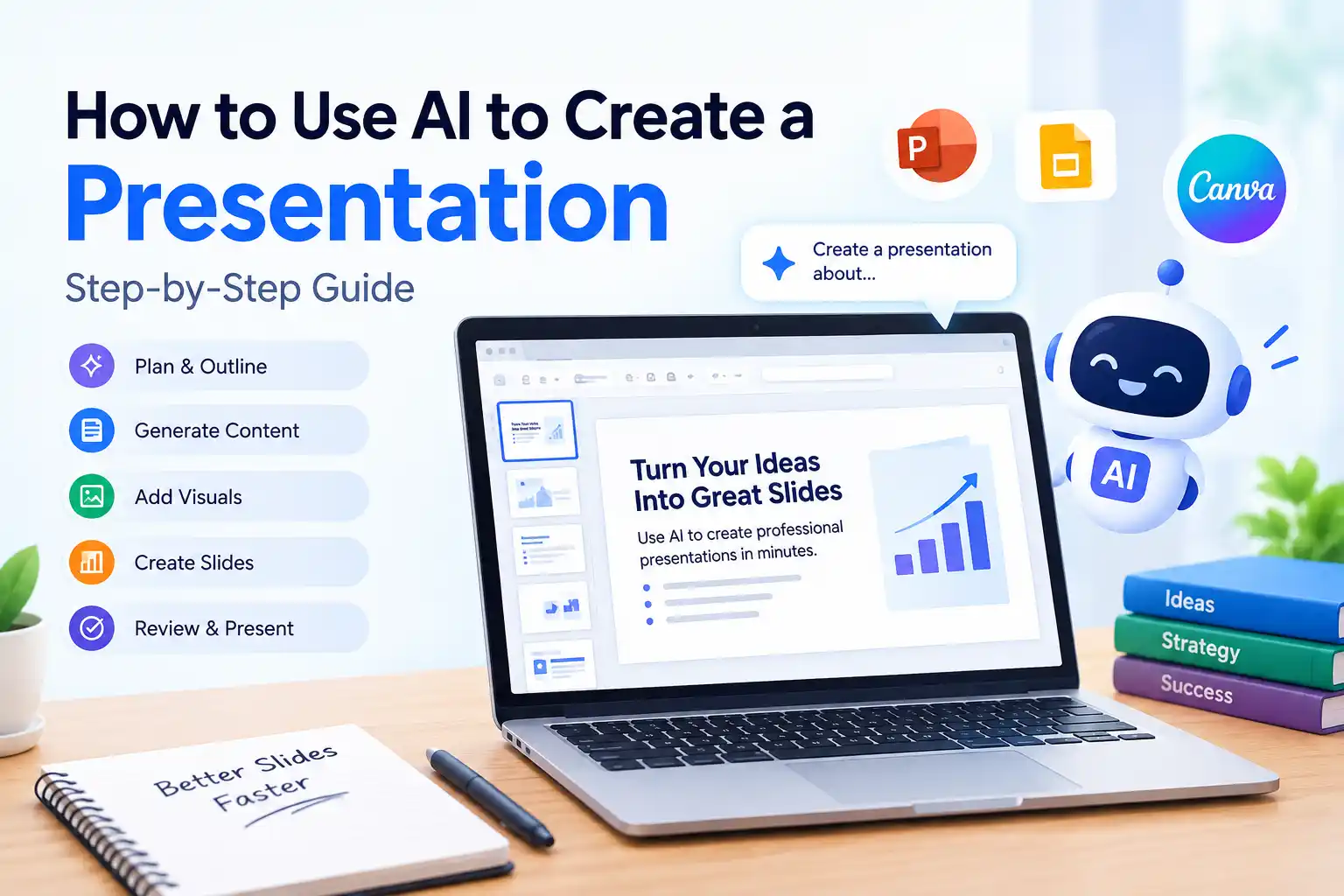
How to Use AI to Create a Presentation: Step-by-Step Guide

Creating a presentation from scratch can take hours. You need to choose a topic, organize your ideas, write the content, create slides, find visuals, and finally review everything before presenting.
AI can make this process much faster.
Today, AI tools can help you create a presentation outline, write slide content, suggest visuals, improve your slides, and even generate a complete presentation draft.
But there is one important thing to remember:
AI should help you create the presentation, not replace your judgment.
You should always review the information, check important facts, edit the content, and make sure the final presentation is suitable for your audience.
In this guide, you’ll learn how to use AI to create a presentation from start to finish.
What Can AI Do When Creating a Presentation?
Depending on the AI tool you use, it can help with many parts of the presentation process.
You can use AI to:
- Generate presentation ideas
- Create a presentation outline
- Organize information into slides
- Write slide titles and content
- Summarize long documents
- Rewrite complicated information
- Suggest presentation layouts
- Create or suggest visuals
- Generate charts and diagrams
- Write speaker notes
- Improve slide wording
- Review and simplify your presentation
Popular tools such as Google Slides with Gemini, Microsoft PowerPoint with Copilot, and Canva can assist with different parts of presentation creation. On a budget? See the best free Microsoft Office alternatives instead.
How to Use AI to Create a Presentation
The easiest way to create a presentation with AI is to follow a simple step-by-step process.
Step 1: Decide the Topic of Your Presentation
Before asking AI to create your presentation, decide exactly what you want to talk about.
For example:
- Artificial intelligence
- Digital marketing
- Climate change
- Personal finance
- Business growth
- A school project
- A product launch
- A research project
Try to keep your topic specific.
Instead of asking:
“Create a presentation about technology.”
Try:
“Create a presentation explaining how artificial intelligence is changing small businesses.”
A specific topic gives AI a much clearer direction.
Step 2: Identify Your Audience
The same topic may require completely different presentations depending on who will watch it.
Your audience could be:
- School students
- University students
- Teachers
- Employees
- Business owners
- Customers
- Investors
- Developers
- General audiences
Tell the AI who your audience is.
For example:
Create a presentation about artificial intelligence for university students who have basic knowledge of technology.
This helps the AI choose an appropriate writing style and level of detail.
Step 3: Define the Purpose
Next, decide what you want your audience to learn or do after watching your presentation.
Your presentation could be designed to:
- Teach a topic
- Explain a concept
- Present research
- Promote a product
- Pitch a business idea
- Report results
- Train employees
- Explain a project
- Persuade an audience
For example:
The purpose of this presentation is to explain five practical ways small businesses can use AI.
This gives your presentation a clear direction.
Step 4: Ask AI to Create an Outline
Don’t immediately ask AI to create 20 finished slides.
Start by asking for an outline.
You can use this prompt:
Create a presentation outline about [TOPIC].
Audience: [AUDIENCE]
Purpose: [PURPOSE]
Create 8 to 10 slides with a logical flow from introduction to conclusion.
For each slide, provide:
- Slide title
- Main message
- 3 to 5 key points
- Suggested visual
Keep the presentation clear, practical and easy to understand.
This gives you an opportunity to review the structure before creating the actual presentation.
Step 5: Review the AI-Generated Outline
Don’t accept the first outline automatically.
Read through it and ask yourself:
- Does the presentation have a clear beginning?
- Does every slide have a purpose?
- Are any slides repeating the same information?
- Is the information suitable for my audience?
- Are there too many slides?
- Does the conclusion make sense?
If something doesn’t look right, ask AI to improve it.
For example:
Remove repetitive slides and make the presentation flow more logically. Keep the presentation to 8 slides.
This small step can make a big difference.
Step 6: Generate the Slides
Once you are happy with the outline, you can use an AI presentation tool to create the slides.
Some popular options include:
Google Slides with Gemini
If Gemini features are available in your Google Workspace account, you can use Gemini in Google Slides to help create and edit presentations.
You can provide a topic, goals and reference information and use AI to generate a presentation draft.
For example:
Create a 10-slide presentation about how small businesses can use artificial intelligence.
Audience: Small-business owners with limited technical knowledge.
Include practical examples of AI for customer support, marketing, content creation, research and productivity.
Use simple language and keep the amount of text on each slide low.
You can then review and edit the generated presentation.
Microsoft PowerPoint with Copilot
If you use Microsoft 365, Copilot can help create PowerPoint presentations from a prompt and, in supported workflows, from source material.
For example:
Create an 8-slide presentation about digital marketing for small businesses.
The audience is business owners.
Explain the main digital marketing channels, provide practical examples and finish with a simple action plan.
After the presentation is generated, review the slides and make changes where necessary.
Canva
Canva is another useful option for creating visually attractive presentations with AI assistance.
You can provide a topic and describe the style you want.
For example:
Create a modern 8-slide presentation about personal finance for university students. Use simple language, clear headings, minimal text and practical examples.
Canva can then provide a presentation draft that you can customize.
Step 7: Give AI Your Own Information
One of the best ways to improve an AI-generated presentation is to provide your own information.
Instead of asking AI to create everything from general knowledge, provide relevant material such as:
- Reports
- Research papers
- Company information
- Meeting notes
- Product information
- Project details
- Statistics
- Existing documents
This helps make the presentation more specific and useful.
For example, if you’re creating a company presentation, give AI information about your company instead of simply asking it to invent a generic company presentation.
Step 8: Keep Your Slides Simple
One of the biggest problems with AI-generated presentations is too much text.
Your presentation slides should support what you’re saying. They shouldn’t contain your entire speech.
Instead of putting a large paragraph on a slide, use short points.
For example:
Too much text
Artificial intelligence is transforming businesses by helping companies automate repetitive tasks, analyze information, create content and provide better customer service.
Better slide
How AI Helps Businesses
- Automate repetitive tasks
- Analyze information
- Create content
- Support customers
- Improve productivity
You can explain the details while presenting.
Step 9: Ask AI to Improve Your Slide Content
After generating your presentation, you can ask AI to simplify the slides.
Try this prompt:
Review this presentation and reduce unnecessary text. Keep only the most important information on each slide.
You can also ask:
Rewrite the slide titles so each title clearly communicates the main message.
Or:
Make the presentation easier for a beginner to understand without removing important information.
Step 10: Add Useful Visuals
A good presentation isn’t just a collection of text.
Use visuals when they help explain the topic.
Depending on your subject, you can use:
- Photos
- Charts
- Graphs
- Diagrams
- Timelines
- Icons
- Screenshots
- Illustrations
- Comparison tables
You can ask AI:
Suggest one useful visual for each slide. Prefer charts, diagrams, screenshots and relevant images instead of decorative images.
The important thing is that the visual should help communicate the idea.
Don’t add images simply because a slide looks empty.
Step 11: Use AI to Create Speaker Notes
Speaker notes can be extremely useful if you don’t want to put everything on your slides.
Ask AI:
Create short speaker notes for each slide. The notes should explain the main idea in simple language and provide an example where appropriate.
This gives you something to refer to while presenting.
Remember that speaker notes should sound natural. Edit them so they match the way you actually speak.
Step 12: Fact-Check the Presentation
This is one of the most important steps.
AI can sometimes provide incorrect or outdated information.
Pay particular attention to:
- Statistics
- Dates
- Names
- Financial information
- Scientific claims
- Research findings
- Product specifications
- Company information
- Quotes
- Sources
Don’t assume something is correct just because AI included it.
For important claims, check the original source.
Step 13: Make the Presentation Your Own
The final presentation should not simply be an untouched AI-generated document.
Add your own:
- Examples
- Opinions
- Experience
- Data
- Screenshots
- Conclusions
- Recommendations
AI is excellent for getting you from a blank page to a useful first draft.
Your job is to turn that draft into a presentation that actually provides value.
A Simple AI Presentation Workflow
You can remember the entire process using this workflow:
Choose a topic
↓
Define your audience
↓
Define the goal
↓
Ask AI for an outline
↓
Review the outline
↓
Generate the slides
↓
Edit the content
↓
Add useful visuals
↓
Create speaker notes
↓
Fact-check the information
↓
Practice the presentation
↓
Present
This approach is much better than simply asking AI to create a presentation and immediately downloading the result.
Best Prompt to Create a Presentation With AI
You can save the following prompt and use it whenever you need to create a presentation:
Create a presentation about [TOPIC].
Audience: [AUDIENCE]
Purpose: [PURPOSE]
Number of slides: [NUMBER]
Tone: [PROFESSIONAL / EDUCATIONAL / SIMPLE / PERSUASIVE]
Create a logical structure with:
- A strong introduction
- Clear slide titles
- Concise slide content
- Practical examples
- Relevant visual suggestions
- A clear conclusion
- A final action step
Avoid unnecessary text, repetition, unsupported statistics and generic statements.
First create the outline. Do not create the final slides until I approve the outline.
This prompt works well because it gives AI enough context before asking it to create the presentation.
Example: Create a Presentation About AI
Suppose you need to create a presentation titled:
How Small Businesses Can Use AI
You could give AI this prompt:
Create a 10-slide presentation titled “How Small Businesses Can Use AI.”
Audience: Small-business owners who have basic knowledge of technology.
Goal: Explain practical ways small businesses can use AI without needing advanced technical skills.
Include:
- What AI can do for small businesses
- Customer support
- Marketing
- Content creation
- Research
- Data analysis
- Automation
- Risks and limitations
- How to get started
- Conclusion
Use simple language and keep each slide concise. Suggest one useful visual for each slide.
The AI can then help you develop the presentation structure and content.
Common Mistakes When Using AI for Presentations
Mistake 1: Using a vague prompt
Instead of:
Make a presentation about AI.
Give AI information about the topic, audience, purpose and length.
Mistake 2: Trusting the first draft
Your first AI-generated presentation should be treated as a starting point.
Review it and improve it.
Mistake 3: Putting too much text on slides
Keep slides concise and explain the details while presenting.
Mistake 4: Using irrelevant visuals
Every image, chart or diagram should have a purpose.
Mistake 5: Ignoring the audience
A presentation for students will be different from one designed for investors or software developers.
Mistake 6: Forgetting to fact-check
Always verify important information before presenting it.
Mistake 7: Letting AI control the entire presentation
AI can help with structure, writing and design, but you should make the final decisions.
Can AI Create a Complete Presentation?
Yes.
Modern AI presentation tools can generate presentation outlines and slide drafts from a topic or prompt. Some tools can also work with reference material and help create editable slides.
However, generating the presentation is only the first step.
The best workflow is:
AI creates the first draft → You review it → You improve it → You verify the facts → You present it.
Can ChatGPT Create Presentation Content?
Yes.
ChatGPT can help you:
- Brainstorm presentation ideas
- Create an outline
- Write slide content
- Simplify complicated information
- Create speaker notes
- Suggest visuals
- Create presentation prompts
- Review your finished presentation
You can then transfer the content into PowerPoint, Google Slides, Canva or another presentation tool.
Can AI Create PowerPoint Presentations?
Yes.
AI features in PowerPoint can help create presentation drafts from prompts and supported source material.
You should still review the generated presentation before using it.
What Is the Best AI Presentation Tool?
There isn’t one tool that is best for everyone.
Google Slides with Gemini can be useful for people already working in Google Workspace.
Microsoft Copilot is useful for people who primarily use PowerPoint and Microsoft 365.
Canva can be a good choice when visual design and customization are important.
ChatGPT can be particularly useful for planning, researching, writing and improving presentation content.
Is It Safe to Use AI-Generated Presentation Content?
AI-generated content should always be reviewed before you use it.
Check important facts, statistics, sources and claims.
You should also avoid including confidential or sensitive information in an AI tool unless you understand how that tool handles your data.
Final Thoughts
AI can make presentation creation much faster.
Instead of spending hours staring at a blank slide, you can use AI to develop an outline, organize your ideas, write initial slide content, suggest visuals and create a presentation draft.
But the best presentations aren’t created by AI alone.
The most effective approach is:
Plan → Prompt → Review → Generate → Edit → Fact-check → Present
Use AI to handle repetitive work and help you get started, but keep control of the final message and presentation.
A few minutes of careful editing and fact-checking can turn a generic AI-generated presentation into something genuinely useful.
About The San Info
The San Info provides practical AI, software and online tools for work, study, creators and everyday digital tasks.
Explore more practical guides in our AI category.