How to Use AI to Write Emails That Get Replies

Quick answer: To write emails with AI, give the tool five things in every prompt: who you are writing to, the outcome you want, the facts it must include, the tone, and the length. Then edit the draft before sending: check every name, number, and date, cut anything that does not sound like you, and make sure the ask is obvious in the first two sentences. AI is fast at first drafts; you stay in charge of accuracy and tone.
Email eats an enormous share of the workweek. McKinsey Global Institute estimated that knowledge workers spend 28% of their workweek reading and managing email, roughly 11 hours a week (McKinsey Global Institute, The Social Economy). Most of that time goes to messages that follow the same few patterns: follow-ups, meeting requests, status updates, apologies for delays, and thank-you notes. Those patterns are exactly where AI helps most, because the tool can produce a solid first draft in seconds while you spend your time on the judgment calls: what to ask, what to leave out, and how blunt to be.
I tested the workflows below by writing the same four emails four ways: a client follow-up, a meeting request, a project delay notice, and a thank-you note. I ran each through ChatGPT, Claude, Gemini inside Gmail, and Copilot in Outlook, then compared what came back. The tool mattered less than the prompt. A vague prompt produced a vague email in every tool; a specific prompt produced a usable draft in every tool. That is good news: you do not need to switch tools, you need a better prompt habit.
Why do most AI-written emails sound robotic?
Because the prompt was robotic. “Write an email to my client” gives the model nothing to work with, so it fills the gaps with generic corporate filler: “I hope this email finds you well,” “please do not hesitate to reach out,” “looking forward to hearing from you.” Readers skim past that language, and it actively hurts replies because the actual ask gets buried under politeness.
The fix is to front-load the facts. An AI email draft is only as specific as the brief you give it. Before you prompt, answer these five questions in one sentence each:
- Recipient: Who is reading this, and what is your relationship? A client you have worked with for a year is not a cold prospect.
- Outcome: What should the reader do after reading? Reply with a date, approve a document, confirm a payment.
- Facts: Names, dates, amounts, links, and deadlines the email must contain. The AI cannot know these unless you type them.
- Tone: Formal, friendly, direct, or apologetic. Pick one word and stick to it.
- Length: A sentence count or word cap. “Under 120 words” beats “keep it short” every time.
What is the best prompt formula for writing emails with AI?
Copy this template and fill in the brackets. It works in ChatGPT, Claude, Gemini, and Copilot with almost no changes:
Write a [tone] email to [recipient and relationship]. Purpose: [one sentence]. It must mention [fact 1], [fact 2], and [deadline or date]. End with this ask: [the specific action you want]. Keep it under [number] words. Do not use phrases like “I hope this finds you well” or “do not hesitate to reach out.”
Here is that template filled in for a real follow-up:
Write a friendly but direct email to Dana, a client I have worked with for six months. Purpose: follow up on an unpaid invoice. It must mention invoice 1042 for $450, originally due September 30, and ask her to pay this week or flag any problem with the invoice. End with this ask: confirm payment or reply with the issue by Friday. Keep it under 100 words.
What came back was usable with two small edits: a subject line I tightened (“Invoice 1042 – payment due this week”) and one sentence I reworded to sound like me. That is the normal ratio to expect. AI writes the 80% draft; you write the 20% that makes it yours.
Another way to get that 80% draft out fast is to speak it instead of typing it: Windows 11’s built-in voice typing turns spoken words into text in any compose window, so you can dictate a rough email draft and then edit it with the same checklist.
How do you write an email with ChatGPT or Claude?
The general chatbot route is the most flexible because it works for any inbox and any email type. The steps:
- Paste the email you are replying to, if there is one, so the model has context.
- Write your prompt using the five-part template above.
- Generate two versions and pick the better opening line from each. Openings are where generic AI writing is most obvious.
- Ask for a rewrite of any sentence that feels off, rather than regenerating the whole email. Targeted edits keep the good parts intact.
- Copy the result into your email client and do the final edit there, where you can see the real recipient, subject line, and thread.
One habit that pays off: ask the model for three subject lines. Subject lines decide whether the email gets opened at all, and AI is genuinely good at short options. Pick the clearest one, not the cleverest. “Q4 report for review by Friday” beats “Exciting updates inside!” for every work email I tested.
How do you use Gemini’s Help me write in Gmail?
If you write in Gmail, you do not need to leave your inbox. Gemini’s “Help me write” feature drafts and refines emails directly in the compose window (Google, Draft emails with Gemini in Gmail). The workflow:
- Click Compose, or open a reply to an existing thread.
- Click “Help me write” in the compose window and type your prompt, including recipient, purpose, and tone.
- Click Create, then use Recreate for a fresh version or Refine to adjust the draft.
- Use Formalize, Elaborate, or Shorten to tune the result, then click Insert to put it in the message body.
- Edit names and facts before sending. Gemini drafts from your prompt, not from your memory, so anything it invents about dates or amounts is a guess.
Availability note: Google says Help me write requires an eligible Google Workspace or Google AI plan, while personal Google accounts can use it in the US only. If you do not see the prompt bar in your compose window, your account or region may not have access yet, and the chatbot route above is the fallback.
How do you draft an email with Copilot in Outlook?
Microsoft’s Copilot drafts emails from a short prompt inside Outlook, and it can also coach your own drafts, flagging tone and clarity issues before you send (Microsoft, How to Write an Email with AI). The practical difference from the chatbot route is context: Copilot sees the thread you are replying to, so a prompt like “draft a polite decline for Thursday’s meeting, propose next Tuesday instead” produces something that fits the conversation without you pasting the thread yourself.
Copilot’s drafts tend to run long and formal by default. My fix, which worked consistently: add “under 100 words, direct tone” to every Copilot prompt, then trim one more sentence by hand. The coaching feature is the more useful half for regular use, because it catches the two mistakes AI drafts make most: burying the ask and over-apologizing.
Which AI email tool should you use?
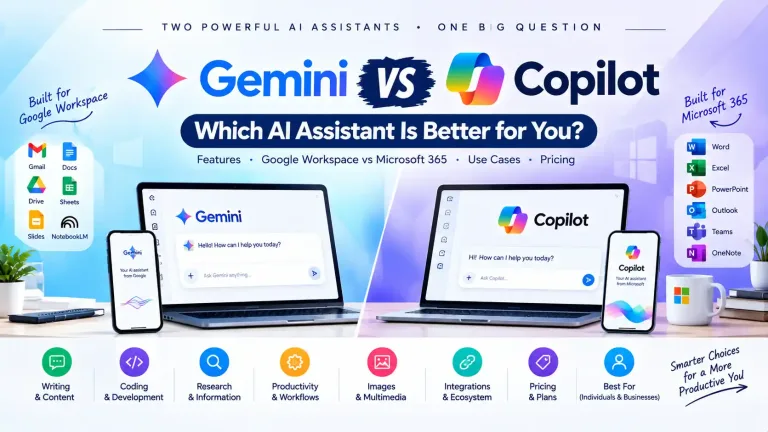
All four tools below write good emails with a good prompt. Pick by where you already work, not by which model is newest:
| Tool | Best for | Where it lives | Watch out for |
|---|---|---|---|
| ChatGPT | Any email type, fast rewrites, subject line options | Browser or app, copy into any inbox | No thread context unless you paste it; check every invented detail |
| Claude | Nuanced tone, long threads, careful rewrites | Browser or app, copy into any inbox | Same paste-your-context requirement as ChatGPT |
| Gemini in Gmail | Drafting without leaving Gmail | Inside Gmail compose, Help me write | Account and region limits; drafts need a facts check before sending |
| Copilot in Outlook | Work email with thread context and coaching | Inside Outlook, Microsoft 365 | Drafts run long and formal; add a word cap to every prompt |
What does a good AI email rewrite look like?
Same request, two versions. The first is what a vague prompt produced; the second is what the five-part prompt produced.
Before (vague prompt: “write an email asking for a meeting”): “I hope this email finds you well. I wanted to reach out to see if you might have some time in the coming weeks to connect and discuss potential synergies. Please do not hesitate to let me know what works best for your schedule. Looking forward to hearing from you.”
After (specific prompt: friendly email to a former colleague, ask for a 30-minute call next week about a freelance project, propose Tuesday or Thursday afternoon, under 80 words): “Hi Priya, good to reconnect. I am scoping a freelance project that fits your work on onboarding flows, and I would value your take before I quote it. Would you have 30 minutes next Tuesday or Thursday afternoon for a call? I will send a short brief beforehand so we can use the time well. Thanks, Alex”
The difference is not the tool. It is the brief: a named person, a reason, a time window, and a length cap. If your AI emails read like the first version, your prompt is missing at least two of the five parts.
What should you check before sending an AI-written email?
Run this five-point check on every AI draft. It takes under a minute and catches nearly every embarrassing send:
- Facts: Every name, date, amount, and link is one you typed or verified. AI fills gaps with plausible guesses.
- The ask: A reader skimming the first two sentences knows what you want. If not, move the ask up.
- Tone match: Read it out loud. If it does not sound like something you would say, rewrite the worst sentence yourself.
- Cliches: Delete “I hope this finds you well,” “just circling back,” and “please advise.” They add length, not meaning.
- Privacy: Nothing sensitive went into the prompt: no passwords, contract terms, salary figures, health details, or private customer data. Draft with placeholders, then fill in the real values after copying the draft into your inbox.
What should you never paste into an AI email tool?
Treat the prompt box like a message you cannot unsend. Never paste confidential company data, unreleased financials, other people’s private information, or anything covered by an NDA. For work emails, the safe pattern is placeholders: “Client X, invoice 1042, $450” becomes real names only in your inbox after the draft comes back. The same rule applies in the other direction: never let AI auto-send a sensitive email. Drafts are for review; sending is a human decision, especially for money, hiring, and legal topics.
If email volume is your real problem rather than drafting, the automation side matters more than the writing side: inbox rules, scheduled sends, and AI triage that drafts replies for your approval. I covered that workflow separately in How to Automate Emails With AI. And if you want a broader prompt toolkit beyond email, How to Write Better AI Prompts covers 25 formulas that transfer directly to email prompts. For a tool-by-tool rundown of dedicated assistants, see Best AI Email Assistants.
A workflow that actually saves time
The fastest setup I tested is boring, which is why it works. Keep one saved prompt template with the five parts and blank brackets. For each email, spend 30 seconds filling in the brackets, generate once, and edit by hand instead of regenerating. Regenerating feels productive but resets the good sentences along with the bad ones. One generation plus a human edit beats five generations every time, and it keeps your voice in the final email, which is the whole point: the reader should hear you, not a model.
Frequently asked questions
Yes, for first drafts. AI handles structure, tone, and phrasing well, but you must verify every fact and adjust the tone before sending. Work emails with money, hiring, or legal consequences should always get a full human read, not just a skim.
There is no single winner. ChatGPT and Claude are the most flexible for any inbox. Gemini is best if you live in Gmail, since Help me write works inside the compose window. Copilot is best for Outlook users who want thread context and draft coaching. Pick the one where you already write email.
Give the prompt specifics: a named recipient, the exact outcome you want, real facts and dates, one tone word, and a word cap. Then delete generic openers and closers by hand. A specific brief plus one human editing pass removes most of the robotic feel.
No. Never paste passwords, contract terms, salary figures, health details, or other people’s private data into an AI prompt. Use placeholders in the prompt and fill in real values after copying the draft into your inbox.
It can draft a strong one, but replies come from clarity, not wording tricks. State the original context in one line, restate the ask, give a deadline, and keep the whole email under 120 words. Short follow-ups with one clear ask outperform long polite ones.
Yes. Gmail’s Help me write, powered by Gemini, drafts and refines emails inside the compose window, with Formalize, Elaborate, and Shorten options. It requires an eligible Google Workspace or Google AI plan, or a personal Google account in the US.