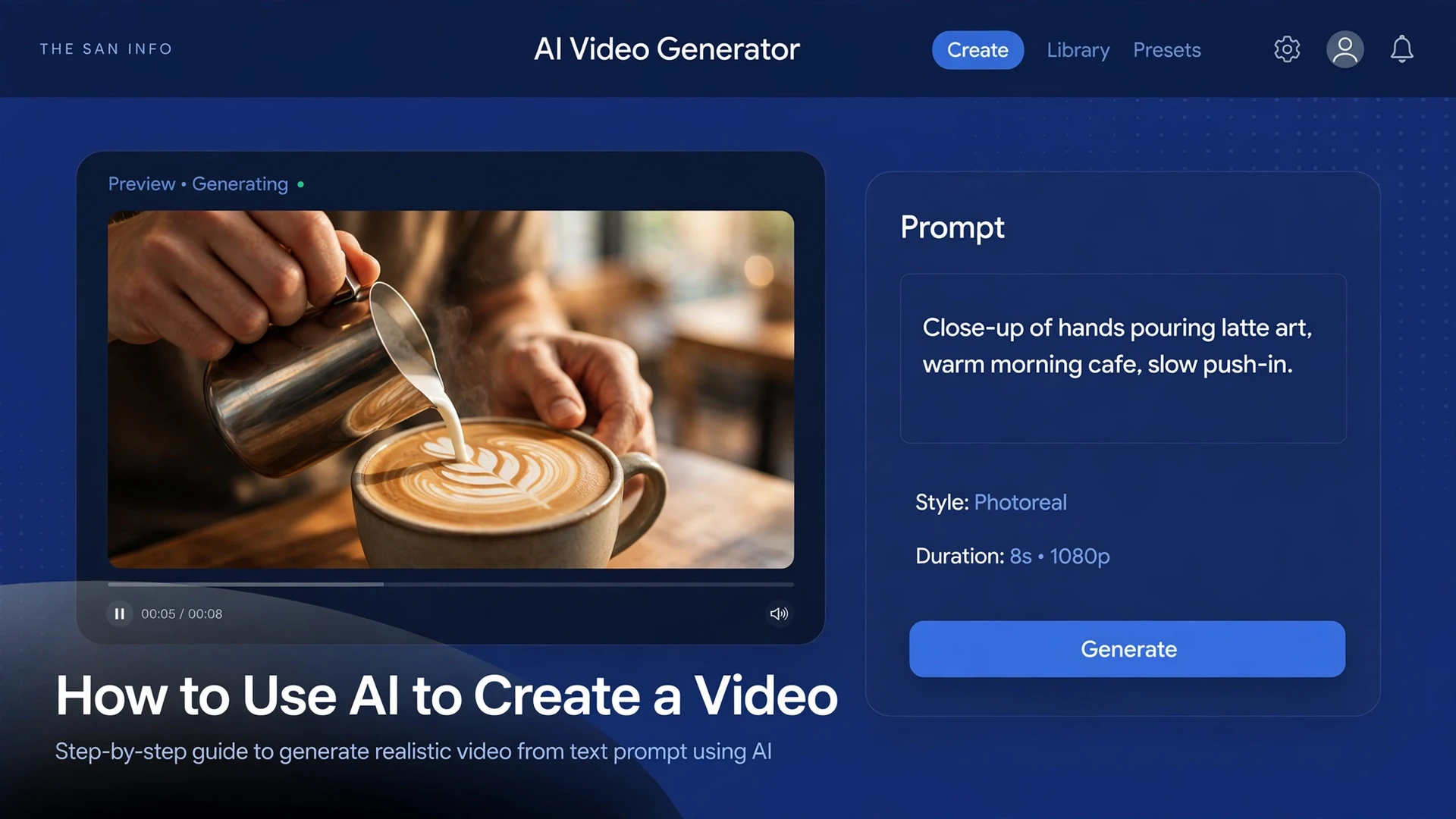
How to Use AI to Create a Video That Actually Looks Real

To use AI to create a video, write one clear prompt that names the subject, the action, the setting, the camera move, and the style — then generate a short clip in a tool that is actually still running, check it against five quality checks, and stitch the good clips together. The whole process takes about 15 minutes for a first 30-second video once you know which tool to open, and the expensive part is not the subscription — it is the retakes. This guide shows you the three ways to make a video with AI, a worked example with exact prompts you can copy, what each route really costs, and the traps that burn credits on bad generations.
One thing first, because most guides written before this year get it wrong: Sora is gone. OpenAI discontinued the Sora app and website on April 26, 2026, and removed the Sora 2 models and the Videos API on September 24, 2026, with no replacement named. Any guide, tool roundup, or “Sora 2 web” site that still tells you to open Sora is out of date, and anyone selling Sora access or invite codes is not selling the real thing. The good news is the field that replaced it is stronger than Sora ever was — Google’s Veo 3.1, Runway’s Gen-4.5, and Kling 4.0 all generate clips with synchronized sound, and the market keeps growing fast: Fortune Business Insights puts the AI video generator market at roughly $946 million in 2026, heading for $3.35 billion by 2034.
I built this guide the way this site tests everything: by working through a real 30-second video from a blank prompt to a finished clip list, and by checking every limit and price against the vendors’ own pages. I did not run live signed-in sessions inside Veo, Runway, or Kling for this guide — the steps, limits, and pricing come from the official pages, which I verified — but the prompt structure, the worked example, and the cost math are built the same way you would build them, so you can see exactly what each check catches before you spend a credit.
Can You Still Use Sora to Make Videos?
No. There is no official way to generate video with Sora anymore — not on the web, not in an app, and not through the API. OpenAI’s own deprecation page lists the Videos API and every Sora 2 model and snapshot as removed on September 24, 2026, and its Sora 2 model page adds that there is no one-to-one replacement API. If you made videos in Sora while it ran, the only official thing left is the export page, where you can download your old library before OpenAI deletes the data tied to your Sora use.
Here is the timeline, so you can spot stale advice at a glance:
| Date | What happened to Sora |
|---|---|
| September 30, 2025 | Sora 2 launches, with an iOS app, a social feed, and a Cameo feature that put your own face into generated scenes. |
| March 24, 2026 | OpenAI announces Sora will be discontinued and notifies API developers of the shutdown. |
| April 26, 2026 | The Sora app and website close for everyone. ChatGPT Plus and Pro lose integrated Sora access the same day. |
| September 24, 2026 | The Videos API and the sora-2 and sora-2-pro models are removed. No replacement is named. |
While it ran, Sora 2 cost $0.10 per second of video at 720p on the API, and $0.30 to $0.70 per second for Sora 2 Pro depending on resolution — so a 10-second 1080p clip cost about $7. Those rates are still printed on OpenAI’s model pages next to the shutdown notice, which makes them a useful yardstick: the tools below cost roughly the same per second, and in some cases less.
The 3 Ways to Make a Video With AI
Every AI video tool falls into one of three paths. Pick the path first — it decides everything else, including what you pay and how much editing you do afterward.
| Path | What you get | Tools | Best for |
|---|---|---|---|
| 1. Clip models | One short clip (4–30 seconds) from a text prompt or a starting image, with sound built in. You stitch clips together yourself. | Veo 3.1 (Google Flow), Runway Gen-4.5, Kling 4.0, Hailuo, Luma | Cinematic shots, ads, social clips where you control every scene |
| 2. End-to-end generators | A finished video from one idea or script: scenes, voiceover, captions, and music in a single pass. | Pictory, InVideo, HeyGen (avatar presenters), Descript | Faceless explainers, product demos, and talking-head videos at volume |
| 3. Chatbot-built video | Describe the clip in a chat window and get a video back, the same way you ask a chatbot for text. | Gemini app (Gemini Omni), Meta AI | A quick first clip with zero setup, inside an app you already use |
Most beginners should start with path 1 or path 3. Clip models give you the most control per dollar, and the chatbot route is the fastest way to learn what a good prompt looks like before you spend credits anywhere else. Path 2 is the right choice when you need ten videos a week, not one beautiful shot — the tradeoff is that the finished videos look templated, because they are.
What You Need Before You Start
Before you open any tool, make three decisions. They take two minutes and they are the difference between a usable video and a folder of random clips.
First, pick the format. A 9:16 vertical clip under 60 seconds is for TikTok, Reels, and Shorts; 16:9 is for YouTube; 1:1 is for feeds. Clip models generate one aspect ratio per render, so choose before you prompt — reframing a finished clip means regenerating it and paying again.
Second, decide the length. AI video is built from short clips: Veo 3.1 makes 4- to 8-second clips before you extend them, Runway’s Gen-4.5 makes 5- to 10-second clips, and Kling 4.0 makes 3- to 30-second clips. A 30-second video is therefore four to six clips, not one generation. Plan it as scenes, not as a single shot.
Third, write the prompt with five parts. Every strong video prompt names the same five things — subject, action, setting, camera, and style. A weak prompt says “a coffee shop video.” A working prompt says: “Close-up of hands pouring latte art into a ceramic cup on a wooden cafe table, morning light through a window, slow push-in, warm cinematic tones, no text.” The last two words matter: models love to hallucinate text on signs, cups, and screens, and “no text” stops most of it.
How to Create an AI Video, Step by Step
Here is the full workflow, using a 30-second coffee-brand teaser as the worked example. The same steps work for a product launch, a YouTube intro, or a birthday video — only the prompts change.
Step 1: Write one sentence for the whole video. “A cozy morning in a neighborhood coffee shop, ending on a customer taking the first sip.” If you cannot say it in one sentence, the video will wander. Write the sentence down; it becomes the style anchor every clip prompt repeats.
Step 2: Break it into four to six clips. One idea per clip, one action per clip. For the teaser: the pour, the handoff, the beans, the first sip. Each clip gets its own prompt, its own aspect ratio (9:16 for Reels), and a target length of 5 to 8 seconds.
Step 3: Write the prompts with the five-part formula. These are the exact prompts for the worked example — copy the structure, swap the subject:
Clip 1 (5 seconds): “Close-up of hands pouring latte art into a ceramic cup on a wooden cafe table, morning light through a window, slow push-in, warm cinematic tones, no text.”
Clip 2 (8 seconds): “Barista sliding a flat white across a marble counter toward the camera, shallow depth of field, steam rising, 35mm film look, no text.”
Clip 3 (8 seconds): “Overhead shot of coffee beans spilling in slow motion across a dark slate surface, dramatic side light, macro lens, no text.”
Clip 4 (5 seconds): “Cozy cafe interior at golden hour, a customer smiling as they take the first sip, camera slowly orbiting left, warm color grade, no text on screen.”
Step 4: Generate the cheapest version first. Run every clip on the lowest-cost tier — Veo 3.1 Lite, Runway Gen-4 Turbo, or Kling 3.0 at 720p — and judge the framing, the motion, and the subject. Only regenerate the winners at full quality. A failed generation still costs credits on most plans, so the draft pass is where the money is saved.
Step 5: Fix one thing per regeneration. If the sky came out right and the face changed, say so: “Keep this framing. Restore the barista’s face exactly as it was.” Changing three things at once teaches you nothing about which instruction worked. Image-to-video helps here: generate a still you like first, then animate it, so the composition is locked before the motion starts.
Step 6: Add voiceover, captions, and music. Most short-form viewers watch with the sound off, so captions are not optional — they are how the video gets watched. Clip models generate native audio, but the narration still needs writing: keep it to about 150 words a minute, one idea per sentence, and the hook in the first three seconds.
Step 7: Stitch, export, and run the five checks below. Any editor works for the stitch — even the free ones. Export at 1080p, watch the whole thing once on your phone, and only then publish.
How Much Does It Cost to Make an AI Video?
AI video is priced by the second, not by the video — so the real question is what ten seconds costs on each tool. The table below uses the published rates as of this writing, with a 10-second clip as the common unit. Treat every figure as a checkpoint to re-verify before you pay: all three vendors have changed prices and credit rates several times within a single year.
| Tool and route | Entry plan | What a 10-second clip costs | Catch |
|---|---|---|---|
| Veo 3.1 in Google Flow | Google AI Pro, $19.99/month, 1,000 Flow credits (plus 50 free credits a day) | Quality: 100 credits, about $2.00. Fast: 20 credits, about $0.40. Lite: 10 credits, about $0.20. | Credits do not roll over. Quality clips are 8 seconds, so a 10-second scene needs an extension. |
| Runway Gen-4.5 | Standard, $15/month ($12 billed annually), 625 credits | 120 credits at 12 credits a second, about $2.88. Turbo draft: about 50 credits, about $1.20. | Credits do not roll over on Standard or Pro. The old Unlimited plan closed to new buyers on June 1, 2026. |
| Kling 3.0 | Standard, $8.80/month after a $6.99 first month, 660 credits | 1080p with sound: 120 credits, about $1.60. 720p without sound: 60 credits, about $0.80. | Monthly credits expire after 31 days. Kling 4.0 has no published per-second rate — the cost shows on the Generate button. |
For the worked example above — 26 seconds across four clips — the math lands at roughly $5 on Veo 3.1 Fast, about $7.50 on Runway Gen-4.5, and about $4.15 on Kling 3.0 at 1080p with sound, before retakes. Retakes are the real budget: plan on two to three generations per finished clip, and the draft-first rule in Step 4 is what keeps a $5 video from becoming a $25 one. The entry tier is also the honest test of whether you will use the tool at all — Runway’s free plan is 125 one-time credits with a watermark, and Google Flow gives 50 free credits a day, which is five Lite clips or two Fast clips before you pay anything.
Two pricing traps to know before you subscribe. First, the free tier never carries commercial work: Kling’s Basic plan and Runway’s free plan both bar commercial use and watermark the output, so a video for your business needs a paid plan. Second, “unlimited” means nothing on these plans — every tier is a shared pool of credits, and the monthly pool is the real limit. The API route is cheaper at volume — per the Gemini API pricing page, Veo 3.1 Standard is $0.40 a second, Fast $0.10 to $0.12, Lite $0.05 to $0.08 — but only if you are generating programmatically rather than clicking through a web app.
Which AI Video Tool Should You Pick?
There is no single best tool — there is a best tool for the video you are making this week. Use the job, not the hype, to decide:
| Your job | Pick | Why |
|---|---|---|
| One realistic clip with sound, inside Google’s ecosystem | Veo 3.1 in Flow | Best realism-to-price ratio at the Fast tier; the 50 free daily credits make testing genuinely free |
| Cinematic shots and precise camera control | Runway Gen-4.5 | Strongest motion control and reference-image workflow; Turbo is the cheapest draft path of the three |
| Longer clips or smooth motion on a tight budget | Kling 4.0 / 3.0 | Clips up to 30 seconds; the lowest per-clip cost at 720p; consistently rated the smoothest motion |
| A finished video from a script, fast | An end-to-end generator | Script, voiceover, captions, and music in one pass — accept the templated look in exchange for speed |
| A quick first clip with no new account | Gemini app | Video generation in the Gemini app now runs on Gemini Omni, Google’s conversational video model — describe the clip and get it back in chat |
If you already pay for a Google AI plan, start with Veo 3.1 — the credits are already in your subscription. If you already pay for Runway, start there. Switching tools mid-project is the expensive mistake: each tool’s credits, aspect ratios, and prompt habits are different, and learning a second tool costs more than the price gap between them.
5 Checks Before You Publish an AI Video
AI video fails in ways real footage never does, and the failures are easy to miss on a small preview. Run these five checks on the full-size export, on your phone, before anything goes live.
1. Physics and hands. Watch for morphing objects, extra fingers, hands that melt into cups, and liquids that flow uphill. These are the tells viewers spot in the first two seconds, and they are also the defects a regeneration fixes most reliably — change the prompt to simplify the action rather than asking for the same impossible shot again.
2. Text in the frame. Zoom in on every sign, label, cup, and screen. AI video still garbles on-screen text, and a misspelled brand name in your own ad is worse than no text at all. If the text matters, add it in your editor afterward instead of asking the model to render it.
3. Audio sync. Play the clip with sound and watch the mouths. Native audio is the headline feature of Veo 3.1 and Kling, but lip sync drifts on longer lines, and background music can duck under narration at the wrong moment. If the sync is off, mute the clip and add your own voiceover — it is faster than regenerating for audio.
4. Watermarks and rights. Check the export for a watermark, and check the plan you used for commercial rights. Google’s Veo output carries an invisible SynthID watermark — you can verify it with Google’s SynthID Detector — and free tiers on Runway and Kling watermark visibly and bar commercial use. A video for your business needs a paid plan, full stop.
5. Disclosure. YouTube, TikTok, and Meta all ask creators to label realistic AI-generated content, and the strictest rules apply to real people and real events. A simple “Made with AI” note in the caption costs nothing and protects you if anyone asks later — the same honesty rule that applies to AI-written text applies to AI-made video.
What AI Video Still Can’t Do Well
Three honest limits, so you plan around them instead of discovering them mid-project. First, long scenes: no clip model holds a single continuous shot past about 30 seconds, and characters drift between clips — the same barista can change face, apron, and age from one generation to the next. Keep scenes short and cut on motion, the way music videos do. Second, real people: every major tool refuses edits that could pass for a real person doing something they did not do, and likeness features like Sora’s Cameo died with Sora. Do not build a video around a real person’s face. Third, precise control: you cannot direct an AI camera the way you direct a human operator. If a shot needs an exact framing, an exact product label, or an exact sequence of actions, shoot it with a camera and use AI for the shots around it.
The practical rule is simple: use AI video for the shots a camera cannot get cheaply — impossible angles, slow-motion spills, golden-hour light on demand — and use a real camera for the shots that have to be exactly right. That split is where the tool earns its price.
If you want the tool-by-tool breakdown before you subscribe, start with our roundup of the best AI video generators, which compares the same tools on output quality and limits. The same prompt discipline also transfers to other AI media: our guides to creating music with AI and summarizing YouTube videos with AI use the same draft-first, verify-everything method, and our SynthID Detector guide shows how to check whether a video or image you found online was AI-generated. For the bigger picture on where this technology is heading, see our analysis of Google’s Gemini Omni video model.
Frequently Asked Questions
No. OpenAI discontinued the Sora app and website on April 26, 2026, and removed the Sora 2 models and the Videos API on September 24, 2026, with no replacement named. The only official option left is exporting old videos you already made. Use Veo 3.1, Runway Gen-4.5, or Kling instead.
Start with Veo 3.1 in Google Flow or the Gemini app. Flow gives you 50 free credits a day — five Lite clips or two Fast clips — so you can learn prompt writing before paying, and the Gemini app needs no new account at all. Move to Runway when you want finer camera control, or to Kling when you need longer clips.
One generation is short: Veo 3.1 makes 4- to 8-second clips, Runway Gen-4.5 makes 5- to 10-second clips, and Kling 4.0 makes 3- to 30-second clips. Longer videos are built by stitching clips together in an editor, the same way films are cut from shots. Plan a 30-second video as four to six clips, not one generation.
A 10-second clip costs about $2.00 on Veo 3.1 Quality, about $2.88 on Runway Gen-4.5, and about $1.60 on Kling 3.0 at 1080p with sound, using each tool’s entry paid plan. Draft tiers are far cheaper — Veo 3.1 Lite is about $0.20 and Runway Turbo about $1.20 for the same length. Budget two to three generations per finished clip, because retakes are the real cost.
Yes, but only on a paid plan. Free tiers on Runway and Kling bar commercial use and watermark the output, and Google’s Flow credits on a free account carry the same restriction. On a paid plan, check the tool’s terms for your specific use — advertising, client work, and broadcast can have different rules — and keep your receipts.
YouTube, TikTok, and Meta all ask creators to label realistic AI-generated content, and the rules are strictest around real people and real events. Add a “Made with AI” note in the caption or description. Google’s Veo output also carries an invisible SynthID watermark that tools can detect, so disclosure is a matter of honesty as well as platform policy.