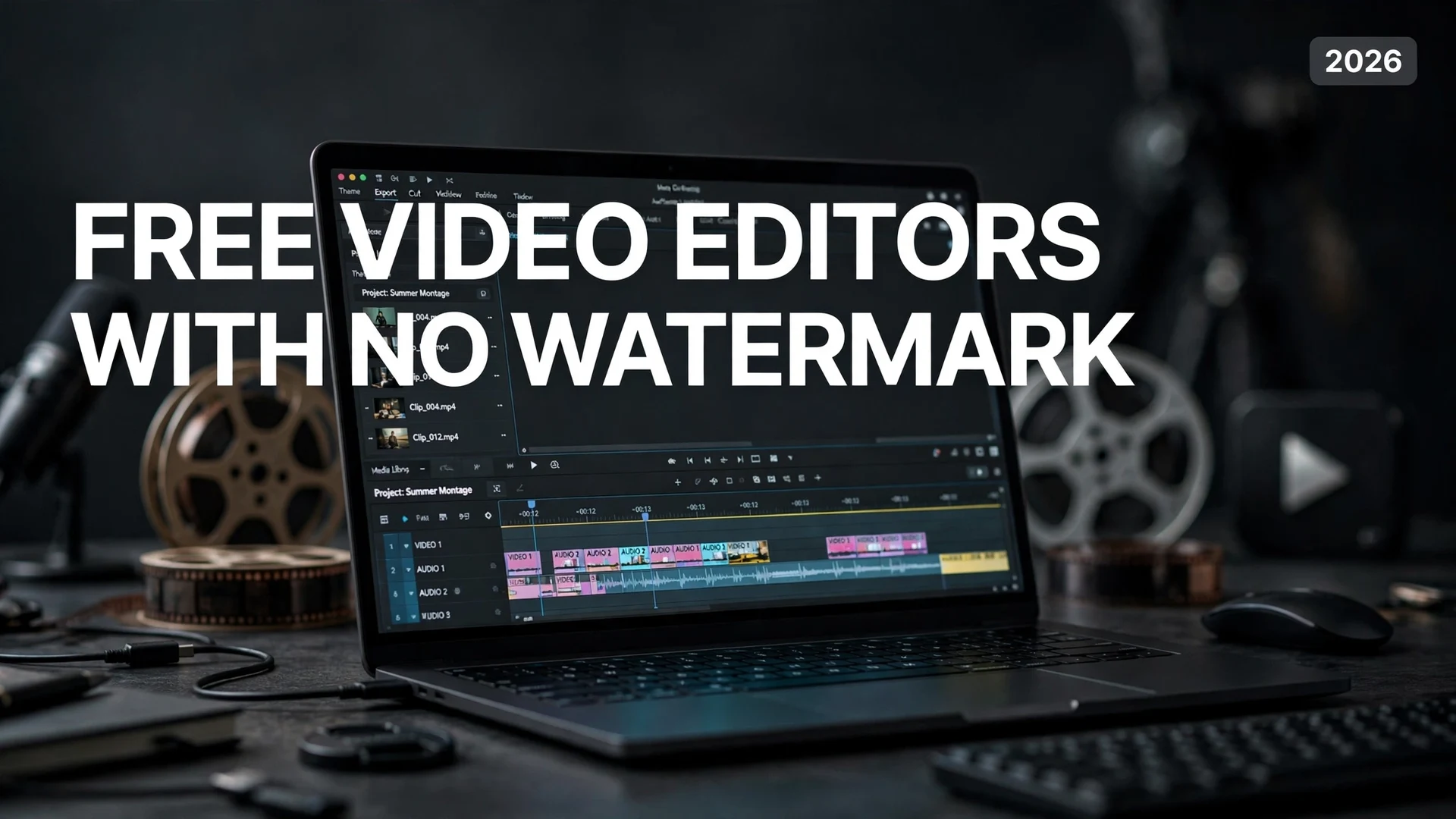
Best Free Video Editing Software With No Watermark in 2026 (Tested)

Quick answer: The best free video editors with no watermark in 2026 are DaVinci Resolve (professional-grade, free 4K exports), CapCut (easiest for short-form and social), Clipchamp (best for beginners — free 1080p exports, already on Windows), Shotcut (best free open-source all-rounder), and OpenShot (easiest for complete beginners). Every one of these exports clean video without paying — the trick is knowing where each hides its real limit.
“Free video editor” usually means one of two traps: a watermark stamped across your export, or a trial that expires right when you finish your project. The five tools below are neither. I checked each free tier’s actual limits in October 2026 against the vendors’ own pages — export resolution, watermark behavior, and the fine print that catches people out. If all you want is a clean video file without paying, start here.
1. DaVinci Resolve — Best Overall Free Video Editor
DaVinci Resolve‘s free version is the most generous deal in all of software, not just video editing. It’s a genuine professional editor — the same tool used to grade Hollywood films — and the free tier exports completely clean video with no watermark and no export cap on project count. Exports go up to 4K UHD at 60fps, and you get the full color-grading page, Fusion visual effects, and the Fairlight audio workstation.
What’s actually free: Everything a YouTuber, freelancer, or hobbyist needs — unlimited projects, multicam editing, keyframing, transitions, and watermark-free exports in H.264, H.265, ProRes, and DNxHR. No trial clock, no subscription, no credit card.
The catch: Two things to know. First, the free version caps exports at 4K UHD — 8K and DCI 4K need Studio. Second, and this is the watermark trap: a few effects are labeled Studio (like Magic Mask, Speed Warp, and advanced noise reduction). If you use one, Resolve stamps a watermark on that export. The fix is simple — remove or replace the Studio effect and re-export. Studio itself is a one-time $295 purchase, never a subscription.
Best for: Anyone willing to climb a learning curve for the best free editor on earth — YouTubers, filmmakers, and editors who outgrow everything else.
2. CapCut — Best for Short-Form and Social Video
CapCut (from ByteDance) is the fastest path from raw footage to a finished TikTok, Reel, or Short. The free desktop version carries the full basic toolkit — multi-track timeline, keyframes, chroma key, speed ramping, filters, free music — and, contrary to what many assume, standard exports from the free plan have no watermark.
What’s actually free: The core editor, free templates and effects, auto-captions (around 10 minutes per video), AI voiceover, and exports up to 1080p on desktop — all without a watermark.
The catch: The watermark trap lives in the asset library, not the editor. Effects, templates, and transitions marked “Pro” add a watermark to your export unless you subscribe. Stick to non-Pro assets and your exports stay clean. If you need 4K export, the full AI toolkit, and 100GB of cloud storage, CapCut Pro is $19.99/month or $179.99/year. Also note the mobile app pushes more paid filters into the free flow — the desktop version is the cleaner free experience.
Best for: Short-form creators, social media managers, and anyone editing vertical video who wants speed over a pro feature list.
3. Clipchamp — Best for Beginners on Windows
Clipchamp is Microsoft’s browser-based editor, and if you’re on Windows 11 it’s effectively already installed. The free personal plan is genuinely generous: unlimited projects and exports up to 1080p with no watermark, plus auto-captions in 80+ languages, text-to-speech voiceovers, silence removal, and a built-in screen and webcam recorder — great for tutorials and training videos.
What’s actually free: Core editing tools, AI subtitles and voiceovers with no monthly quota, screen recording, and unlimited watermark-free 1080p exports.
The catch: Two hard lines. Free exports top out at 1080p — 4K needs Premium ($11.99/month, or free if you already pay for Microsoft 365 Personal/Family). And premium stock assets are the trap: drag a premium clip, track, or effect into your project and Clipchamp blocks the export until you upgrade or remove it. Filter the stock library to free assets and you’ll never hit that wall. Also note it needs an internet connection — there’s no real offline mode.
Best for: Beginners, teachers, and office workers making tutorials, presentations, and simple YouTube videos without installing anything.
4. Shotcut — Best Free Open-Source Editor
Shotcut is the open-source workhorse of free video editing. It’s completely free — no accounts, no tiers, no upsells — and exports never carry a watermark. Because it’s built on FFmpeg, it opens almost any format you throw at it without conversion, and it supports 4K (even 8K) timelines, keyframing, chroma key, and a deep filter set.
What’s actually free: All of it, forever. No watermark, no export limits, no feature paywalls — the software is the product, and the product is free. It runs on Windows, macOS, and Linux.
The catch: The interface shows its age and the learning curve is real — filters aren’t well organized, the layout shifts between modes, and manual track creation slows you down. Large, complex projects can get unstable on weaker machines (proxy editing helps). There’s also no built-in template or stock library, so you bring your own assets.
Best for: Budget-conscious creators who want a capable desktop editor with zero ceiling and zero cost — especially on Linux, where the other options here don’t exist.
5. OpenShot — Easiest for Complete Beginners
OpenShot has the gentlest learning curve of any free video editor. Its drag-and-drop timeline, unlimited tracks, 3D animated titles, and straightforward transitions make it the fastest way for a first-timer to produce a finished, watermark-free video. Like Shotcut, it’s open-source and free with no export restrictions.
What’s actually free: Everything — unlimited layers, keyframe animation, slow-motion and time effects, audio waveform editing, and clean exports with no watermark.
The catch: It’s the least powerful tool on this list. 4K footage can choke on lower-end systems, advanced color and VFX tools are thin, and you’ll outgrow it if you get serious about editing. Think of it as training wheels that actually work — not a long-term home.
Best for: Absolute beginners, students, and anyone who needs a finished video this afternoon with zero learning investment.
Free Video Editors With No Watermark Compared
| Editor | No-watermark free export | The real limit | Best for |
|---|---|---|---|
| DaVinci Resolve | Yes — up to 4K UHD, unlimited projects | Studio-labeled effects watermark exports; 8K and AI tools need the $295 Studio upgrade | Serious editors who want pro tools free |
| CapCut | Yes — up to 1080p with non-Pro assets | “Pro” effects/templates add a watermark; 4K needs Pro ($19.99/mo) | “Short-form and social video creators” |
| Clipchamp | Yes — unlimited 1080p exports | 4K and premium stock need Premium ($11.99/mo, free with Microsoft 365); needs internet | Beginners and tutorial makers on Windows |
| Shotcut | Yes — no resolution or export caps | Dated UI, real learning curve, no stock library | Free-forever open-source editing, incl. Linux |
| OpenShot | Yes — no watermark or export caps | Weakest feature set; 4K struggles on low-end PCs | Complete beginners who need results today |
How to Avoid the Watermark Traps
Three rules keep every export on this list clean. First, respect the labels: in CapCut avoid anything marked “Pro,” in Clipchamp avoid premium stock, and in DaVinci Resolve avoid effects labeled “Studio.” The watermark never comes from the editor itself — it comes from premium assets you accidentally used. Second, export at the free tier’s resolution: don’t fight the 1080p caps on CapCut and Clipchamp if your audience watches on phones anyway; save 4K ambitions for Resolve. Third, beware the fake “free” editors: tools like Filmora’s trial stamp a watermark on every export and only remove it when you pay — that’s a demo, not a free plan, and it doesn’t belong on this list.
If you are torn between the two editors at the top of this list, our head-to-head CapCut vs DaVinci Resolve comparison breaks down price, color grading, captions, and export limits for both, so you can pick the one whose no-cost tier actually fits your videos.
For more ways to cut your software bill, see our tested guides to the best free Microsoft Office alternatives and how to blur your background in Zoom.
FAQs
Yes. DaVinci Resolve’s free version exports completely clean video with no watermark, up to 4K UHD. The only exception: effects labeled “Studio” (like Magic Mask or Speed Warp) add a watermark — remove or replace them and re-export.
CapCut’s free editor doesn’t watermark standard exports — the watermark comes from premium assets. Effects, templates, and transitions marked “Pro” stamp a watermark on export unless you subscribe. Use only non-Pro assets and your exports stay clean.
Yes. Clipchamp’s free personal plan includes unlimited watermark-free exports up to 1080p. You only need Premium ($11.99/month, included with Microsoft 365 Personal/Family) for 4K export, premium stock, and brand kits.
OpenShot — its drag-and-drop timeline is the gentlest start. If you want room to grow, pick Shotcut instead; if you live in a browser and make tutorials, start with Clipchamp.
Yes. All five editors on this list export watermark-free video that is yours to monetize. Two cautions: check the music license on CapCut’s free tracks, and note that YouTube’s Content ID can flag stock music from Clipchamp — those claims are usually disputable.
No. DaVinci Resolve, CapCut, Clipchamp, Shotcut, and OpenShot all offer their free tiers without requiring payment details. You only enter a card if you later choose a paid upgrade.
Final Thought
There has never been a better time to edit video for free. DaVinci Resolve gives away a professional suite, CapCut owns short-form, Clipchamp is already on your Windows PC, and Shotcut and OpenShot ask for nothing at all. Pick based on your ambition, not the marketing: Resolve if you’re serious, CapCut for social, Clipchamp for simplicity, Shotcut for freedom, OpenShot for your very first video. All prices and plan limits above were checked against the vendors’ own pages in October 2026 — confirm on the official pages before you pay for anything, since free tiers change.