How to Take a Scrolling Screenshot on Windows 11 (4 Free Methods)

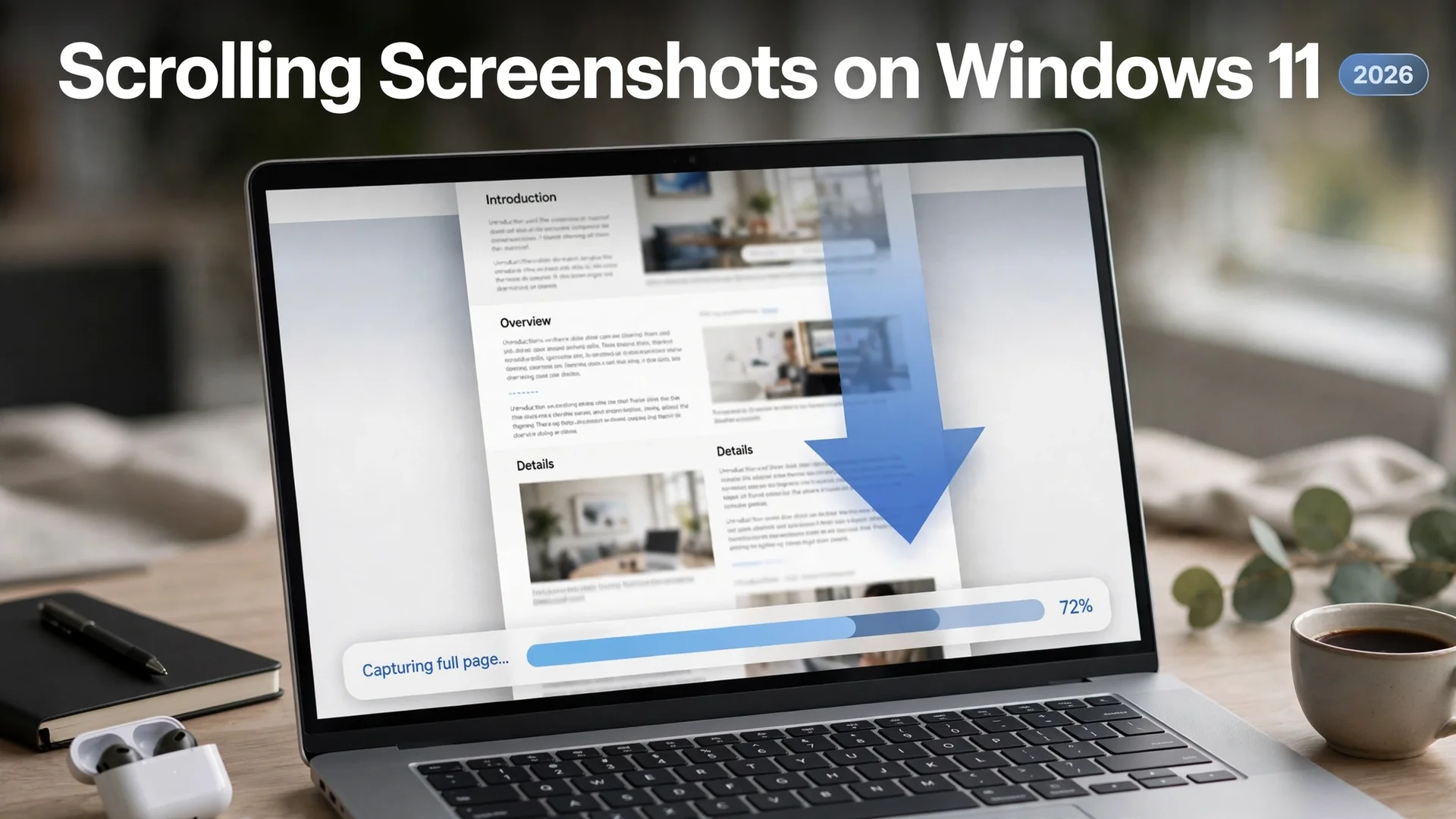
Quick answer: Windows 11’s Snipping Tool can’t capture scrolling windows, but four free tools can. Microsoft Edge (press Ctrl+Shift+S, then “Capture full page”) is the easiest. Chrome’s DevTools (F12, then Ctrl+Shift+P, “Capture full size screenshot”) works in any Chromium browser. Firefox (right-click, “Take Screenshot,” “Save full page”) is the most discoverable. And ShareX (Capture → Scrolling capture) handles anything that isn’t a webpage — long documents, chat histories, and app windows.
You need to save an entire webpage, a long email thread, or a chat conversation as one image — and the Snipping Tool just stares back at you. As of 2026 it still has no scrolling capture, and there’s no sign of one coming. The good news: you probably don’t need to install anything. Three of the four methods below are already on your PC, and the fourth is a free, open-source download. Here’s exactly how to use each one.
Why the Snipping Tool Can’t Do This
The Snipping Tool is great at what it does — rectangle, window, and full-screen grabs, plus screen recording — but it only captures what’s currently visible on screen. It has no mechanism to scroll a window and stitch the pieces together. Every method below works around that limitation in a different way, so pick based on what you’re capturing.
Method 1: Microsoft Edge Web Capture (Easiest)
If you use Microsoft Edge, this is the fastest option — it’s built in, needs no setup, and even lets you draw on the result.
Steps:
1. Open the webpage in Microsoft Edge and let it load fully.
2. Press Ctrl + Shift + S (or click the three-dot menu and choose “Screenshot,” then “Capture full page” in newer Edge versions).
3. Select “Capture full page” from the Web capture bar.
4. Edge renders the whole page and opens it in a preview tab. Use the pen tool to annotate if you want — there’s also an eraser.
5. Click Save (or the share/copy buttons) to download the PNG.
Watch out for: Web Capture only works on webpages inside Edge. Like every browser method, it can struggle with very long pages and lazy-loaded images — scroll through the page once before capturing so everything loads.
Best for: One-off full-page captures when you’re already in Edge — documentation, receipts, articles.
Method 2: Chrome DevTools Full-Page Screenshot (Most Powerful)
Chrome has no menu item for this, which is why almost nobody knows it exists. But buried in DevTools is the most reliable full-page capture of any browser — and it works in Edge and other Chromium browsers too.
Steps:
1. Open the page in Chrome and let it finish loading.
2. Press F12 (or Ctrl + Shift + I) to open DevTools. You can dock it anywhere — it won’t appear in the shot.
3. Press Ctrl + Shift + P to open the Command Menu.
4. Type “screenshot” and select “Capture full size screenshot.”
5. Chrome renders the entire page at full resolution and drops a PNG into your Downloads folder.
Watch out for: Pages with sticky headers can smear or repeat the header down the image, and pages longer than about 32,767 pixels hit Chrome’s canvas limit and come out truncated — split very long pages or use ShareX instead. Lazy-loaded images may appear blank unless you scroll through the page first.
Best for: High-resolution, pixel-perfect captures for documentation and design reviews — no install, nothing uploaded anywhere.
Method 3: Firefox Full-Page Screenshot (Most Discoverable)
Firefox puts its screenshot tool right in the context menu, making it the easiest of the three browser methods to actually find.
Steps:
1. Open the page in Firefox and let it load.
2. Right-click anywhere on the page and choose “Take Screenshot.”
3. Click “Save full page” in the overlay toolbar.
4. Firefox shows a preview — click Download to save the PNG, or Copy to put it on your clipboard.
Watch out for: Same caveats as the other browsers — very long pages and lazy-loaded content. Firefox at least warns you when a page is too long to capture cleanly, which is more honest than Chrome’s silent truncation.
Best for: Firefox users who want the feature in two clicks with no keyboard shortcuts to memorize.
Method 4: ShareX Scrolling Capture (For Apps and Documents)
Browser tools only work inside the browser. For a scrolling window anywhere else — a long Word document, an email thread, a chat history, a settings panel — you need a dedicated tool. ShareX is free, open-source, has no ads, and its Scrolling capture is the best in its class.
Steps:
1. Download and install ShareX from getsharex.com (it’s also in the Microsoft Store).
2. Right-click the ShareX icon in the system tray.
3. Go to Capture → Scrolling capture.
4. Click the window or scrollable area you want to capture.
5. In the Scrolling capture dialog, the defaults work for most apps — click “Start scrolling capture.”
6. ShareX auto-scrolls, captures each section, and stitches them into one image. Review it in the preview dialog, then save (default folder: Documents\ShareX\Screenshots).
Pro tip: If you do this often, assign a hotkey: open ShareX → Hotkey settings → Add → Screen capture → Scrolling capture, then press your preferred shortcut. One keypress from then on.
Watch out for: ShareX is a power tool with an overwhelming settings list — ignore everything except the capture menu. Scrolling capture can also stumble on apps with custom scrollbars or virtualized lists; keep the capture region tight for best results.
Best for: Anything that isn’t a webpage — documents, chats, app windows, and long lists.
Which Method Should You Use?
| Method | Works on | Cost / install | Watch out |
|---|---|---|---|
| Edge Web Capture | Webpages in Edge | Free, built in | Edge only; basic pen annotation |
| Chrome DevTools | Webpages in any Chromium browser | Free, built in | Hidden in menus; very long pages truncate; sticky headers can smear |
| Firefox screenshot | Webpages in Firefox | Free, built in | Firefox only; warns on very long pages |
| ShareX | Any scrolling window or app | Free, open-source download | Overwhelming settings; custom scrollbars can fail |
Common Problems and Quick Fixes
Blank sections in the screenshot: That’s lazy loading — images that only load when scrolled into view. Scroll slowly through the whole page once before capturing, then take the screenshot.
Image is cut off or blank at the bottom: You’ve hit the browser’s canvas size limit (around 32,767 pixels tall in Chrome). Capture the page in two halves, or switch to ShareX.
Repeated header smeared down the page: Sticky navigation bars confuse full-page rendering. Nothing to fix in-browser — crop the repeats out afterward, or use ShareX.
It’s a PDF, not a webpage: Browser full-page tools don’t work on the built-in PDF viewer. Just save or download the PDF itself — or print it to PDF with Ctrl+P if you need a fresh copy.
For more free software guides, see our tested roundups of the best free Microsoft Office alternatives and how to blur your background in Zoom.
FAQs
No. As of 2026 the Snipping Tool still has no scrolling capture — it only grabs what’s visible on screen. Use Edge Web Capture, Chrome DevTools, Firefox’s screenshot tool, or ShareX instead.
In Edge, press Ctrl+Shift+S and choose “Capture full page.” In Firefox, right-click the page, choose “Take Screenshot,” then “Save full page.” Both are built in and free.
Press F12 to open DevTools, then Ctrl+Shift+P to open the Command Menu, type “screenshot,” and select “Capture full size screenshot.” Chrome saves a full-page PNG to your Downloads folder.
Two likely causes: lazy-loaded images (scroll through the page once before capturing so everything loads) or the page exceeding the browser’s canvas limit of about 32,767 pixels — split very long pages or use ShareX.
Use ShareX: install it free, then Capture → Scrolling capture, and click the window. It auto-scrolls documents, chat histories, and app windows and stitches them into one image.
Browser tools export PNG only. To get a PDF, press Ctrl+P on the page and choose “Save as PDF” — or capture with ShareX or an extension like FireShot that offers PDF export.
Final Thought
The Snipping Tool’s missing scrolling capture has annoyed Windows users for years, but the workaround is already on your PC: Edge’s Web Capture for the quick jobs, Chrome’s DevTools when you need pixel-perfect quality, Firefox when you want it in two clicks — and ShareX for everything that isn’t a webpage. Learn one browser method and keep ShareX installed, and you’ll never stitch screenshots together by hand again. Steps above were verified against current browser behavior in October 2026.