How to Set Out of Office in Outlook (2026): New, Classic, Web & Mac

Quick answer: The path depends on your Outlook version. New Outlook (Windows): View tab > View settings > Accounts > Automatic Replies. Classic Outlook (Windows): File > Automatic Replies. Outlook on the web: Settings gear > Accounts > Automatic replies. Mac: Tools > Automatic Replies. Toggle on, set your dates, write separate inside/outside messages, save. Steps verified against Microsoft’s official support docs as of October 2026.
Setting an out-of-office reply in Outlook should take 60 seconds — but Microsoft now ships four different Outlooks, and the setting lives in a different place in each one. Worse, the feature silently doesn’t exist for some account types. This guide covers all four versions, the account limitation nobody warns you about, and the workaround when the button isn’t there.
Before You Start: The Account-Type Catch
Automatic replies only work with Exchange, Microsoft 365, and Outlook.com accounts — the reply is handled by the mail server, so it works even when your computer is off. If you connected a Gmail, Yahoo, or other POP/IMAP account to Outlook, the Automatic Replies option won’t appear at all. That’s not a bug; Microsoft doesn’t support server-side replies for those account types. The workaround is at the bottom of this guide.
How to Set Out of Office in Each Outlook Version
New Outlook for Windows
Microsoft is migrating everyone to the “New Outlook,” where the setting moved into the settings panel:
1. Open New Outlook and select the View tab.
2. Select View settings.
3. Go to Accounts > Automatic Replies.
4. Turn the Automatic replies toggle on.
5. Check Send replies only during a time period and enter your start and end times.
6. Write your message. For work/school accounts you can set Send replies outside your organization — Microsoft recommends Send replies only to contacts for externals, since “outside your organization” replies to every email including newsletters and junk.
7. Select Save.
If these steps don’t match what you see, you’re probably still on Classic Outlook — use the next section.
Classic Outlook for Windows
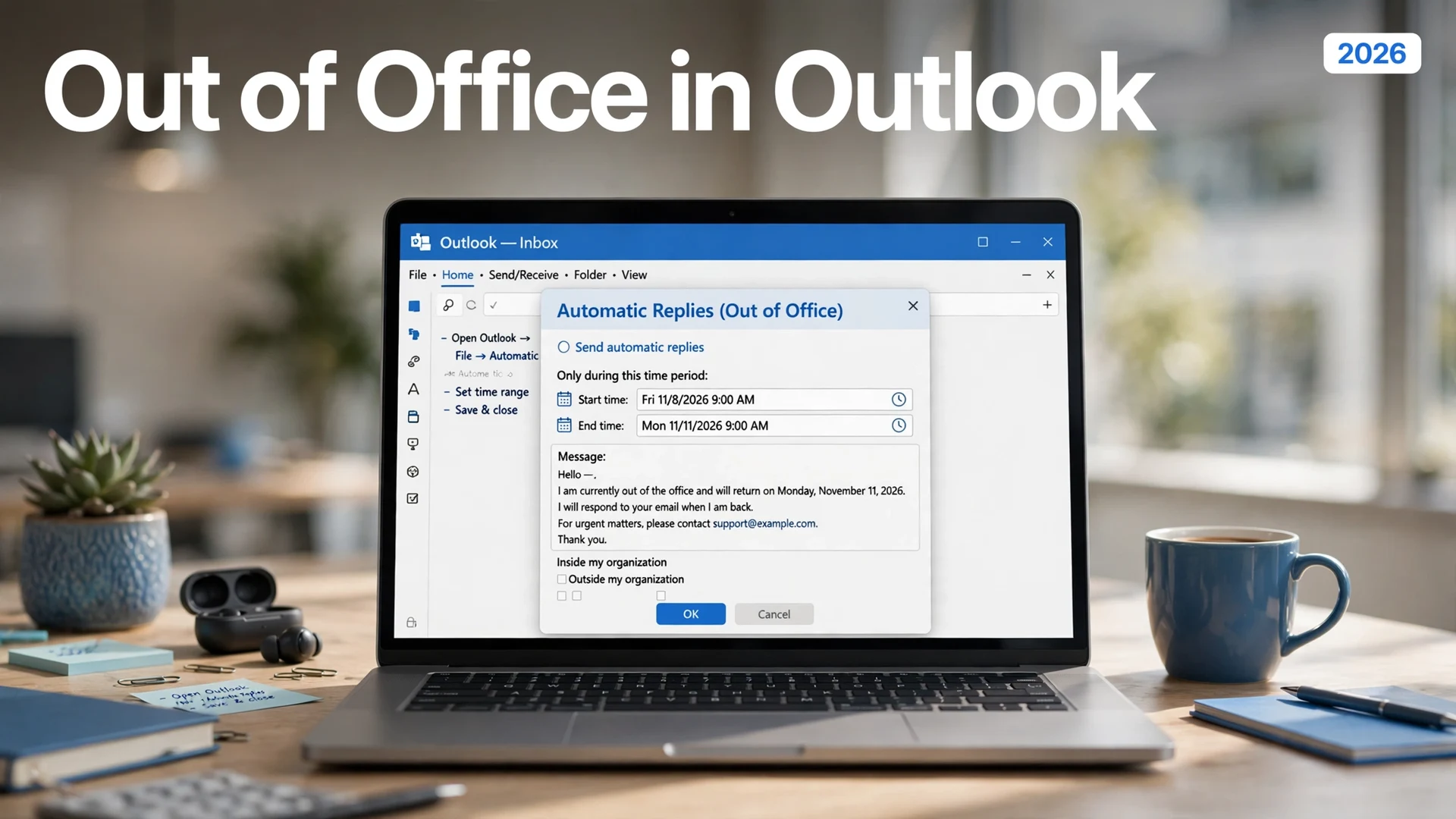
1. Select File > Automatic Replies.
2. Choose Send automatic replies.
3. Check Only send during this time range and set your start and end.
4. Write your Inside My Organization message on the first tab.
5. Switch to the Outside My Organization tab, check it on, and write a shorter, more formal message.
6. Click OK.
Classic Outlook shows a notice bar under the ribbon while replies are active, giving you a quick way to turn them off early.
Outlook on the Web
The web version is the universal fallback — it works from any computer and sets the same server-side reply as the desktop apps:
1. Sign in at outlook.office.com (work/school) or outlook.live.com (personal).
2. Click the Settings gear in the top-right corner.
3. Select Accounts > Automatic replies.
4. Turn on Automatic replies.
5. Optionally check Send replies only during a time period, Block my calendar for this period, and Automatically decline new invitations.
6. Write your inside-organization message; enable and write the outside-organization message if needed.
7. Click Save.
Outlook for Mac
1. Select Tools > Automatic Replies.
2. Turn on Send automatic replies.
3. Check Send replies only during this time period and set start/end.
4. Write separate messages for inside and outside your organization; for externals choose Send to all external senders or Send only to my contacts.
5. Click OK.
If the Automatic Replies option is missing on Mac, your account type is almost certainly the cause (see the POP/IMAP note above) — use Outlook on the web instead. See also Microsoft’s official Mac guide. For more email automation, see our guide on scheduling emails in Gmail.
| Version | Path to Automatic Replies | Notes |
|---|---|---|
| New Outlook (Windows) | View > View settings > Accounts > Automatic Replies | Microsoft’s current default; settings-panel UI |
| Classic Outlook (Windows) | File > Automatic Replies | Ribbon notice bar while active |
| Outlook on the web | Settings gear > Accounts > Automatic replies | Works from any browser; same server-side reply |
| Outlook for Mac | Tools > Automatic Replies | Select Mail in the navigation pane first |
| Outlook mobile | Profile icon > Settings > account > Automatic Replies | iPhone and Android; Exchange/M365/Outlook.com only |
What to Write (and What to Leave Out)
A good out-of-office message has four things: the dates you’re away, when you’ll actually reply, an urgent-contact name (with their permission), and whether you’ll check email at all. It must not contain travel itineraries, personal phone numbers, or internal project details — especially in the outside-organization message, which goes to strangers. Keep the external version shorter and more formal than the internal one.
The POP/IMAP Workaround (When Automatic Replies Don’t Exist)
If your account is Gmail or Yahoo connected via POP/IMAP, build the reply as a rule instead: create a rule that replies to incoming mail with a template message. Two warnings: rule-based replies can respond to newsletters and automated mail you’d rather ignore, and they only fire while Outlook is running on your computer. For a vacation of more than a day or two, set the vacation responder in the provider’s own settings (Gmail’s is under Settings > General) instead — it runs server-side like a proper out-of-office.
FAQs
New Outlook (Windows): View > View settings > Accounts > Automatic Replies. Classic Outlook (Windows): File > Automatic Replies. Outlook on the web: Settings gear > Accounts > Automatic replies. Mac: Tools > Automatic Replies. Toggle on, set dates, write your message, save.
Yes — set a start and end time via ‘Send replies only during a time period’ (or ‘Only send during this time range’ in Classic). Outlook sends replies during that window and stops automatically at the end time.
No. Automatic replies are only supported for Exchange, Microsoft 365, and Outlook.com accounts. For Gmail or Yahoo connected via POP/IMAP, use an Outlook rule as a workaround — or better, the provider’s own vacation responder, which runs server-side.
Yes. Outlook supports separate inside-organization and outside-organization messages. Keep the external one shorter and more formal, and use ‘Send replies only to contacts’ for externals to avoid replying to newsletters and junk mail.
Include your away dates, when you’ll reply, an urgent contact (with their permission), and whether you’ll check email. Leave out travel plans, personal phone numbers, and internal project details — especially in the external message.
Yes. In the Outlook mobile app, tap your profile icon > Settings > your mail account > Automatic Replies. This works on iPhone and Android with Exchange, Microsoft 365, or Outlook.com accounts.
Final Thought
The 60-second version: open Automatic Replies for your Outlook version, set a time period so it turns itself off, write a short internal message and an even shorter external one, and save. And the one thing to check before you leave: send yourself a test email from another account and confirm the reply arrives. The out-of-office you never tested is the one that wasn’t on.